Queue Settings
Overview
This spacescreen is for creating and configuring basic settings for new Queues. There are a handful of required settings,settings as well asand a larger group of Additional Settings that may be required depending on what your organization is trying to achieve on a per-Queuequeue basis.
Adding a Queue
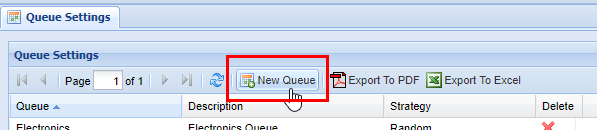
2)
| Field |
Type |
Description |
|
| Required | Queue | Field | Name of Queue |
| Description | Field | Description of Queue | |
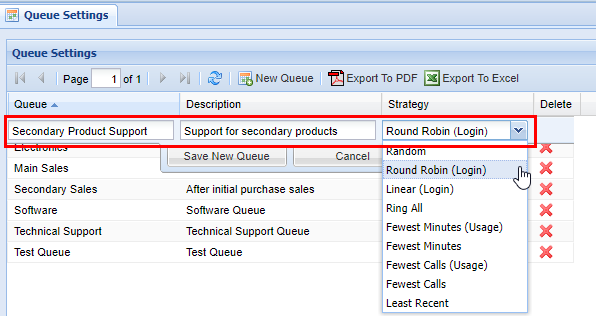
| Strategy | List | How Queue behaves when it calls available Agents (see below) |

Next choose a Queue name, Description, and Strategy.
| Strategy | Description |
| Calls agent in a true random fashion. | |
| Round Robin (Login) | Calls Agent in a circular order based on login time. |
| Linear (Login) | Calls are based on who has logged in first. |
| Ring All | Calls all available agents (not currently on a call). |
| Fewest Minutes (Usage) | Calls agent with the fewest minutes of talk time for queue calls with respect to the rest of the agent team’s login time. |
| Fewest Minutes | Calls the first available agent with the |
| Fewest Calls (Usage) | Uses the same logic as Fewest Minutes Usage except uses total queue calls as the basis. |
| Fewest Calls | Will call the first available agent with the fewest number of calls (only queue calls are counted). |
| Last Recent | Will call the agent who has not gotten a queue call for the longest (does not factor in other activity). |
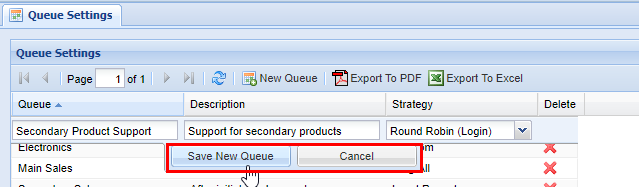
Lastly3) Lastly, click the Save New Queue button to save. After you click save you will see a message stating Changes Saved.

Additional CallQueue Settings
There are additional settings to consider when configuring a new Queue. These settings are located on the right side of the Queue Settings screen and are as follow;follows.
| Name |
Value |
| Queue Timeout |
Maximum time a caller can wait in this queue. |
| Agent Timeout |
How long to ring an agent before trying the next. |
| Wrap Up Time |
How long to pause calls to an agent after a call. |
| Agent Auto Logout | Yes/No: Defines whether or not an agent is automatically logged out if they do not pickup |
| Join Empty | Yes/No: Defines whether or not a caller can enter an empty queue (no agents) |
| Leave Empty | Yes/No: Defines if a caller shall leave a queue if it becomes empty. |
| Goto Voicemail on Timeout | Defines where caller is sent if the queue times out (if this is set above) |
| Goto Voicemail on Empty | Defines where caller is sent if the queue has not available agents |
| Goto Voicemail DTMF Context | Allows a caller to exit a queue and be sent to voicemail by digit entry on phone |
| Goto Elsewhere on Timeout | Defines where the caller goes if they timeout, if not a voicemail. |
| Goto Elsewhere on Empty | Defines where the caller goes if their are no agents available in the queue , if not a voicemail. |
| Goto Elsewhere on DTMF Context | Defines a different destination that caller will be sent to if they digit press on their phone. |
| Goto Elsewhere on NightMode | Sends the caller elsewhere if the queue in question is in night mode. See DayNight Schedule and Agent Assignments for additional information. |
After you make changes in the Additional CallQueue Settings click the Save button at the bottom. You will see a message stating Changes Saved.

DeletingRemoving a Queue
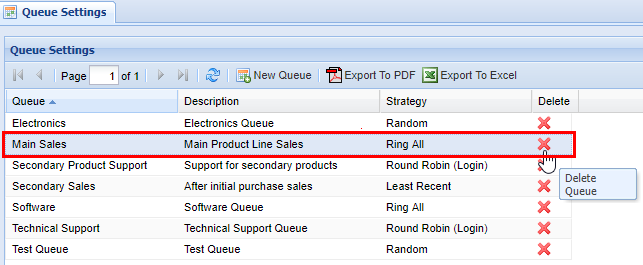
2) Find the Queue you wish to delete, highlight it by clicking on it, thethen click on the red X in the Delete column.
3) A confirmation pop pop-up will appear confirming your selection. If you wish to delete clickClick OKOK. , youYou will see a message stating Changes Saved, if this is not the entry to wish to delete click Cancel, to return to the screen..