# PhoneMap Groups
# Overview
A **PhoneMap Group** is a one to one mapping from one destination to another. There can be multiple **[PhoneMap Group Members](https://public.intellasoft.net/books/web-portal-dL9/page/phone-map-members)**, but only one should be active at all times.
- [Adding a New PhoneMap Group](#bkmrk-adding-a-new-phonema)
- [Deleting a PhoneMap Group](#bkmrk-deleting-a-phonemap-)
# Adding a New PhoneMap Group
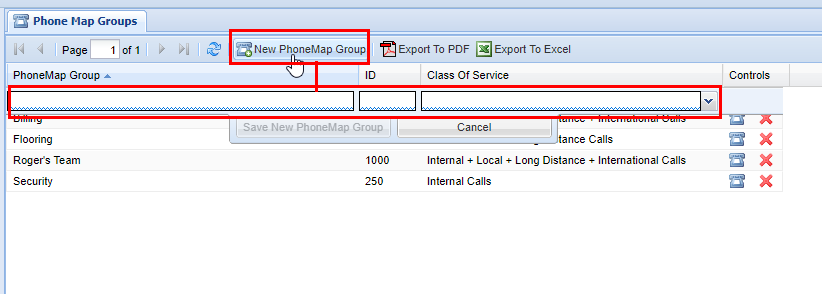
Start by navigating to the **Phone Map Groups** screen via the **Navigation Panel**. Click the **New PhoneMap Group** button, a row editor will appear with several options.
[](https://public.intellasoft.net/uploads/images/gallery/2024-07/QuUimage.png)

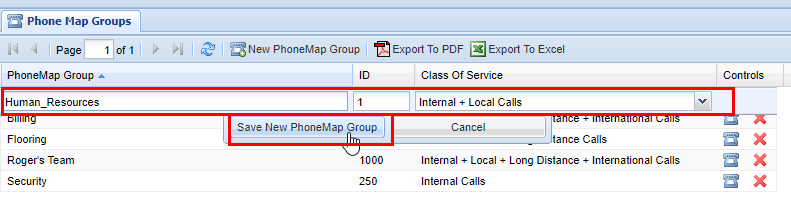
Enter a **PhoneMap Group Name,** and **PhoneMap Group ID**, these are up to preference but should be based on your organization's need. The **ID** must be a **\[Token\]**. Lastly select an appropriate **Class of Service** for the **PhoneMap Group**. When you are finished click **Save New PhoneMap Group** to save the **PhoneMap Group**, otherwise click Cancel. After you have saved you will see a message stating **Changes Saved.**
[](https://public.intellasoft.net/uploads/images/gallery/2024-07/2bTimage.png)

# Deleting a PhoneMap Group
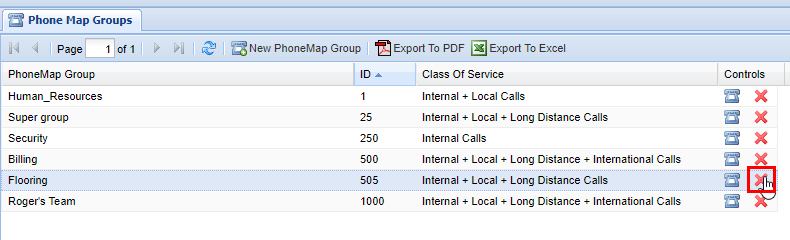
Start by navigating to the **Phone Map Groups** screen via the **Navigation Panel**. Find the **Phone Map Group** you wish to delete, then click on the **red X** in the **Controls** column. A confirmation pop up will appear confirming your selection. If you wish to delete click **OK**, you will see a message stating **Changes Saved**, if this is not the entry to wish to delete click **Cancel,** to return to the screen.
It is important to remember that when you delete a **PhoneMap Group** that any of the mappings that fall under the **PhoneMap Groups** will also be removed. Always double check the mappings to ensure that no phones that are critical to active phone system will be removed. If in doubt, contact your system administrator. For more information on **PhoneMap Group Mappings and Members** [click here](https://public.intellasoft.net/books/web-portal-dL9/page/phone-map-members).
[](https://public.intellasoft.net/uploads/images/gallery/2024-07/htrimage.png)
