# Inbound CallerID Remap

# Overview

**Inbound CallerID Remap** allows you to set the **Caller ID** of external calls on a number-by-number basis. This is useful for phone numbers that don't have caller ID associated with them, that may frequently call into your organization.

<p class="callout info">It is not possible to use this feature to differentiate between people who call from hidden, private, or unavailable numbers. (However, if you wish to block calls from such numbers it is possible to do so. Contact your System Administrator for assistance.)</p>

<div class="wiki-content" id="bkmrk-1overview-2adding-a-"><div class="contentLayout2"><div class="columnLayout single" data-layout="single"><div class="cell normal" data-type="normal"><div class="innerCell"><div class="panel conf-macro output-block" data-hasbody="true" data-macro-name="panel" style="border-width: 1px;"><div class="panelContent"><div class="toc-macro client-side-toc-macro conf-macro output-block" data-csslistindent="15px" data-hasbody="false" data-headerelements="H1,H2" data-macro-name="toc" data-numberedoutline="true">- <span class="toc-item-body" data-outline="2">[Adding a New Remap](#bkmrk-adding-a-new-remap)</span>
- [<span class="toc-item-body" data-outline="3">Removing a Remap</span>](#bkmrk-removing-a%C2%A0inbound-c)

</div></div></div></div></div></div></div></div>## Adding a New Remap

1\) Navigate to the **Inbound CallerID Remap** screen.

2\) Click the button labeled **New Remap.**

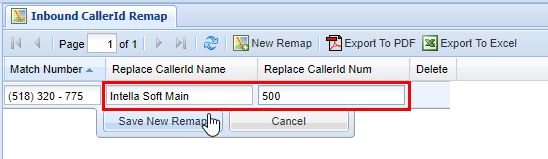
3\) Enter the **Match Number** you wish to remap. This is the inbound number that will be remapped to a new name and/or phone number.

[![image.png](https://public.intellasoft.net/uploads/images/gallery/2024-07/scaled-1680-/BI3image.png)](https://public.intellasoft.net/uploads/images/gallery/2024-07/BI3image.png)

4\) Next enter the **Replace CallerId Name** associated with the **Match Number**. This is the name that will show up in your organization's **Caller ID** when it matches an inbound number that is calling.

5\) Additionally, you may also replace the inbound number to show something different in the **Replace CallerId Num.**

<p class="callout info">You can use a custom name (**Replace CallerID** **Name**), custom number (**Replace CallerID Num)**, or both.</p>

6\) After you are satisfied with what you have entered, click **Save** to save the **New Remap**. After you **Save** you will see a message stating **Changes Saved.**

[![image.png](https://public.intellasoft.net/uploads/images/gallery/2024-07/scaled-1680-/l7vimage.png)](https://public.intellasoft.net/uploads/images/gallery/2024-07/l7vimage.png)
## Removing a Remap

1\) Navigate to the **Inbound CallerID Remap** screen via the **Navigation Panel.**

2\) Select the **Remap** you wish to delete

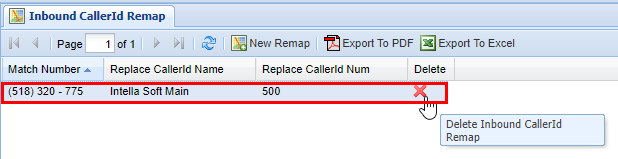
3\) Then click on the **Red X** in the **Delete** column.

4\) A confirmation pop-up will appear confirming your selection. If you wish to delete, click **OK.** You will see a message stating **Changes Saved.** If this is not the entry to wish to delete, click **Cancel**.

[![image.png](https://public.intellasoft.net/uploads/images/gallery/2024-07/scaled-1680-/TwFimage.png)](https://public.intellasoft.net/uploads/images/gallery/2024-07/TwFimage.png)