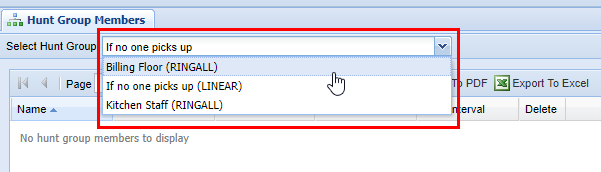
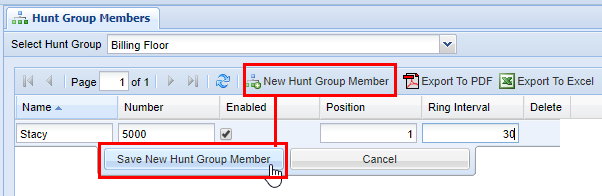
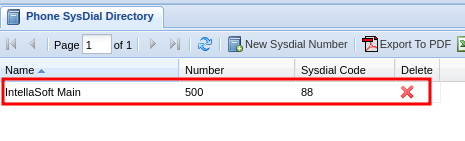
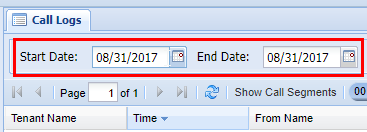
# Web Portal

# Getting Started

The web portal is the core of the Intellasoft Platform. It is the central place for configuring everything from users to schedules to extensions.

## Table of Contents  


This documentation is split up into 3 main parts: Tutorials, How-To Guides, and Reference. Start by following a few tutorials to become familiar with the basics. Below is a table of contents.

- [Conceptual Overview](https://public.intellasoft.net/books/web-portal-dL9/page/conceptual-overview)
- Tutorials 
    - [How to add a New User](https://public.intellasoft.net/books/web-portal-dL9/page/users#bkmrk-adding-a-new-user)
    - [How to add a New Phone](https://public.intellasoft.net/link/93#bkmrk-adding-and-configuri)
- How to Guides  
    
    - Reference 
        - [Users](https://public.intellasoft.net/books/web-portal-dL9/page/users)
        - [Departments](https://public.intellasoft.net/books/web-portal-dL9/page/departments)
        - [Extensions](https://public.intellasoft.net/books/web-portal-dL9/page/overview-mCh)
        - [DayNight Groups](https://public.intellasoft.net/books/web-portal-dL9/page/daynight-groups)
        - [DayNight Schedules](https://public.intellasoft.net/books/web-portal-dL9/page/daynight-schedule)
        - [Hunt Groups](https://public.intellasoft.net/books/web-portal-dL9/page/hunt-groups)
        - [Hunt Group members](https://public.intellasoft.net/books/web-portal-dL9/page/hunt-group-members)
        - [Inbound CallerID Remap](https://public.intellasoft.net/books/web-portal-dL9/page/inbound-callerid-remap)
        - [Phone SysDial Directory](https://public.intellasoft.net/books/web-portal-dL9/page/phone-sysdial-directory)
        - [PhoneMap Groups](https://public.intellasoft.net/books/web-portal-dL9/page/phonemap-groups)
        - [PhoneMap Members](https://public.intellasoft.net/books/web-portal-dL9/page/phone-map-members)
        - [Voicemail](https://public.intellasoft.net/books/web-portal-dL9/page/voicemail)
        - [Call Logs](https://public.intellasoft.net/books/web-portal-dL9/page/call-logs)
    -

## Next Steps

[Conceptual Overview](https://public.intellasoft.net/books/web-portal-dL9/page/conceptual-overview)

# Conceptual Overview

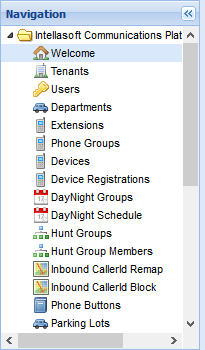
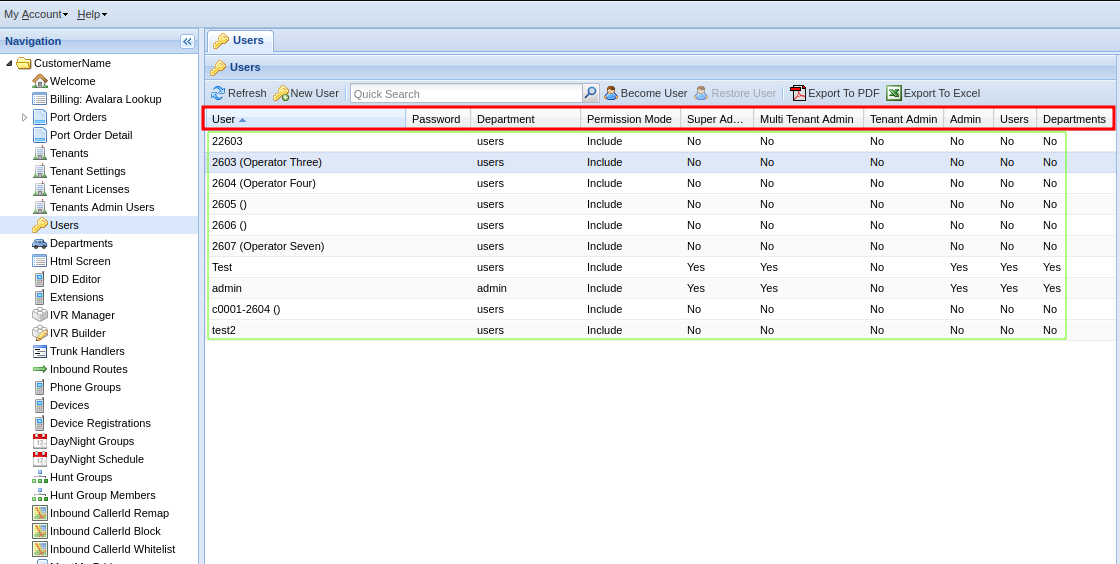
The web portal is divided into **screens** (selected from the navigation panel on the left). Each **screen** often contains a table of entries. For example, the **Users** screen contains a table of users. The **columns** along the top correspond to each configuration option and the **rows correspond to each user.

[![getting-started1.png](https://public.intellasoft.net/uploads/images/gallery/2024-08/scaled-1680-/getting-started1.png)](https://public.intellasoft.net/uploads/images/gallery/2024-08/getting-started1.png)
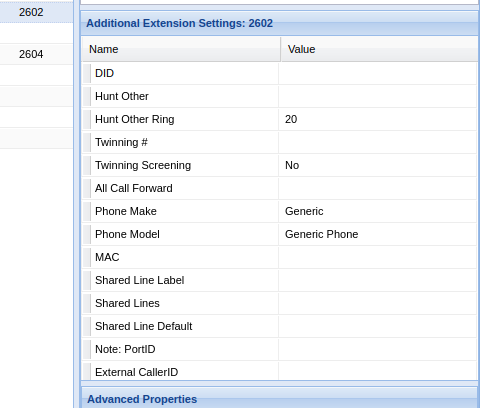
A screen can also contain other sections, sometimes used for additional configuration options or other times to display additional information. As an example, the **extensions** screen has an "additional settings" panel on the left with more options that do not fit in the table.

[![getting-started2.png](https://public.intellasoft.net/uploads/images/gallery/2024-08/scaled-1680-/getting-started2.png)](https://public.intellasoft.net/uploads/images/gallery/2024-08/getting-started2.png)
### Basic Configuration 

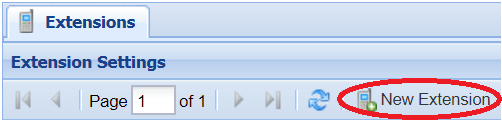
To modify any table, click the "new \[entry name\]" button at the top or modify an existing entry by double-clicking the entry.

[![getting-started3.png](https://public.intellasoft.net/uploads/images/gallery/2024-08/ciUgetting-started3.png)](https://public.intellasoft.net/uploads/images/gallery/2024-08/getting-started3.png)
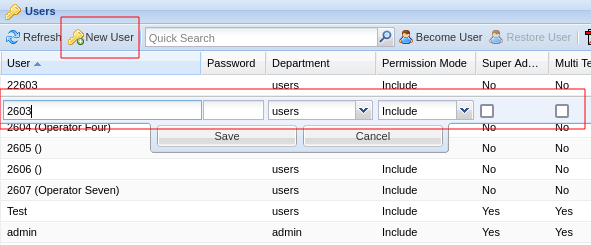
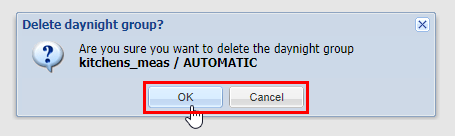
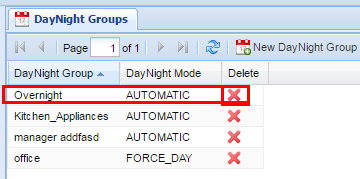
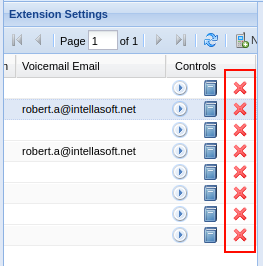
To delete an entry, look for a red X (often in the far right column) and click it. A dialog will pop up confirming that you wish to delete. Click Ok to delete.

[![getting-started4.png](https://public.intellasoft.net/uploads/images/gallery/2024-08/scaled-1680-/getting-started4.png)](https://public.intellasoft.net/uploads/images/gallery/2024-08/getting-started4.png)
## Next Steps

[Set up a new user](https://public.intellasoft.net/books/web-portal-dL9/page/creating-your-first-user)

# Tutorials

# E911 Setup Guide

This guide will show you start to finish how to set up per-location E911.

<p class="callout info">  
There is a $1.50 per month charge to activate E911 on a DID Phone Number. There is no charge to make address updates.  
  
</p>

<p class="callout warning">Note: Do NOT test Emergency Dialing by dialing 911. State or City imposed fines may be applied to businesses dialing Emergency Services without a real emergency.  
</p>

<p class="callout success">Use 933 to test Emergency Services dialing.  
</p>

<p class="callout warning">Dialing 911 Without a correct 'E911 Address' associated will result in a non-refundable **$250.00** carrier-imposed fine to your account.  
</p>

<p class="callout success">Testing with 933 will not cause any financial liability for incorrect details.</p>

  
E911 Emergency Services dialing works like this:

- DID / PhoneNumber - Is associated to an address at the Carrier
- PhoneGroup - Associate the E911 DID to this number
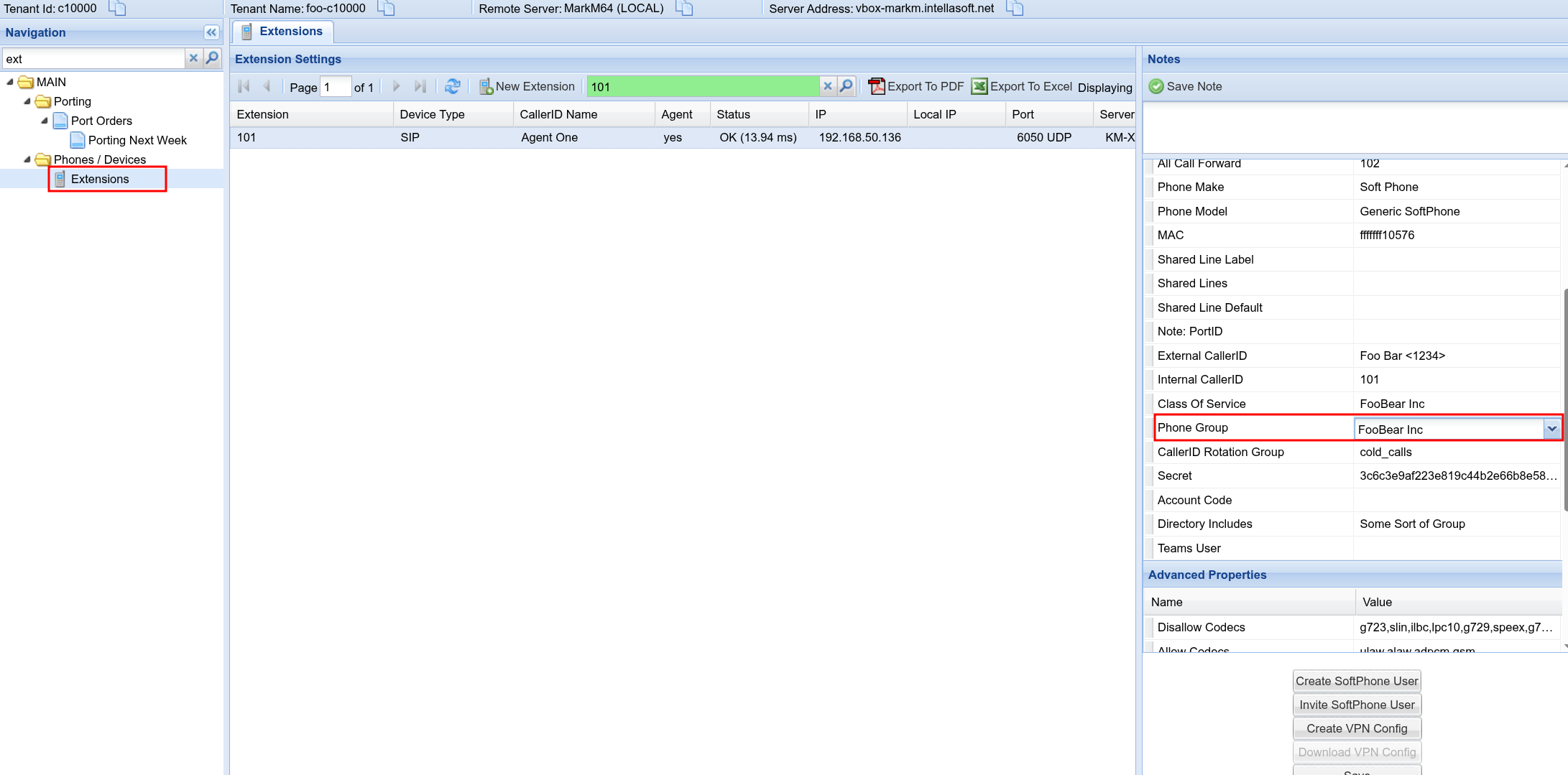
- Extension - Associate the Extension to the correct PhoneGroup that maps to the E911 DID

When an extension places an **Emergency Call** or **Test Emergency Call** call the system will

1. Locate the PhoneGroup for the Extension
2. Select the associated E911 DID for the call
3. Ignoring the standard CallerID set for the PhoneGroup, the system will instead select the E911 DID for the CallerID
4. The outgoing call to Emergency Services will Automatically send the previously registered address to the dispatcher

<p class="callout info">It's important to keep your address current/correct using the '**DID Editor**' and selecting '**E911 Address**'. If the facility you are managing has moved, or a remote user has a new work location, ensure to keep the address details updated, otherwise this will **seriously delay** receiving emergency services to your location because the dispatcher will have to transfer the call to the correct regional office.  
</p>

#####   
Step 1 - Set The E911 Address for the DID  


[![2026-02-04_21-25.png](https://doc.intellasoft.net/uploads/images/gallery/2026-02/scaled-1680-/2026-02-04-21-25.png)](https://doc.intellasoft.net/uploads/images/gallery/2026-02/2026-02-04-21-25.png)
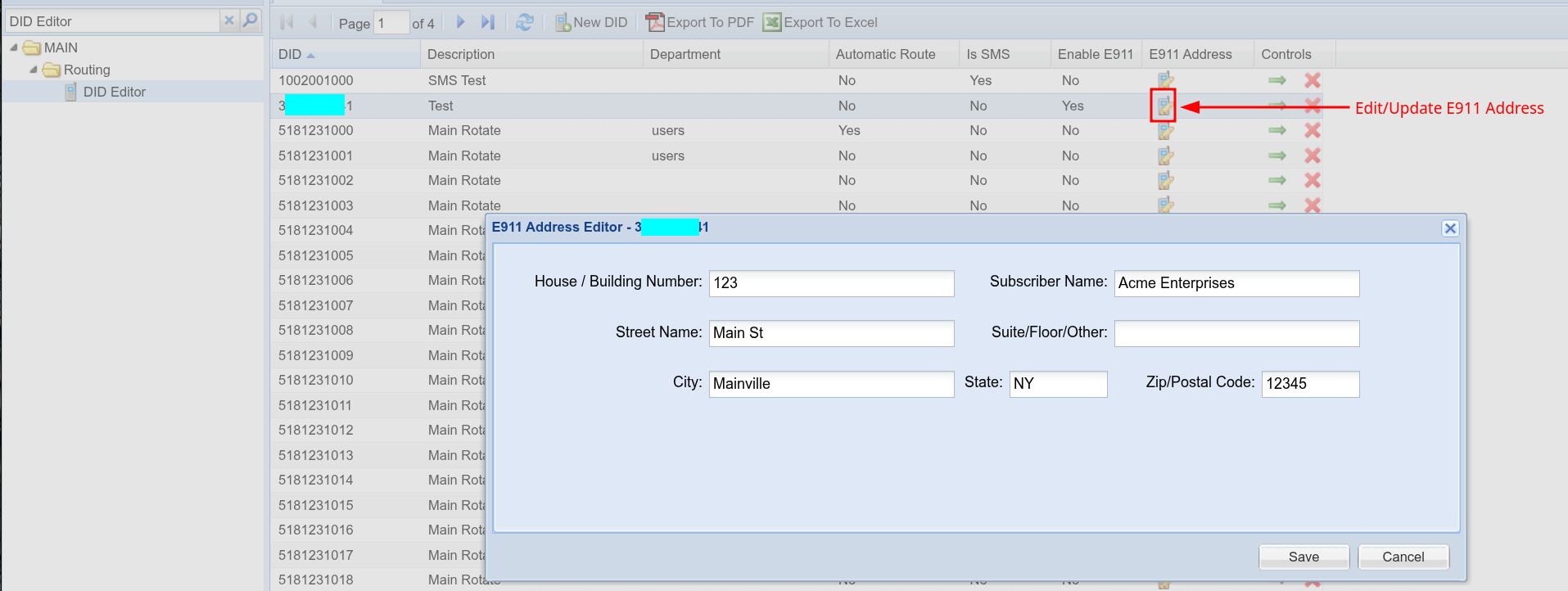
<p class="callout success">It's a good idea to set the main grid row **Description** to notate which address is being used, it makes it easier to locate this DID in **Step 2**</p>

  
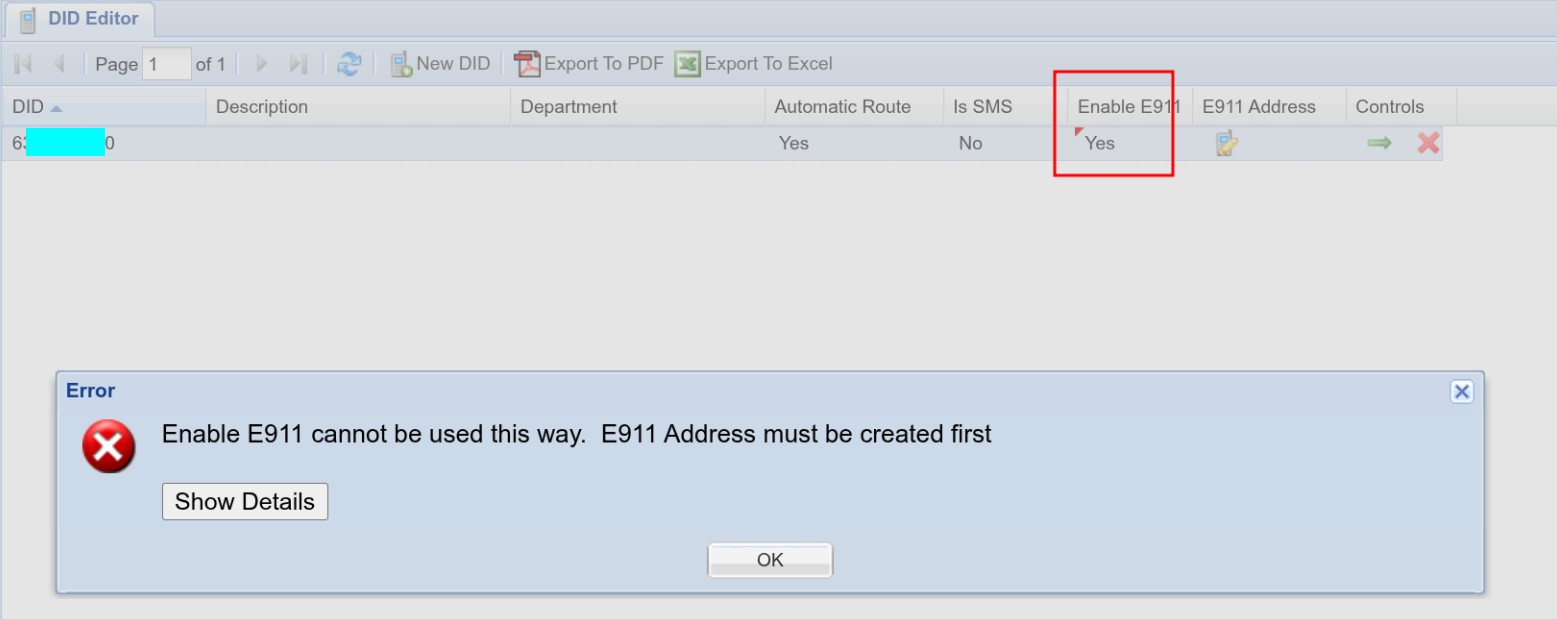
Make sure to set the address as the first step. 'Enable E911' might look to be the place to start, but this field is only for **removing E911** from a DID Phone Number.

[![image.png](https://doc.intellasoft.net/uploads/images/gallery/2026-02/scaled-1680-/rB0image.png)](https://doc.intellasoft.net/uploads/images/gallery/2026-02/rB0image.png)
#####   
Step 2 - Associate the E911 DID to the PhoneGroup

Or, create new PhoneGroup for this purpose.

[![image.png](https://doc.intellasoft.net/uploads/images/gallery/2026-02/scaled-1680-/Ivbimage.png)](https://doc.intellasoft.net/uploads/images/gallery/2026-02/Ivbimage.png)
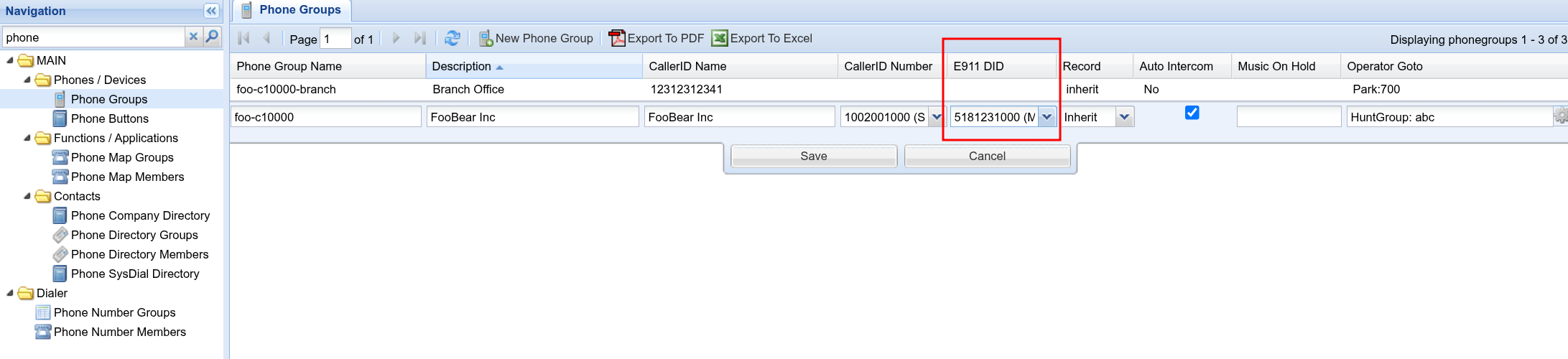
<p class="callout warning">Even if the E911 DID is the same as the CallerID, it still must be selected to ensure correct routing</p>

#####   
  
Step 3 - Associate the Extension/Extensions with the PhoneGroup  


---

[![image.png](https://doc.intellasoft.net/uploads/images/gallery/2026-02/scaled-1680-/1Lsimage.png)](https://doc.intellasoft.net/uploads/images/gallery/2026-02/1Lsimage.png)
---

Now you're all set!

<p class="callout info">Keep in mind that placing regular non-emergency calls, will always use 'CallerID' of the Phone Group  
And Placing E911 Calls or Testing E911 calls will use the E911 DID and associated E911 Address for these calls  
</p>

<p class="callout success">Make sure to dial **933** to validate the setup is correct.</p>

# Web Portal Introduction

# Row Editor

This page includes specifics on modifying data within the individual screens in the web portal.

<div class="toc-macro client-side-toc-macro conf-macro output-block hidden-outline" data-hasbody="false" data-headerelements="H1,H2,H3,H4,H5,H6,H7" data-macro-name="toc" id="bkmrk-overview-rows-drop-d">- <span class="toc-item-body" data-outline="2">[Rows](#bkmrk-rows)</span>
- <span class="toc-item-body" data-outline="3">[Drop Down Menu](#bkmrk-drop-down-menu)</span>
- <span class="toc-item-body" data-outline="4">[Fill Form](#bkmrk-fill-form)</span>
- <span class="toc-item-body" data-outline="5">[Checkboxes](#bkmrk-checkboxes)</span>
- <span class="toc-item-body" data-outline="6">[Editing Pre-Existing Entries](#bkmrk-editing-pre-existing)</span>
- <span class="toc-item-body" data-outline="7">[Form Validation](#bkmrk-form-validation)</span>
- <span class="toc-item-body" data-outline="8">[Deleting data](#bkmrk-deleting-data)</span>
- <span class="toc-item-body" data-outline="9">[Saving Data](#bkmrk-saving-data)</span>

</div>## Rows

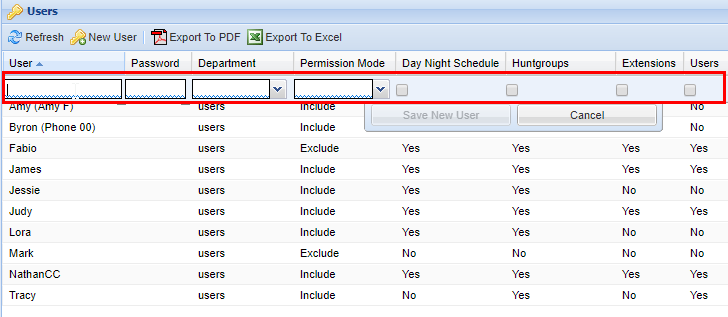
Rows are the individual points of data that you can modify, view, or both. Within rows, there may be various options for editing the data, as well as dynamic or view-only options as well.

[![image.png](https://public.intellasoft.net/uploads/images/gallery/2024-07/scaled-1680-/dJeimage.png)](https://public.intellasoft.net/uploads/images/gallery/2024-07/dJeimage.png)<span class="confluence-embedded-file-wrapper confluence-embedded-manual-size">![](https://public.intellasoft.net/download/attachments/8030175/image2017-7-18_13-26-35.png?version=1&modificationDate=1500398795799&api=v2)</span>
## Drop Down Menu

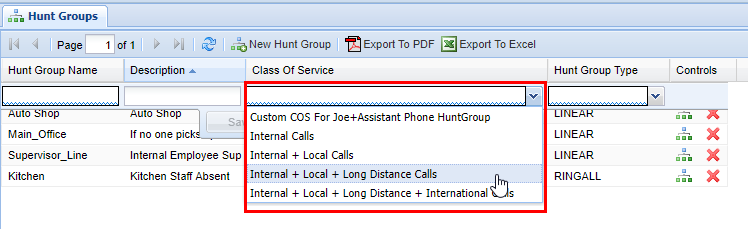
When an option has multiple fixed values available, this will typically be displayed as a drop-down menu as shown below. To access the drop simply click on the box itself.

[![image.png](https://public.intellasoft.net/uploads/images/gallery/2024-07/scaled-1680-/Vblimage.png)](https://public.intellasoft.net/uploads/images/gallery/2024-07/Vblimage.png)
## Fill Form

A fill form is a form where you enter the data yourself, depending on the form there may be no restrictions to space and characters, whereas others may require no spaces or special characters.

[![image.png](https://public.intellasoft.net/uploads/images/gallery/2024-07/scaled-1680-/nirimage.png)](https://public.intellasoft.net/uploads/images/gallery/2024-07/nirimage.png)
## Checkboxes

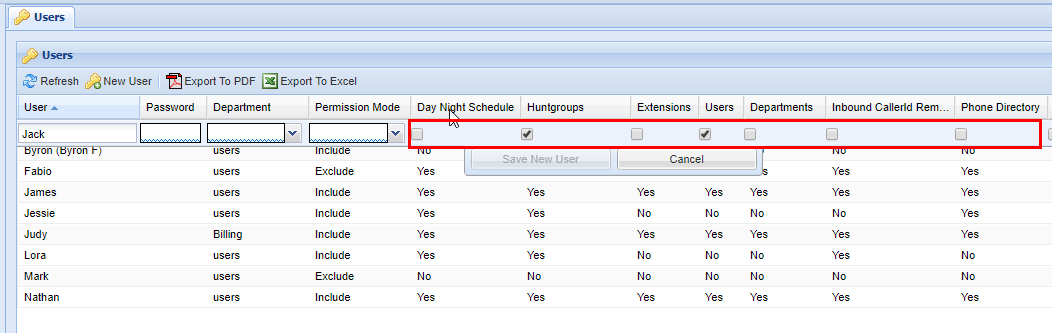
Check boxes represent values that are essentially a yes or no (true or false) value. You simply click on the check box to check it or un-check it.

[![image.png](https://public.intellasoft.net/uploads/images/gallery/2024-07/scaled-1680-/C5wimage.png)](https://public.intellasoft.net/uploads/images/gallery/2024-07/C5wimage.png)
## Editing Pre-Existing Entries

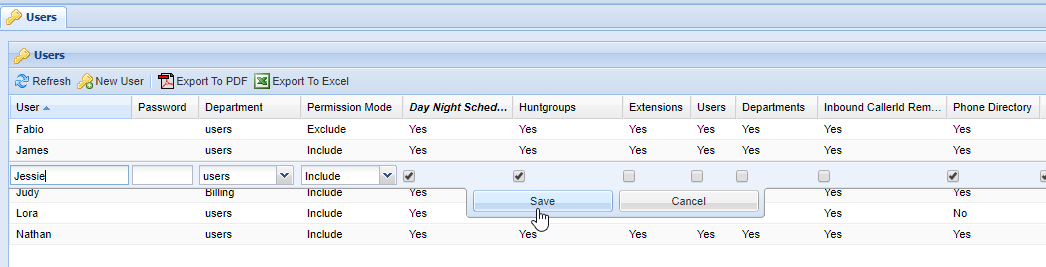
If you wish to edit a pre-existing entry within the web portal you simply need to click the row you wish to edit.

[![image.png](https://public.intellasoft.net/uploads/images/gallery/2024-07/scaled-1680-/Bwcimage.png)](https://public.intellasoft.net/uploads/images/gallery/2024-07/Bwcimage.png)
## Form Validation

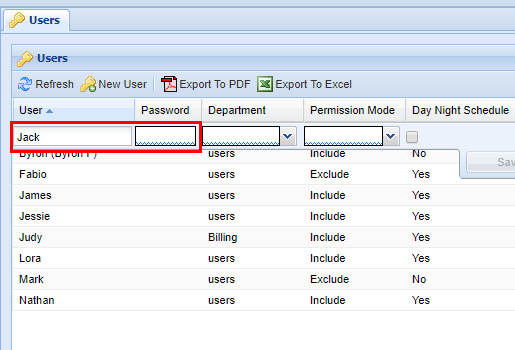
When editing or adding data in forms you will often notice at the bottom of the individual boxes that a squiggle line may span the entirety of the box. In the example below, you will see **blue squiggles** at the bottom of each box. This indicates that these fields are required.

[![image.png](https://public.intellasoft.net/uploads/images/gallery/2024-07/scaled-1680-/7iZimage.png)](https://public.intellasoft.net/uploads/images/gallery/2024-07/7iZimage.png)<span class="confluence-embedded-file-wrapper confluence-embedded-manual-size">![](https://public.intellasoft.net/download/attachments/8030175/image2017-7-12_6-30-54.png?version=1&modificationDate=1500385195037&api=v2)</span>

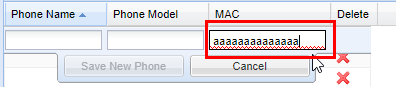
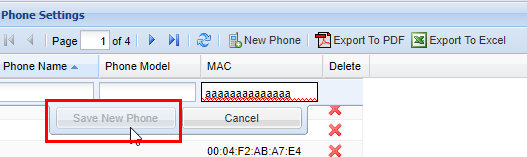
In the following example, you will see **red squiggles** in the field under the column **MAC**, this indicates that the entry submitted is invalid, and must be corrected. The web portal will not allow you to save until all fields with a red squiggle are corrected. <span class="confluence-embedded-file-wrapper">![](https://public.intellasoft.net/download/attachments/8030175/image2017-7-12_6-35-56.png?version=1&modificationDate=1500385195079&api=v2)</span>

[![image.png](https://public.intellasoft.net/uploads/images/gallery/2024-07/scaled-1680-/f8Timage.png)](https://public.intellasoft.net/uploads/images/gallery/2024-07/f8Timage.png)

In the example below, you will see a field under the column **Description** without squiggles, this indicates that the field is optional and does not require an entry.

[![image.png](https://public.intellasoft.net/uploads/images/gallery/2024-07/scaled-1680-/otSimage.png)](https://public.intellasoft.net/uploads/images/gallery/2024-07/otSimage.png)

Since the **MAC** field is not valid, the web portal is smart and will not allow you to save data. The same goes for mandatory fields that have a blue squiggle underlining them. This is to prevent the saving of any invalid data that could potentially cause a system to not function properly.

[![image.png](https://public.intellasoft.net/uploads/images/gallery/2024-07/scaled-1680-/Hn3image.png)](https://public.intellasoft.net/uploads/images/gallery/2024-07/Hn3image.png)
## Deleting data

Generally speaking in almost all parts of the web portal you have the ability to delete individual data/records by clicking on a red X located on the far right-hand side of a screen (you may have to scroll) in an action column.

[![image.png](https://public.intellasoft.net/uploads/images/gallery/2024-07/scaled-1680-/6Vpimage.png)](https://public.intellasoft.net/uploads/images/gallery/2024-07/6Vpimage.png)
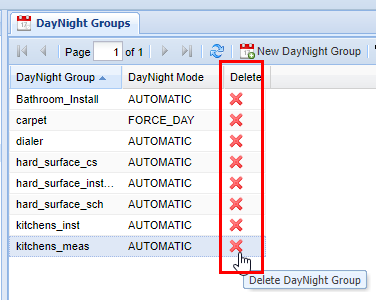
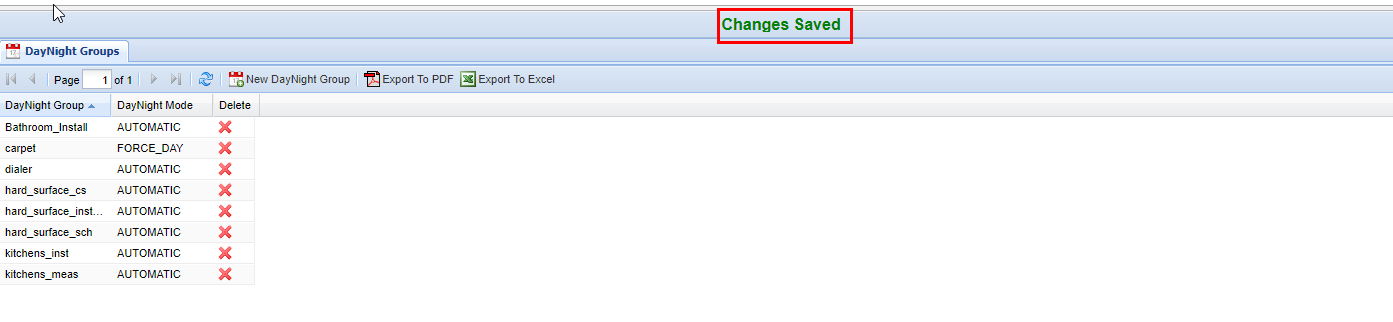
Whenever you delete data, a pop-up will appear graying out the web portal behind giving you the option to confirm, You will always see the option of **OK**, which will delete the entry and then save (followed by the **Save Changes** message), or **Cancel,** which will remove the pop-up and not change anything. It can always be assumed by clicking **OK** you are removing the data in question permanently, so when wondering about what things should be removed, contact your system administrator.

<p class="callout warning">After clicking "OK", your data is **permanently** deleted.</p>

[![image.png](https://public.intellasoft.net/uploads/images/gallery/2024-07/scaled-1680-/XBIimage.png)](https://public.intellasoft.net/uploads/images/gallery/2024-07/XBIimage.png)

## Saving Data

Anytime you complete an action such as inserting, updating, or deleting records, a green confirmation saying **Changes Saved** will always show if the settings have been saved successfully. This confirmation appears at the top center of the IntellaSoft Web Portal. If it doesn't display after a modification, double-check for errors and if you still have difficulties, consult with this documentation or lastly your system administrator for proper escalation.

[![image.png](https://public.intellasoft.net/uploads/images/gallery/2024-07/scaled-1680-/pQnimage.png)](https://public.intellasoft.net/uploads/images/gallery/2024-07/pQnimage.png)
<span class="confluence-embedded-file-wrapper confluence-embedded-manual-size">![](https://public.intellasoft.net/download/attachments/8030175/image2017-7-7_6-58-14.png?version=1&modificationDate=1500385194858&api=v2)</span>

# Class of Service

Throughout the web portal, you will see certain screens have a class of service value that must be selected. The class of service can be thought of as a security feature. Currently, the following **screens** have this value:

<div class="sectionColumnWrapper conf-macro output-block" data-hasbody="true" data-macro-name="section" id="bkmrk-extensions-hunt-grou"><div class="sectionMacro"><div class="sectionMacroRow"><div class="columnMacro conf-macro output-block" data-hasbody="true" data-macro-name="column">- [Extensions](https://public.intellasoft.net/books/web-portal-dL9/page/overview-mCh)
- [Hunt Groups](https://public.intellasoft.net/books/web-portal-dL9/page/hunt-groups)
- [PhoneMap Groups](https://public.intellasoft.net/books/web-portal-dL9/page/phonemap-groups)

</div></div></div></div>[![Example of a class of service](https://public.intellasoft.net/uploads/images/gallery/2024-07/scaled-1680-/bMQimage.png)](https://public.intellasoft.net/uploads/images/gallery/2024-07/bMQimage.png "Example of a class of service")<span class="confluence-embedded-file-wrapper confluence-embedded-manual-size">![](https://public.intellasoft.net/download/attachments/8029492/image2017-7-18_10-55-15.png?version=1&modificationDate=1500389715284&api=v2)</span>

A Class of Service defines what numbers an associated group can call. It is possible to set up specific classes of service to handle specific numbers. By default, most Intellasoft installations will come with 4 default classes of service.

<div class="table-wrap" id="bkmrk-class-of-service-des"><table border="1" class="wrapped confluenceTable tablesorter tablesorter-default stickyTableHeaders" role="grid" style="padding: 0px; width: 100%; height: 152.8px; border-collapse: collapse; border-style: solid;"><thead><tr><td style="width: 38.5679%;">**Class of Service**  
</td><td style="width: 61.3086%;">**Description**  
</td></tr></thead><tbody><tr role="row" style="height: 29.8px;"><td class="confluenceTd" style="width: 38.5679%; height: 29.8px;">Internal Calls</td><td class="confluenceTd" style="width: 61.3086%; height: 29.8px;">Can call internal extensions only.</td></tr><tr role="row" style="height: 29.8px;"><td class="confluenceTd" style="width: 38.5679%; height: 29.8px;">Internal + Local Calls</td><td class="confluenceTd" style="width: 61.3086%; height: 29.8px;">Same as above but can additionally call numbers with a local area code.</td></tr><tr role="row" style="height: 46.6px;"><td class="confluenceTd" style="width: 38.5679%; height: 46.6px;">Internal + Local + Long Distance Calls</td><td class="confluenceTd" style="width: 61.3086%; height: 46.6px;">Same as above but can additionally call numbers that are long distance (non-local area code).</td></tr><tr role="row" style="height: 46.6px;"><td class="confluenceTd" style="width: 38.5679%; height: 46.6px;">International + Local + Long Distance + International Calls</td><td class="confluenceTd" style="width: 61.3086%; height: 46.6px;">Same as above but can additionally call numbers that are internationally based.</td></tr></tbody></table>

</div>Additional options are available for creating **classes of services,** but you will need to contact your system administrator/IntellaSoft representative for options on configuring this. It is important to note that the class of service applies to calls that are being transferred from the extension/group that the class of service applies to. There are also options for blocking certain calls at the forefront without them gaining access to the phone system such as the IVR (Interactive Voice Response), live agents, individual extensions, etc.

# Overview

This section covers the core basics of the web portal. If this is your first time using the web portal, start by getting familiar with logging in, basic navigation and account management in the [**Top Level Interface Components**](https://public.intellasoft.net/books/web-portal-dL9/page/overview-components#bkmrk-top-level-interface-) section. Afterward, familiarize yourself with the [**Grid Components**](https://public.intellasoft.net/books/web-portal-dL9/page/grid-components) layout/editing capability and, lastly, how to change data using the **[Row Editor](https://public.intellasoft.net/books/web-portal-dL9/page/row-editor).**

**Pages within the Web Portal Introduction:**

1. [**Top Level Interface Components**](https://public.intellasoft.net/books/web-portal-dL9/page/overview-components#bkmrk-top-level-interface-) - This section includes the absolute minimums of the web portal. You can start by navigating to your organization's URL. This web address will be given to you by your company's system administrator or an Intellasoft representative.
2. [**Grid Components**](https://public.intellasoft.net/books/web-portal-dL9/page/grid-components) - Grids contain web portal components for modifying existing data or adding new company-specific information. Although the exact information displayed in web portal examples will vary from your displayed screen, the general technique for adding/changing information will still be covered in this documentation's respective screen pages.
3. **[Row Editor](https://public.intellasoft.net/books/web-portal-dL9/page/row-editor)** - Modify data within any displayed row on the web portal by using standard widgets.
4. [**Class of Service**](https://public.intellasoft.net/books/web-portal-dL9/page/class-of-service) - Outgoing call permissions can be assigned for hunt groups, extensions, and phone map groups using the web portal screens.

Documentation Formatting

For the purposes of this handbook anytime a specific feature (such as a button, tab, screen, module, etc.) is specified in the guide it will be in a capitalized **Bold Face.** The <span style="color: rgb(186, 55, 42);">**red boxes**</span> outlining anything within the web portal indicate areas of attention.

# Overview Components

## Overview

This section includes the absolute minimums of the web portal. You can start by navigating to your organization's URL which will be given to you by your system administrator or Intellasoft representative. Afterwards you will see a login screen. Start by following the instructions below to get familiar with the platform.

<div class="columnLayout single" data-layout="single" id="bkmrk-overview-logging-in-"><div class="cell normal" data-type="normal"><div class="innerCell"><div class="panel conf-macro output-block" data-hasbody="true" data-macro-name="panel"><div class="panelContent"><div class="columnMacro conf-macro output-block" data-hasbody="true" data-macro-name="column"><div class="toc-macro client-side-toc-macro conf-macro output-block hidden-outline" data-hasbody="false" data-headerelements="H1,H2,H3,H4,H5,H6,H7" data-macro-name="toc">- <span class="toc-item-body" data-outline="2">[Logging In](#bkmrk-logging-in)</span>
- <span class="toc-item-body" data-outline="3">[Top Level Interface Components](#bkmrk-top-level-interface-)</span>
- <span class="toc-item-body" data-outline="4">[My Account](#bkmrk-my-account)</span>
- <span class="toc-item-body" data-outline="5">[Logout](#bkmrk-logout)</span>
- <span class="toc-item-body" data-outline="6">[Navigation](#bkmrk-navigation)</span>
- <span class="toc-item-body" data-outline="7">[Screen Content Area](#bkmrk-screen-content-area)</span>
- <span class="toc-item-body" data-outline="8">[Screens](#bkmrk-screens)</span>
- <span class="toc-item-body" data-outline="9">[Panel Sizer Bar](#bkmrk-panel-sizer-bar)</span>
- <span class="toc-item-body" data-outline="10">[Panel Tools](#bkmrk-panel-tools)</span>
- <span class="toc-item-body" data-outline="11">[Group Selection](#bkmrk-group-selection)</span>

</div></div></div></div></div></div></div>## Logging In

<div class="columnLayout single" data-layout="single" id="bkmrk-you-will-need-the-pr"><div class="cell normal" data-type="normal"><div class="innerCell"><div class="panel conf-macro output-block" data-hasbody="true" data-macro-name="panel"><div class="panelContent"><div class="clearfix"><div class="section-img">![](https://doc.intellasoft.net/download/attachments/8030127/image2017-7-14_7-22-36.png)</div><div class="section-img">You will need the proper URL address for your organization as well as your username and password which can be requested from your system administrator. Once you navigate to the portal, input your credentials as shown above. If you are unable to login after a few attempts, please contact your system administrator for assistance.</div></div></div></div></div></div></div>## Top Level Interface Components

[![image.png](https://public.intellasoft.net/uploads/images/gallery/2024-07/scaled-1680-/tKmimage.png)](#bkmrk-my-account)

<table border="1" id="bkmrk--1" style="border-collapse: collapse; width: 87.5309%; border-width: 1px; border-color: rgb(255, 255, 255);"><colgroup><col style="width: 32.2036%;"></col><col style="width: 67.7964%;"></col></colgroup><tbody><tr><td style="border-color: rgb(255, 255, 255);">[![image.png](https://public.intellasoft.net/uploads/images/gallery/2024-07/scaled-1680-/dlTimage.png)](#bkmrk-navigation)</td><td style="border-color: rgb(255, 255, 255);">[![image.png](https://public.intellasoft.net/uploads/images/gallery/2024-07/scaled-1680-/fAOimage.png)](#bkmrk-screen-content-area)</td></tr></tbody></table>

<div class="columnLayout single" data-layout="single" id="bkmrk-component-descriptio"><div class="cell normal" data-type="normal"><div class="innerCell"><div class="panel conf-macro output-block" data-hasbody="true" data-macro-name="panel"><div class="panelContent"><div class="conf-macro output-block" data-hasbody="true" data-macro-name="div" id="bkmrk-component-descriptio-1"><div class="conf-macro output-block" data-hasbody="true" data-macro-name="div"><div class="clearfix" id="bkmrk--5"><div class="portal" id="bkmrk--8"><span class="overlay-part" id="bkmrk--9"></span></div></div></div><div class="conf-macro output-block" data-hasbody="true" data-macro-name="div"><div class="table-wrap"><table border="1" class="wrapped confluenceTable tablesorter tablesorter-default" role="grid" style="width: 100%; border-collapse: collapse; border-style: solid;"><thead aria-label="Use column header buttons to sort"><tr class="tablesorter-headerRow" role="row"><th aria-disabled="false" class="confluenceTh tablesorter-header sortableHeader tablesorter-headerUnSorted" data-column="0" role="columnheader" scope="col" style="width: 12.7309%;"><div class="tablesorter-header-inner"><button class="headerButton">Component</button></div></th><th aria-disabled="false" class="confluenceTh tablesorter-header sortableHeader tablesorter-headerUnSorted" colspan="1" data-column="1" role="columnheader" scope="col" style="width: 87.3928%;"><div class="tablesorter-header-inner"><button class="headerButton">Description</button></div></th></tr></thead><tbody><tr role="row"><td class="confluenceTd" style="width: 12.7309%;">Top bar</td><td class="confluenceTd" colspan="1" style="width: 87.3928%;">The account management bar along the top of the window is used to change your password or logout.</td></tr><tr role="row"><td class="confluenceTd" style="width: 12.7309%;">Left panel</td><td class="confluenceTd" colspan="1" style="width: 87.3928%;">The navigation panel at the left of the screen is for navigating to different screens within the web portal.</td></tr><tr role="row"><td class="confluenceTd" style="width: 12.7309%;">Right panel</td><td class="confluenceTd" colspan="1" style="width: 87.3928%;">The content area, filling the majority of the window, will display information and tools based on the selected screen.</td></tr></tbody></table>

</div></div></div></div></div></div></div></div>## My Account<span class="confluence-anchor-link conf-macro output-inline" data-hasbody="false" data-macro-name="anchor" id="bkmrk--10"></span>

[![image.png](https://public.intellasoft.net/uploads/images/gallery/2024-07/scaled-1680-/xfUimage.png)](https://public.intellasoft.net/uploads/images/gallery/2024-07/xfUimage.png)

To change the account password, click on the **My Account** menu located at the top left corner. Next click the **Change password for my account: &lt;username&gt;** button.

[![image.png](https://public.intellasoft.net/uploads/images/gallery/2024-07/scaled-1680-/Ru0image.png)](https://public.intellasoft.net/uploads/images/gallery/2024-07/Ru0image.png)

Within the popup, enter your **Current Portal Password** and **New Portal Password**. Click **Save** and there will be a confirmation of **Success - Saved password** or **Invalid current password** if the current portal password is incorrect. Click **OK** to continue.

## Logout

[![image.png](https://public.intellasoft.net/uploads/images/gallery/2024-07/scaled-1680-/r7Pimage.png)](https://public.intellasoft.net/uploads/images/gallery/2024-07/r7Pimage.png)

Closing the browser is not enough to be logged out since the Intellasoft Web Portal uses cookies. Remaining idle for an extended period of time may not do the trick either, depending on the specific timeout settings. The best way to logout is to use the **Logout** button in the upper right-hand corner.

## Navigation<span class="confluence-anchor-link conf-macro output-inline" data-hasbody="false" data-macro-name="anchor" id="bkmrk--17"></span>

[![image.png](https://public.intellasoft.net/uploads/images/gallery/2024-07/scaled-1680-/U0nimage.png)](https://public.intellasoft.net/uploads/images/gallery/2024-07/U0nimage.png)

The red box panel on the left is the **Navigation**. From here you are able to select the various **Screens** (also called **Modules**) within the IntellaSoft platform. To select a specific **Screen,** click on the name you want to access. The subtle difference between **Screen** and **Module** is that the screen is the visual component of the exact module on the server. Note that a module may provide features across multiple screens. Anytime the documentation refers to navigating to a **screen** or **module** refer to the navigation panel and click the screens' respective name. You will see it highlighted in blue indicating which **screen** you are currently in.

## Screen Content Area<span class="confluence-anchor-link conf-macro output-inline" data-hasbody="false" data-macro-name="anchor" id="bkmrk--20"></span>

[![image.png](https://public.intellasoft.net/uploads/images/gallery/2024-07/scaled-1680-/Lfbimage.png)](https://public.intellasoft.net/uploads/images/gallery/2024-07/Lfbimage.png)<span class="confluence-embedded-file-wrapper">![](https://public.intellasoft.net/download/attachments/8030127/Screen%20Content%20Area.png?version=1&modificationDate=1504285107037&api=v2)</span>

The red box panel on the right is the **Screen Content Area** which is a **Tab Panel**. The title of the **Screen** will be in the tab name.

## Screens

[![image.png](https://public.intellasoft.net/uploads/images/gallery/2024-07/scaled-1680-/4Odimage.png)](https://public.intellasoft.net/uploads/images/gallery/2024-07/4Odimage.png)

In this example, we have selected the **Users** **Screen**. Notice that **Users** is highlighted within the **Navigation Panel.** The **Screen Content Area** now contains the specific **Panels** for the screen. In this case, the four smaller **Panels** are all **Grid Panels**.

## Panel Sizer Bar

[![image.png](https://public.intellasoft.net/uploads/images/gallery/2024-07/scaled-1680-/AWuimage.png)](https://public.intellasoft.net/uploads/images/gallery/2024-07/AWuimage.png)

[![image.png](https://public.intellasoft.net/uploads/images/gallery/2024-07/scaled-1680-/mkDimage.png)](https://public.intellasoft.net/uploads/images/gallery/2024-07/mkDimage.png)

You have the option to resize individual panels within each screen. To do this simply click on the in-between space between panels and drag in the direction to want to resize. Afterwards the panel will be extended right, the opposite works when trying to resize panels to a smaller amount. You can also do this to the height of panels as well.

<span class="confluence-embedded-file-wrapper confluence-embedded-manual-size">![](https://public.intellasoft.net/download/attachments/8030127/image2017-7-10_13-14-22.png?version=1&modificationDate=1500384642938&api=v2)</span>

<span class="confluence-embedded-file-wrapper confluence-embedded-manual-size">![](https://public.intellasoft.net/download/attachments/8030127/image2017-7-10_13-17-30.png?version=1&modificationDate=1500384642966&api=v2)</span>

# Panel Tools

<span class="confluence-embedded-file-wrapper">![](https://public.intellasoft.net/download/attachments/8030127/image2017-7-12_9-25-19.png?version=1&modificationDate=1500384650879&api=v2)</span>

[![image.png](https://public.intellasoft.net/uploads/images/gallery/2024-07/scaled-1680-/IFjimage.png)](https://public.intellasoft.net/uploads/images/gallery/2024-07/IFjimage.png)

Currently, there are not very many **Panel** **Tools** implemented, but an example of a **Panel Tool** is the option to collapse or expand panels, to provide a better view of other **Panels.** See the example above.

# Group Selection

[![image.png](https://public.intellasoft.net/uploads/images/gallery/2024-07/scaled-1680-/2D3image.png)](https://public.intellasoft.net/uploads/images/gallery/2024-07/2D3image.png)

When using some screens such as **DayNight Schedule** or even Voicemail it is important to note that you have chosen the correct group to modify. This can be done with the **Select XXXX (***XXXX* will depend on the exact screen you are in) function which is located at the top left-hand of the screen.

If you are selecting this screen for the first time since logging in, you will also see a brief message such as the one below indicating that it has auto-selected the 1st group that would be included in the drop-down menu for **Select XXXX.** This is simply to bring attention to the fact that you may have to change the group to modify the one in question.

[![image.png](https://public.intellasoft.net/uploads/images/gallery/2024-07/scaled-1680-/M9wimage.png)](https://public.intellasoft.net/uploads/images/gallery/2024-07/M9wimage.png)

<span class="confluence-embedded-file-wrapper confluence-embedded-manual-size">  
</span>

# Grid Components

## Overview

Grids contain the components within the web portal necessary for modifying existing or new data, as well as more specific functionality of the individual screens within the web portal. It is important that the exact setup will vary screen by screen, but are still covered in this documentation's respective screen pages.

<div class="columnLayout single" data-layout="single" id="bkmrk-overview-panel-tools"><div class="cell normal" data-type="normal"><div class="innerCell"><div class="panel conf-macro output-block" data-hasbody="true" data-macro-name="panel"><div class="panelContent"><div class="toc-macro client-side-toc-macro conf-macro output-block hidden-outline" data-hasbody="false" data-headerelements="H1,H2,H3,H4,H5,H6,H7" data-macro-name="toc">- <span class="toc-item-body" data-outline="2">[Panel Tools](#bkmrk-panel-tools)</span>
- <span class="toc-item-body" data-outline="3">[Refresh](#bkmrk-refresh)</span>
- <span class="toc-item-body" data-outline="4">[Export to Excel or PDF](#bkmrk-export-to-excel-or-p)</span>
- <span class="toc-item-body" data-outline="5">[Module Specific Buttons](#bkmrk-module-specific-butt)</span>
- <span class="toc-item-body" data-outline="6">[Page Options](#bkmrk-page-options)</span>
- <span class="toc-item-body" data-outline="7">[Scroll Bar](#bkmrk-scroll-bar)</span>
- <span class="toc-item-body" data-outline="8">[Additional Columns](#bkmrk-additional-columns)</span>
- <span class="toc-item-body" data-outline="9">[Filter Function](#bkmrk-filter-function)</span>

</div></div></div></div></div></div>## Panel Tools

[![image.png](https://public.intellasoft.net/uploads/images/gallery/2024-07/scaled-1680-/TTnimage.png)](https://public.intellasoft.net/uploads/images/gallery/2024-07/TTnimage.png)

Grids are the main workhorse of the system. This is where you insert, update, and delete Records using **(1) Row Editor**. Grids allow you to sort and filter using the **(2) Column Header Menu** and page through lots of data using the **(3) Paging Toolbar**. Most grids have **(4) Grid Toolbar Buttons** to perform module commands. Not all columns are sortable or filterable. Some columns have icons which are called **(4) Action Columns** and have the ability to delete records, or shortcuts to quickly go to an associated screen. These are outlined and numbered in the screenshot below:

## Refresh

[![image.png](https://public.intellasoft.net/uploads/images/gallery/2024-07/scaled-1680-/image.png)](https://public.intellasoft.net/uploads/images/gallery/2024-07/image.png)

<div class="columnLayout single" data-layout="single" id="bkmrk-the%C2%A0refresh%C2%A0button-c"><div class="cell normal" data-type="normal"><div class="innerCell"><div class="panel conf-macro output-block" data-hasbody="true" data-macro-name="panel"><div class="panelContent"><div>The **Refresh** button comes in handy to load the newest data from the server. For example, a good usage is if someone else modified data on the same screen or to view the latest historical data in **Call Logs**.</div><div class="table-wrap"><table class="confluenceTable tablesorter tablesorter-default" role="grid" style="width: 100%;"><colgroup><col style="width: 12.4839%;"></col><col style="width: 87.5161%;"></col></colgroup><thead aria-label="Use column header buttons to sort"><tr class="tablesorter-headerRow" role="row"><th aria-disabled="false" class="confluenceTh tablesorter-header sortableHeader tablesorter-headerUnSorted" data-column="0" role="columnheader" scope="col"><div class="tablesorter-header-inner"><button class="headerButton">Component</button></div></th><th aria-disabled="false" class="confluenceTh tablesorter-header sortableHeader tablesorter-headerUnSorted" colspan="1" data-column="1" role="columnheader" scope="col"><div class="tablesorter-header-inner"><button class="headerButton">Description</button></div></th></tr></thead><tbody><tr role="row"><td class="confluenceTd">Top bar</td><td class="confluenceTd" colspan="1">The account management bar along the top of the window is used to change your password or logout.</td></tr><tr role="row"><td class="confluenceTd">Left panel</td><td class="confluenceTd" colspan="1">The navigation panel at the left of the screen is for navigating to different screens within the web portal.</td></tr><tr role="row"><td class="confluenceTd">Right panel</td><td class="confluenceTd" colspan="1">The content area, filling the majority of the window, will display information and tools based on the selected screen.</td></tr></tbody></table>

</div><div class="sectionColumnWrapper conf-macro output-block" data-hasbody="true" data-macro-name="section"><div class="sectionMacro"></div></div></div></div></div></div></div>[![image.png](https://public.intellasoft.net/uploads/images/gallery/2024-07/scaled-1680-/Fzrimage.png)](https://public.intellasoft.net/uploads/images/gallery/2024-07/Fzrimage.png)

## Export to Excel or PDF

[![image.png](https://public.intellasoft.net/uploads/images/gallery/2024-07/scaled-1680-/k8Kimage.png)](https://public.intellasoft.net/uploads/images/gallery/2024-07/k8Kimage.png)

Almost all modules have the option to export the data shown to a table in **PDF** file format, or an **Excel** spreadsheet. Either click on **Export to PDF** or **Export to Excel** and it will start the download process. Depending on the browser settings, there may be a prompt to choose a location or it may download to a default destination such as the "downloads" folder. Consult the browser's documentation for more information.

Examples of data exports: **[PDF ](https://public.intellasoft.net/download/attachments/8029382/Users-20170707-0805.pdf?version=1&modificationDate=1499971303488&api=v2)**or [**Excel** **Spreadsheet**](https://public.intellasoft.net/download/attachments/8029382/Users-20170707-0806.xlsx?version=1&modificationDate=1499971303497&api=v2).

## Module Specific Buttons

[![image.png](https://public.intellasoft.net/uploads/images/gallery/2024-08/scaled-1680-/IGBimage.png)](https://public.intellasoft.net/uploads/images/gallery/2024-08/IGBimage.png)

Almost all modules have **buttons** that are specific to their function. Such as the example below; the **New User** button is specific to the [Users](https://public.intellasoft.net/books/web-portal-dL9/page/users) module.

## Page Options

When dealing with large quantities of data, the platform automatically splits the entries into pages that can easily be navigated from the toolbar. In this example below, the page is on page 1 of the 4 possible pages available.

[![image.png](https://public.intellasoft.net/uploads/images/gallery/2024-07/scaled-1680-/3zLimage.png)](https://public.intellasoft.net/uploads/images/gallery/2024-07/3zLimage.png)

To move forward one page click the arrow to the right (If you hover over it, a tool-tip will pop up stating "Next Page.")

[![image.png](https://public.intellasoft.net/uploads/images/gallery/2024-07/scaled-1680-/MkSimage.png)](https://public.intellasoft.net/uploads/images/gallery/2024-07/MkSimage.png)

You can also skip to the last page by clicking the arrow to the right of the first arrow.

[![image.png](https://public.intellasoft.net/uploads/images/gallery/2024-07/scaled-1680-/Tqvimage.png)](https://public.intellasoft.net/uploads/images/gallery/2024-07/Tqvimage.png)

You can also move from page to page by simply typing the desired page number into the page indicator. <span class="confluence-embedded-file-wrapper">![](https://public.intellasoft.net/download/attachments/8030148/page%20options%204.png?version=1&modificationDate=1504285463056&api=v2)</span>

[![image.png](https://public.intellasoft.net/uploads/images/gallery/2024-07/scaled-1680-/W3eimage.png)](https://public.intellasoft.net/uploads/images/gallery/2024-07/W3eimage.png)

Similar to moving forward one page and moving to the last page, you can conversely move back one page, or move to the first page.

[![image.png](https://public.intellasoft.net/uploads/images/gallery/2024-07/scaled-1680-/dHdimage.png)](https://public.intellasoft.net/uploads/images/gallery/2024-07/dHdimage.png)

## Scroll Bar

In some cases, it is necessary to use the scroll bar on the bottom of the page to navigate to the left or right to access certain settings within the **Grids**. Click and drag the bar to the left or right until you find the settings you wish to modify.

[![image.png](https://public.intellasoft.net/uploads/images/gallery/2024-07/scaled-1680-/t73image.png)](https://public.intellasoft.net/uploads/images/gallery/2024-07/t73image.png)

## Additional Columns

<div class="columnLayout single" data-layout="single" id="bkmrk-depending-on-the-log"><div class="cell normal" data-type="normal"><div class="innerCell"><div class="panel conf-macro output-block" data-hasbody="true" data-macro-name="panel"><div class="panelContent"><div class="sectionColumnWrapper conf-macro output-block" data-hasbody="true" data-macro-name="section"><div class="sectionMacro"><div class="sectionMacroRow"><div class="columnMacro conf-macro output-block" data-hasbody="true" data-macro-name="column">Depending on the logged-in user's permissions or system settings, some columns may be hidden within the screen. Feel free to explore and view the hidden columns, the data there is generally not as important as the visible columns. To view additional columns, click on the column header menu and click the **Columns** item. The columns that are already in view are checked while the ones that are currently hidden are unchecked. Any column can be toggled, these changes only last during the session, once you login again, the default columns will be displayed. Please note that certain columns are required when inserting new records, and if those columns are hidden, a new record cannot be created.</div><div class="columnMacro conf-macro output-block" data-hasbody="true" data-macro-name="column">  
</div></div></div></div></div></div></div></div></div>[![image.png](https://public.intellasoft.net/uploads/images/gallery/2024-07/scaled-1680-/RBYimage.png)](https://public.intellasoft.net/uploads/images/gallery/2024-07/RBYimage.png)

<div class="columnLayout single" data-layout="single" id="bkmrk--28"><div class="cell normal" data-type="normal"><div class="innerCell"><div class="panel conf-macro output-block" data-hasbody="true" data-macro-name="panel"><div class="panelContent"><div class="sectionColumnWrapper conf-macro output-block" data-hasbody="true" data-macro-name="section"><div class="sectionMacro"></div></div></div></div></div></div></div>## Filter Function

Filters are a powerful method of sorting through a lot of data. Not every screen has lots of data, but on screens that do filtering is extremely useful. You can apply filters to multiple columns at once. Start by accessing the column header menu and click the **Filters** item. A pop-up will appear with a small pair of binoculars. Type your filter. Keep in mind that each **filter** is applied to each item individually. As you type, the grid will start to populate with data that the filter has found. <span class="confluence-embedded-file-wrapper">![](https://public.intellasoft.net/download/attachments/8030148/filter%20function%201.png?version=1&modificationDate=1504285518313&api=v2)</span>

[![image.png](https://public.intellasoft.net/uploads/images/gallery/2024-07/scaled-1680-/6gKimage.png)](https://public.intellasoft.net/uploads/images/gallery/2024-07/6gKimage.png)

When finished, press enter or click out of the **filter** box.

[![image.png](https://public.intellasoft.net/uploads/images/gallery/2024-07/scaled-1680-/mcqimage.png)](https://public.intellasoft.net/uploads/images/gallery/2024-07/mcqimage.png)

By typing "jam", the server finds the **User** named *James.* Columns that have an active **filter** on them will always be ***bold and*** ***italicized*** as shown below.

[![image.png](https://public.intellasoft.net/uploads/images/gallery/2024-07/scaled-1680-/rZ0image.png)](https://public.intellasoft.net/uploads/images/gallery/2024-07/rZ0image.png)

To deactivate the filter, click the column's header menu and then click the checkbox next to the filter option. Another option is to delete the text in the filter box. After you have done this, any filtered-out data will reappear:

[![image.png](https://public.intellasoft.net/uploads/images/gallery/2024-07/scaled-1680-/0y9image.png)](https://public.intellasoft.net/uploads/images/gallery/2024-07/0y9image.png)

Not all columns are text forms, some give the option such as yes or no as checkboxes:<span class="confluence-embedded-file-wrapper">![](https://public.intellasoft.net/download/attachments/8030148/filter%20function%205.png?version=1&modificationDate=1504285566384&api=v2)</span>

[![image.png](https://public.intellasoft.net/uploads/images/gallery/2024-07/scaled-1680-/kqAimage.png)](https://public.intellasoft.net/uploads/images/gallery/2024-07/kqAimage.png)

After checking *yes* for the filter column option, the grid will show all the rows where *yes* has been selected. The column's name becomes bold and italicized to indicate that a filter is active.

[![image.png](https://public.intellasoft.net/uploads/images/gallery/2024-07/scaled-1680-/2vqimage.png)](https://public.intellasoft.net/uploads/images/gallery/2024-07/2vqimage.png)

# Users

The **Users** screen is for managing people who will have access to the IntellaSoft Web Portal to make changes to the phone system, delegate permissions, or other functions such as accessing call logs and voicemail. When a new user account is added, by default that user will be able to log in and see their own voicemail. It is up to the manager who is creating the account to check / un-check the specific permissions for what screens that user should have access to. A very important aspect is the delegation of what users a user can control via the **Permission Mode** setting with **Include** or **Exclude** mode (more on this below).

<div class="columnLayout single" data-layout="single" id="bkmrk-1overview-2adding-a-"><div class="cell normal" data-type="normal"><div class="innerCell"><div class="panel conf-macro output-block" data-hasbody="true" data-macro-name="panel" style="border-width: 1px;"><div class="panelContent"><div class="columnMacro conf-macro output-block" data-hasbody="true" data-macro-name="column" style="width: 50%; min-width: 50%; max-width: 50%;"><div class="toc-macro client-side-toc-macro conf-macro output-block" data-csslistindent="15px" data-hasbody="false" data-headerelements="H1,H2" data-macro-name="toc" data-numberedoutline="true">- <span class="toc-item-body" data-outline="2">[Adding a New User](#bkmrk-adding-a-new-user)</span>
- <span class="toc-item-body" data-outline="3">[Removing a User](#bkmrk-removing-a-user)</span>
- <span class="toc-item-body" data-outline="4">[Including/Excluding Users](#bkmrk-including%2Fexcluding-)</span>
- <span class="toc-item-body" data-outline="5">[Including/Excluding Phone Numbers](#bkmrk-including%2Fexcluding--1)</span>

</div></div></div></div></div></div></div>Video Tutorial -- Please watch Full Screen

<div class="columnLayout single" data-layout="single" id="bkmrk-"><div class="cell normal" data-type="normal"><div class="innerCell"><div class="html5-multimedia-container conf-macro output-block" data-hasbody="false" data-macro-name="html5-multimedia"><div class="vsc-controller">  
</div><div class="vsc-controller">  
</div><video controls="controls" height="150" style="width: 301px; height: 150px;" width="300"> <source src="https://public.intellasoft.net/attachments/44"></source></video></div></div></div></div>## Adding a New User

1\) Navigate to the **Users** screen

2\) Click the **New User** button.

3\) The following fields are required when creating a new **User**.

<div class="wiki-content" id="bkmrk-user-text-this-will-"><div class="contentLayout2"><div class="columnLayout single" data-layout="single"><div class="cell normal" data-type="normal"><div class="innerCell"><div class="panel conf-macro output-block" data-hasbody="true" data-macro-name="panel" style="border-width: 1px;"><div class="panelContent"><div class="sectionColumnWrapper conf-macro output-block" data-hasbody="true" data-macro-name="section"><div class="sectionMacro"><div class="sectionMacroRow"><div class="columnMacro conf-macro output-block" data-hasbody="true" data-macro-name="column" style="width: 50%; min-width: 50%; max-width: 50%;"><div class="table-wrap"><table border="1" class="wrapped confluenceTable tablesorter tablesorter-default" role="grid" style="width: 100%; border-collapse: collapse; border-style: solid; height: 199.4px;"><thead><tr style="height: 29.8px;"><td style="width: 25.2475%; height: 29.8px;">Field  
</td><td style="width: 13.8596%; height: 29.8px;">Type  
</td><td style="width: 60.8929%; height: 29.8px;">Description  
</td></tr></thead><tbody><tr role="row" style="height: 46.6px;"><td class="confluenceTd" style="width: 25.2475%; height: 46.6px;">User</td><td class="confluenceTd" style="width: 13.8596%; height: 46.6px;">Text</td><td class="confluenceTd" style="width: 60.8929%; height: 46.6px;">This will be the username for logging into the portal.</td></tr><tr role="row" style="height: 29.8px;"><td class="confluenceTd" style="width: 25.2475%; height: 29.8px;">Password</td><td class="confluenceTd" style="width: 13.8596%; height: 29.8px;">Text</td><td class="confluenceTd" style="width: 60.8929%; height: 29.8px;">For logging into the web portal</td></tr><tr role="row" style="height: 46.6px;"><td class="confluenceTd" style="width: 25.2475%; height: 46.6px;">Department</td><td class="confluenceTd" style="width: 13.8596%; height: 46.6px;">List</td><td class="confluenceTd" style="width: 60.8929%; height: 46.6px;">Select a department the user will be in</td></tr><tr role="row" style="height: 46.6px;"><td class="confluenceTd" style="width: 25.2475%; height: 46.6px;">Permission Mode</td><td class="confluenceTd" style="width: 13.8596%; height: 46.6px;">List</td><td class="confluenceTd" style="width: 60.8929%; height: 46.6px;">Either exclude or include as described below</td></tr></tbody></table>

</div></div></div></div></div></div></div></div></div></div></div></div>[![image.png](https://public.intellasoft.net/uploads/images/gallery/2024-07/scaled-1680-/qHiimage.png)](https://public.intellasoft.net/uploads/images/gallery/2024-07/qHiimage.png)

4\) Fill in **User**, **Password**, and **Department**.

5\) Then set **Permission Mode** to *Include or Exclude.* (Explained below)[![image.png](https://public.intellasoft.net/uploads/images/gallery/2024-07/scaled-1680-/rz5image.png)](https://public.intellasoft.net/uploads/images/gallery/2024-07/rz5image.png)

**Permission Mode Include**: By default, the user will not have access to any other users. Allowed users will be determined by which ones are **Included.**

For example, use this mode when setting up a manager of a small department. The manager may need access to users Abby, Bob, and Chris. These users would be added as **Included Users**

**Permission Mode Exclude**: By default, the user will automatically have access to **<u>ALL USERS</u>**. Hidden users will be determined by which ones are **Excluded.**

For example, use this mode when setting up an admin that needs access to the entire system except for the calls and voicemails of the President and Vice President. The President and Vice President would then be added as Excluded Use

6\) After selecting the permission mode, select the appropriate **Permissions** the user will have access to. You will need to use the scroll bar located at the bottom of the users table to view additional permissions. Permissions are on a Per-Screen basis.

For example, if a supervisor account was needed that could only view the call history of the system in **Call Logs.**

<div class="wiki-content" id="bkmrk-make-sure-that-the-%27"><div class="contentLayout2"><div class="columnLayout single" data-layout="single"><div class="cell normal" data-type="normal"><div class="innerCell"><div class="panel conf-macro output-block" data-hasbody="true" data-macro-name="panel" style="border-width: 1px;"><div class="panelContent"><div class="sectionColumnWrapper conf-macro output-block" data-hasbody="true" data-macro-name="section"><div class="sectionMacro"><div class="sectionMacroRow"><div class="columnMacro conf-macro output-block" data-hasbody="true" data-macro-name="column" style="width: 50%; min-width: 50%; max-width: 50%;"><div class="confluence-information-macro confluence-information-macro-information conf-macro output-block" data-hasbody="true" data-macro-name="info"><div class="confluence-information-macro-body">- Make sure that the 'Admin' permission is <span style="text-decoration: underline;">u</span><u>nchecked</u>
- Make sure that ALL other permissions are <span style="color: rgb(0,0,0);"><u>unchecked</u></span>
- Make sure that 'Call Logs' is <u>checked</u>

</div></div></div></div></div></div></div></div></div></div></div></div></div>This user will now only have access to view the **Call Logs** screen.

[![image.png](https://public.intellasoft.net/uploads/images/gallery/2024-07/scaled-1680-/F8Yimage.png)](https://public.intellasoft.net/uploads/images/gallery/2024-07/F8Yimage.png)

7\) After you have confirmed that all the options for the new user are correct, save by clicking on **Save New User**, or cancel if applicable. Afterwards, a green message will appear stating **Changes Saved.**

[![image.png](https://public.intellasoft.net/uploads/images/gallery/2024-07/scaled-1680-/YT3image.png)](https://public.intellasoft.net/uploads/images/gallery/2024-07/YT3image.png)

## Removing a User

1\) Navigate to the **Users screen** from the **Navigation Panel.**

2\) From the **Users** tab, select the correct **User** you wish to delete. The user you selected will be highlighted in blue, as shown below.

[![image.png](https://public.intellasoft.net/uploads/images/gallery/2024-07/scaled-1680-/281image.png)](https://public.intellasoft.net/uploads/images/gallery/2024-07/281image.png)

3\) Use the navigation bar on the bottom of the page to navigate to the far right, until you see the column of red X's under **Delete**. Click the X that corresponds with the **User** you want to delete.

[![image.png](https://public.intellasoft.net/uploads/images/gallery/2024-07/scaled-1680-/JpMimage.png)](https://public.intellasoft.net/uploads/images/gallery/2024-07/JpMimage.png)

4\) A confirmation pop-up will appear confirming your selection. If you wish to delete, click **OK.** You will see a message stating **Changes Saved.** If this is not the entry you wish to delete click **Cancel**.

## Including/Excluding Users

For this example, we will use a **User** that has their permission mode to *Include.* This means that by default, the **User** will not have access to any other **Users** and you must manually include **Users.** (On the other hand, **Users** set with an *Exclude* permission mode will have access to all **Users** if no users are added to the exclude list.)

Select a **User** to start adding other users to their **Exclude or Include** list (permission dependent). The **User** you are currently adding **users** for will have its row highlighted like the example below.

[![image.png](https://public.intellasoft.net/uploads/images/gallery/2024-07/scaled-1680-/ot3image.png)](https://public.intellasoft.net/uploads/images/gallery/2024-07/ot3image.png)<span class="confluence-embedded-file-wrapper confluence-embedded-manual-size">![](https://public.intellasoft.net/download/attachments/8029493/image2017-7-12_10-47-21.png?version=1&modificationDate=1499971304701&api=v2)</span>

There are two endpoints before we add any **users.** In addition to the **Users** panel, there is also the **Include/Excluded Users panel** (see "1" below. Again this is dependent on what the **Permission Mode** mode for this particular user is set, if it's an **Exclude** the text would say **Excluded Users** as opposed to **Included Users**) which shows all the users that have been added to the **Included/Excluded User** list) and the **Available Users** (shown are all users that **can** be added to **Excluded/Included User** list). Again it's important to note that in this particular example, the **User** Tracy has a **Permission Mode** set to **Include**, so these available **users** are the ones she does **NOT** have access to.

[![image.png](https://public.intellasoft.net/uploads/images/gallery/2024-07/scaled-1680-/5PSimage.png)](https://public.intellasoft.net/uploads/images/gallery/2024-07/5PSimage.png)<span class="confluence-embedded-file-wrapper confluence-embedded-manual-size">![](https://public.intellasoft.net/download/attachments/8029493/image2017-7-12_10-49-16.png?version=1&modificationDate=1499971304695&api=v2)</span>

There are three options for adding users to list. You can select the **Include All Button** (**1**, adds all the available to **users** to the list), **Green Arrow** in the **Include Column** (**2**, adds each **User** to the list individually) or using the **Quick Department Include** (**3**, or **Exclude**, if applicable). For the purposes we are going to add **users** using the **Quick Department Include** function. To do this simply click on the drop down menu and a list of the available **Departments** will appear. This will add **Users** based on their department and who is available to add in the **Available Users** list.

[![image.png](https://public.intellasoft.net/uploads/images/gallery/2024-07/scaled-1680-/q0kimage.png)](https://public.intellasoft.net/uploads/images/gallery/2024-07/q0kimage.png)

[![image.png](https://public.intellasoft.net/uploads/images/gallery/2024-07/scaled-1680-/CIhimage.png)](https://public.intellasoft.net/uploads/images/gallery/2024-07/CIhimage.png)

As you can see by the example all **Users** in the Equipment department were added to the available user list. You can also go through and add **Users** individually too, or include them all if applicable.

[![image.png](https://public.intellasoft.net/uploads/images/gallery/2024-07/scaled-1680-/D5eimage.png)](https://public.intellasoft.net/uploads/images/gallery/2024-07/D5eimage.png)

<span class="confluence-embedded-file-wrapper confluence-embedded-manual-size">![](https://public.intellasoft.net/download/attachments/8029493/image2017-7-12_11-2-21.png?version=1&modificationDate=1499971304681&api=v2)</span>

Removing **Users** from an **Include/Exclude Users** list works in the opposite way of adding them to list from the **Available Users** list. You are able to remove them individually via the right pointing green arrow, remove all at once, or remove by department (the same way you can from the **Available User** list).

## [![image.png](https://public.intellasoft.net/uploads/images/gallery/2024-07/scaled-1680-/i9Yimage.png)](https://public.intellasoft.net/uploads/images/gallery/2024-07/i9Yimage.png)

## Including/Excluding Phone Numbers

You can also grant permissions to a **User** on a per-phone number basis, allowing them to see call records for users they are not otherwise allowed to modify.

1\) Start by navigating to the **Users** module via the **Navigation Panel**. The **Phone Numbers** panel is the middle bottom panel within the **Users** screen. Select a **User** you wish to include/exclude numbers from. Ensure the **User** you wish to edit is highlighted.

2\) While in the **Phone Numbers** panel click the button labeled **New Phone Numbe**r, a row editor will appear in the grid below.

[![image.png](https://public.intellasoft.net/uploads/images/gallery/2024-07/scaled-1680-/MUPimage.png)](https://public.intellasoft.net/uploads/images/gallery/2024-07/MUPimage.png)

Enter a **permission type** from the drop-down based on the phone number you are going to **include** or **exclude** for this user. Afterwards, enter a phone number. This can range from an internal extension to an outside long-distance phone number. When you are satisfied click the **Save New Number** button, after you will see a message stating **Changes Saved.**

[![image.png](https://public.intellasoft.net/uploads/images/gallery/2024-07/scaled-1680-/TB9image.png)](https://public.intellasoft.net/uploads/images/gallery/2024-07/TB9image.png)

If you need to remove a member, locate the **Phone Numbers** panel after you've selected the **User** you wish to modify, and click the **red X** in the **Delete** column**.** A confirmation pop-up will appear confirming your selection. If you wish to delete, click **OK.** You will see a message stating **Changes Saved.** If this is not the entry to wish to delete, click **Cancel**.

[![image.png](https://public.intellasoft.net/uploads/images/gallery/2024-07/scaled-1680-/mh8image.png)](https://public.intellasoft.net/uploads/images/gallery/2024-07/mh8image.png)

**<span class="confluence-embedded-file-wrapper confluence-embedded-manual-size">  
</span>**

# Departments

On the Departments screen, you can associate **Users** with **Departments**. On other screens, you can quickly add all **Users** in a **Department** to a list, making updating permissions much faster, especially for large **Departments**.

<div class="wiki-content" id="bkmrk-1overview-2adding-a-"><div class="contentLayout2"><div class="columnLayout single" data-layout="single"><div class="cell normal" data-type="normal"><div class="innerCell"><div class="panel conf-macro output-block" data-hasbody="true" data-macro-name="panel" style="border-width: 1px;"><div class="panelContent"><div class="toc-macro client-side-toc-macro conf-macro output-block" data-csslistindent="15px" data-hasbody="false" data-headerelements="H1,H2" data-macro-name="toc" data-numberedoutline="true">- <span class="toc-item-body" data-outline="2">[Adding a New Department](#bkmrk-adding-a-new-departm)</span>
- <span class="toc-item-body" data-outline="3">[Department Hierarchy](#bkmrk-department-hierarchy)</span>
- <span class="toc-item-body" data-outline="4">[Deleting a Department](#bkmrk-deleting-a-departmen)</span>

</div></div></div></div></div></div></div></div>## Adding a New Department

1\) Start by navigating to the **Departments** screen from the **Navigation Panel.**

2\) Click the **New Department** button and enter a name for the department.

3\) If you are creating a **Department** under another **Department,** effectively creating a [**Department Hierarchy**](#bkmrk-department-hierarchy)) select one from the drop-down under **Department Parent Name**.

4\) When you are finished, click **Save New Department.** After you click save you will see a message stating **Changes Saved**.

[![image.png](https://public.intellasoft.net/uploads/images/gallery/2024-07/scaled-1680-/LPAimage.png)](https://public.intellasoft.net/uploads/images/gallery/2024-07/LPAimage.png)

## Department Hierarchy

As stated above you can have **Departments** within **Departments.**

1\) Start by navigating to the **Departments** screen via the **Navigation Panel.**

2\) Create a new department, following the steps above, then click the drop-down menu labeled **Department Parent Name**, and select a **Department** to place the department under.

[![image.png](https://public.intellasoft.net/uploads/images/gallery/2024-07/scaled-1680-/ntBimage.png)](https://public.intellasoft.net/uploads/images/gallery/2024-07/ntBimage.png)

3\) When you are finished save the **Department** by clicking on the **Save New Department** button, afterwards you will see a message stating **Changes Saved.**

[![image.png](https://public.intellasoft.net/uploads/images/gallery/2024-07/scaled-1680-/1Fhimage.png)](https://public.intellasoft.net/uploads/images/gallery/2024-07/1Fhimage.png)

## Deleting a Department

1\) Navigate to the **Departments** screen via the **Navigation Panel**.

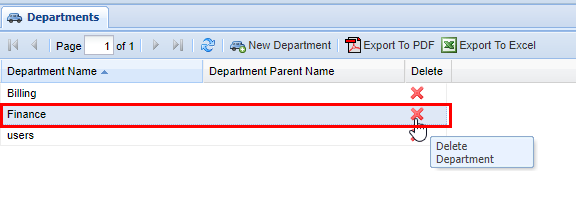
2\) Find the **Department** you want to delete and click the red **X** in the **Delete** column. A confirmation pop-up will appear confirming your selection. If you wish to delete, click **OK.** You will see a message stating **Changes Saved**, if this is not the entry to wish to delete click **Cancel**.

<p class="callout info">Note: To remove a **Department,** you will also need to delete any users assigned to the department or reassign the **Users** department to another department.</p>

[![image.png](https://public.intellasoft.net/uploads/images/gallery/2024-07/scaled-1680-/Jtiimage.png)](https://public.intellasoft.net/uploads/images/gallery/2024-07/Jtiimage.png)

3\) If you see an error such as the one below when attempting to remove a **Department** this means that there is still a **User** that is associated with a **Department.** To remove a **Department,** you will also need to delete any users assigned to the department or reassign the **Users** department to another department.

[![image.png](https://public.intellasoft.net/uploads/images/gallery/2024-07/scaled-1680-/bJEimage.png)](https://public.intellasoft.net/uploads/images/gallery/2024-07/bJEimage.png)
<span class="confluence-embedded-file-wrapper confluence-embedded-manual-size">![](https://public.intellasoft.net/download/attachments/8029534/image2017-6-30_14-59-23.png?version=1&modificationDate=1499971305080&api=v2)</span>

# Extensions

# IntellaPhone Setup Instructions

### First: Choose Extension or Create New

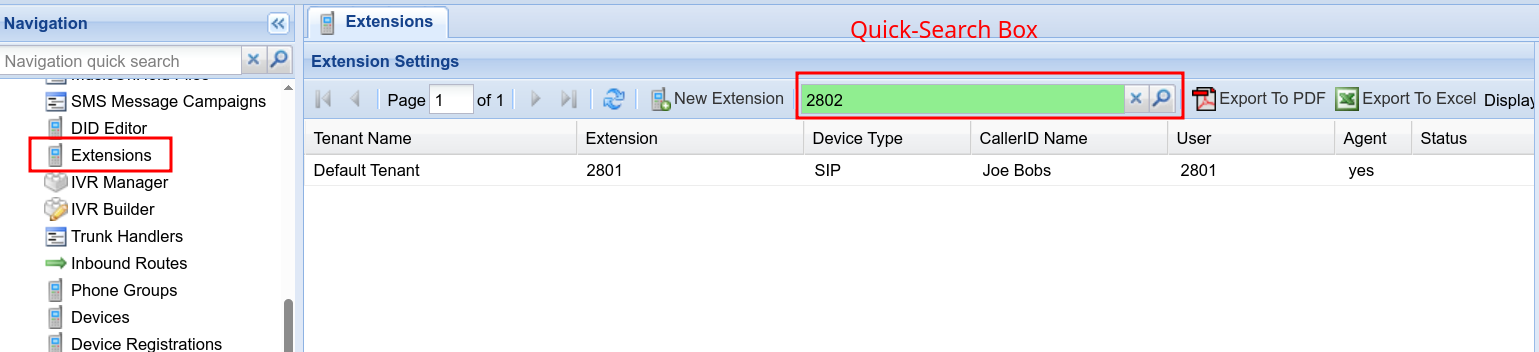
##### 1) Locate Extensions, and then find the Extension to set as a SoftPhone  
 or  
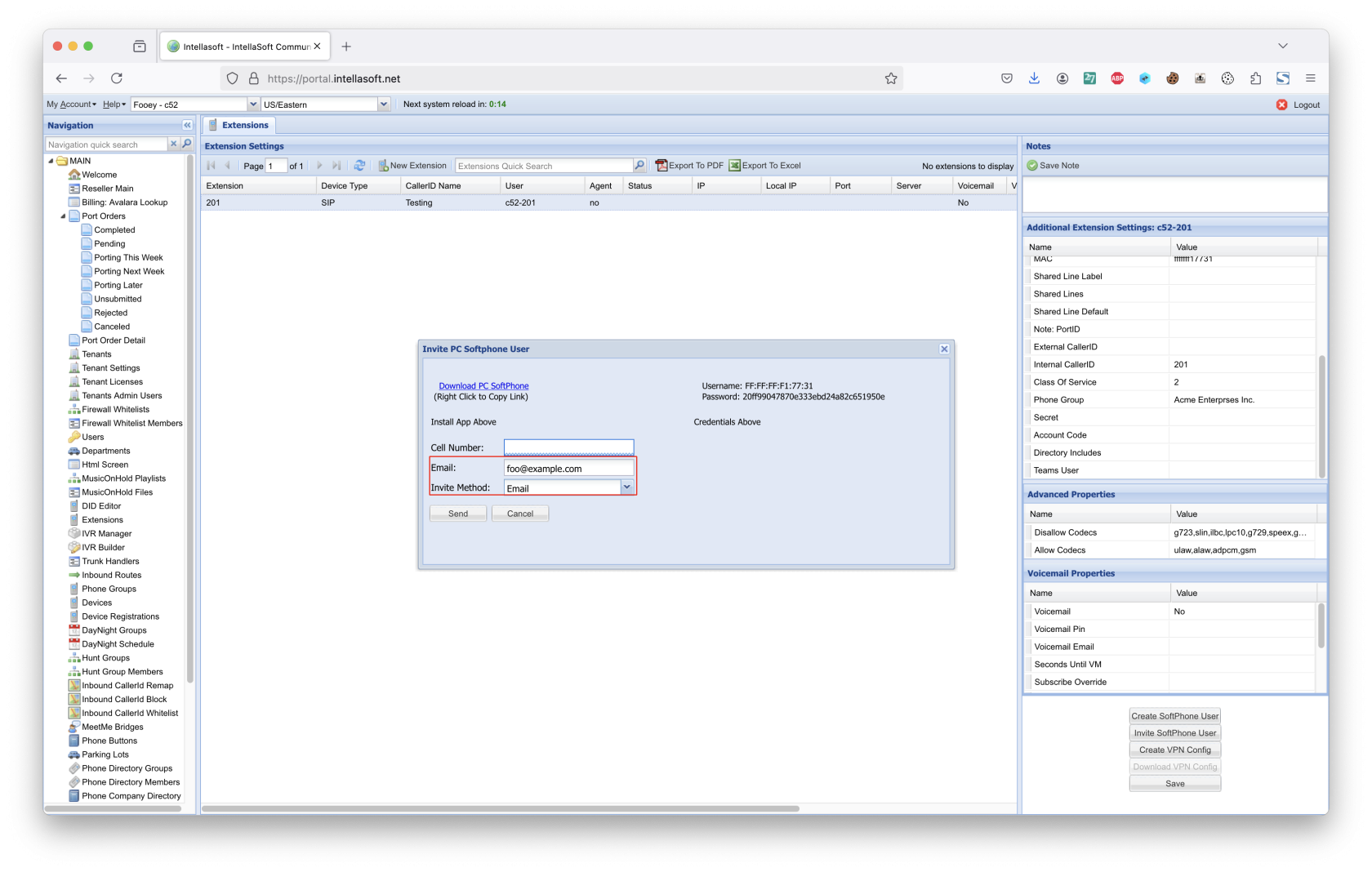
2) Use the 'New Extension' button  
  
  
Locate  


[![image.png](https://doc.intellasoft.net/uploads/images/gallery/2025-05/scaled-1680-/qzDimage.png)](https://doc.intellasoft.net/uploads/images/gallery/2025-05/qzDimage.png)
#####   
Create New

[![image.png](https://doc.intellasoft.net/uploads/images/gallery/2025-05/scaled-1680-/image.png)](https://doc.intellasoft.net/uploads/images/gallery/2025-05/image.png)

[![image.png](https://doc.intellasoft.net/uploads/images/gallery/2025-05/scaled-1680-/aeOimage.png)](https://doc.intellasoft.net/uploads/images/gallery/2025-05/aeOimage.png)
###   
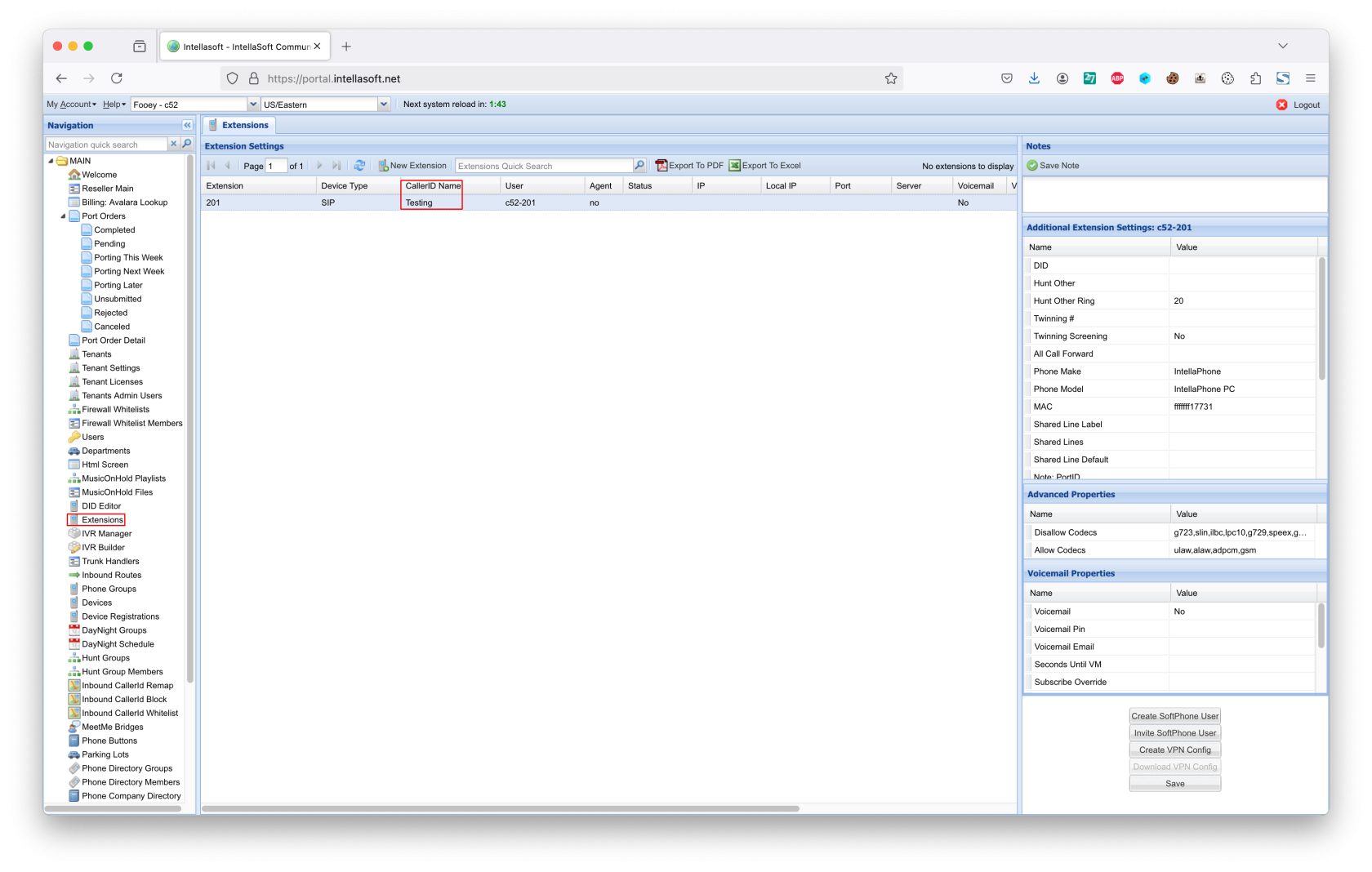
Next: Set CallerID Name and Phone Make/Model  


1\) Set CallerID name  
2\) Enable Voicemail (optional)  
3\) Set Email Address (optional, for voicemail)  
4\) Set Phone Make: IntellaPhone  
5\) Set Phone Model: IntellaPhone PC

[![1.png](https://public.intellasoft.net/uploads/images/gallery/2025-01/scaled-1680-/3uR1.png)](https://public.intellasoft.net/uploads/images/gallery/2025-01/3uR1.png)
## Second Step: Send the Invitation Email

<span class="confluence-embedded-file-wrapper confluence-embedded-manual-size">[![2.png](https://public.intellasoft.net/uploads/images/gallery/2025-01/scaled-1680-/2.png)](https://public.intellasoft.net/uploads/images/gallery/2025-01/2.png)</span>

## Third Step: Wait for Email to be Sent. This may take 30 seconds or more.

## Fourth Step:The user will receive an email that looks like the following

<span class="confluence-embedded-file-wrapper confluence-embedded-manual-size">[![3.png](https://public.intellasoft.net/uploads/images/gallery/2025-01/scaled-1680-/3.png)](https://public.intellasoft.net/uploads/images/gallery/2025-01/3.png)</span>

The above link is purely an example. It is important to use the exact link that was sent in the email in order to proceed to the next step.

## Fifth Step: The user will visit the URL in the email and install the application

Once installed, the user will then copy and paste the Username and Password into the matching fields of the application logon

<span class="confluence-embedded-file-wrapper confluence-embedded-manual-size">![](https://public.intellasoft.net/download/attachments/74400481/image2022-8-27_10-36-1.png?version=1&modificationDate=1661610962129&api=v2)</span>

1\) Download and install the IntellaPhone Application

2\) Once installed, copy the Username from this web page into the Username field of the Account Box

3\) Followed by, copy the Password from this web page into the Password field of the Account Box

4\) Leave 'Remember Details' checked

# Extensions (Archive)

The **Extensions** screen allows you to associate **Extensions** with phones. A phone must have an Extension** associated with them to receive calls. **Extensions** can be associated with physical phones, soft phones, or voicemail boxes.

<div class="columnLayout single" data-layout="single" id="bkmrk-1overview-2adding-an"><div class="cell normal" data-type="normal"><div class="innerCell"><div class="panel conf-macro output-block" data-hasbody="true" data-macro-name="panel" style="border-width: 1px;"><div class="panelContent"><div class="toc-macro client-side-toc-macro conf-macro output-block" data-csslistindent="15px" data-hasbody="false" data-headerelements="H1,H2" data-macro-name="toc" data-numberedoutline="true">- <span class="toc-item-body" data-outline="2">[Adding an Extension](#bkmrk-adding-an-extension)</span>
- <span class="toc-item-body" data-outline="3">[Additional Extension Settings](#bkmrk-additional-extension)</span>
- <span class="toc-item-body" data-outline="4">[Removing an Extension](#bkmrk-removing-an-extensio)</span>

</div></div></div></div></div></div># Adding an Extension

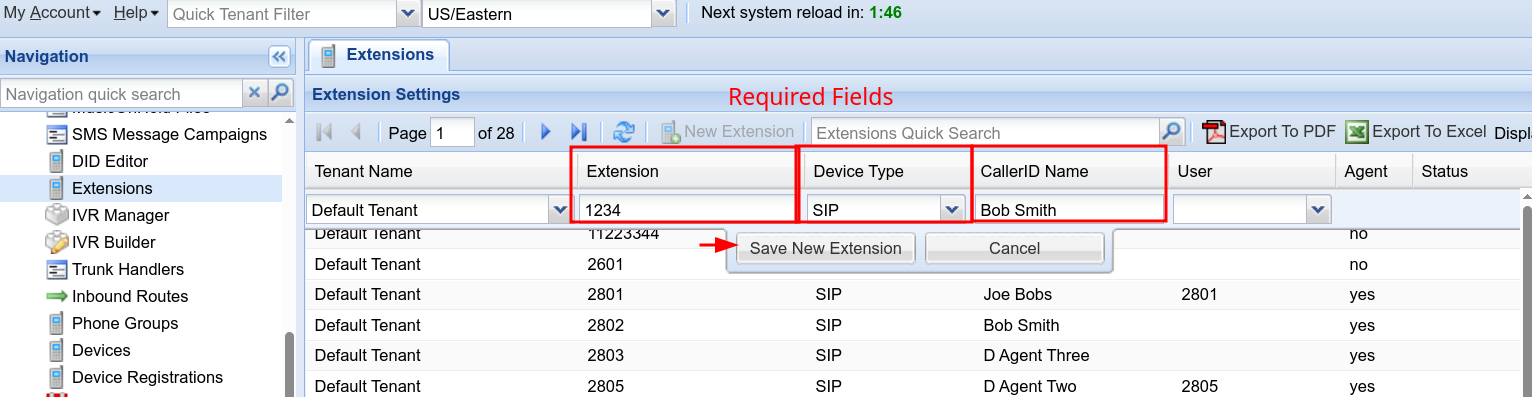
Start by navigating to the **Extensions** screen via the **Navigation Panel.** Next click **New Extension** button. A row editor will appear in the grid below.

<div class="columnLayout single" data-layout="single" id="bkmrk-"><div class="cell normal" data-type="normal"><div class="innerCell"><div class="panel conf-macro output-block" data-hasbody="true" data-macro-name="panel" style="border-width: 1px;"><div class="panelContent"><div class="sectionColumnWrapper conf-macro output-block" data-hasbody="true" data-macro-name="section"><div class="sectionMacro"><div class="sectionMacroRow"><div class="columnMacro conf-macro output-block" data-hasbody="true" data-macro-name="column" style="width: 50%; min-width: 50%; max-width: 50%;"><div class="columnMacro conf-macro output-block" data-hasbody="true" data-macro-name="column"><div class="table-wrap"><table class="wrapped confluenceTable tablesorter tablesorter-default" role="grid"><colgroup><col></col><col></col><col></col><col></col></colgroup><thead aria-label="Use column header buttons to sort"><tr class="tablesorter-headerRow" role="row"></tr></thead></table>

</div></div></div></div></div></div></div></div></div></div></div><div class="sectionColumnWrapper conf-macro output-block" data-hasbody="true" data-macro-name="section" id="bkmrk-field-type-descripti"><div class="sectionMacro"><div class="sectionMacroRow"><div class="columnMacro conf-macro output-block" data-hasbody="true" data-macro-name="column" style="width: 50%; min-width: 50%; max-width: 50%;"><div class="columnMacro conf-macro output-block" data-hasbody="true" data-macro-name="column"><div class="table-wrap"><table class="wrapped confluenceTable tablesorter tablesorter-default" role="grid"><tbody><tr><td>  
</td><td>**Field**  
</td><td>**Type**  
</td><td>**Description**  
</td></tr><tr role="row"><td class="confluenceTd">**Required**</td><td class="confluenceTd">Extension</td><td class="confluenceTd">Numeric</td><td class="confluenceTd">Extension number</td></tr><tr role="row"><td class="confluenceTd">  
</td><td class="confluenceTd">Device Type</td><td class="confluenceTd">List</td><td class="confluenceTd">Type of Device the extension will be associated with</td></tr><tr role="row"><td class="confluenceTd">  
</td><td class="confluenceTd">CallerID Name</td><td class="confluenceTd">Field</td><td class="confluenceTd">Caller ID name, this may be overwritten depending on system settings</td></tr><tr role="row"><td class="confluenceTd">**Optional**</td><td class="confluenceTd">User</td><td class="confluenceTd">List</td><td class="confluenceTd">Portal users to be associated with this extension</td></tr><tr role="row"><td class="confluenceTd">  
</td><td class="confluenceTd">Voicemail</td><td class="confluenceTd">Checkbox</td><td class="confluenceTd">Enables or disables voicemail</td></tr><tr role="row"><td class="confluenceTd">  
</td><td class="confluenceTd">Voicemail Pin</td><td class="confluenceTd">Numeric</td><td class="confluenceTd">Pin number to access voicemail, will only show if voicemail has been enabled.</td></tr><tr role="row"><td class="confluenceTd">**View Only**</td><td class="confluenceTd">Agent (further explained below)</td><td class="confluenceTd">Value</td><td class="confluenceTd">Yes/ no value, states whether or not this extension is associated with an Agent (part of the [IntellaQueue](https://public.intellasoft.net/display/intellaqueue/IntellaQueue)/call center settings)</td></tr><tr role="row"><td class="confluenceTd">  
</td><td class="confluenceTd">Status (further explained below)</td><td class="confluenceTd">Value</td><td class="confluenceTd">Status of device registered to server.</td></tr><tr role="row"><td class="confluenceTd">  
</td><td class="confluenceTd">IP (further explained below)</td><td class="confluenceTd">Numeric</td><td class="confluenceTd">Internet Protocol address of the extension.</td></tr><tr role="row"><td class="confluenceTd">  
</td><td class="confluenceTd">Port (further explained below)</td><td class="confluenceTd">Numeric</td><td class="confluenceTd">Protocol port that the extension residents on</td></tr></tbody></table>

</div></div></div><div class="columnMacro conf-macro output-block" data-hasbody="true" data-macro-name="column" style="width: 606px; min-width: 606px; max-width: 606px;">  
</div></div></div></div>Start by navigating to the **Extensions** screen via the **Navigation Panel.** Next click **New Extension** button. A row editor will appear in the grid below.<span class="confluence-embedded-file-wrapper confluence-embedded-manual-size">![](https://public.intellasoft.net/download/thumbnails/8029547/image2017-8-29_14-30-49.png?version=1&modificationDate=1504031447349&api=v2)</span>

[![image.png](https://public.intellasoft.net/uploads/images/gallery/2024-08/scaled-1680-/om4image.png)](https://public.intellasoft.net/uploads/images/gallery/2024-08/om4image.png)

[![image.png](https://public.intellasoft.net/uploads/images/gallery/2024-08/scaled-1680-/Lpiimage.png)](https://public.intellasoft.net/uploads/images/gallery/2024-08/Lpiimage.png)

[![image.png](https://public.intellasoft.net/uploads/images/gallery/2024-08/scaled-1680-/XeVimage.png)](https://public.intellasoft.net/uploads/images/gallery/2024-08/XeVimage.png)

<span class="confluence-embedded-file-wrapper confluence-embedded-manual-size">![](https://public.intellasoft.net/download/thumbnails/8029547/image2017-8-29_14-32-42.png?version=1&modificationDate=1504031560239&api=v2)</span>

The following options will be dependent on your organizations needs, so it is important to consult with your system administrator during your initial setup of your IntellaSoft web portal, or making any changes thereafter. Start by adding an appropriate **Extension** number, afterwards select the type of device you are creating the extension form. Several options are available from the drop down men.

[![image.png](https://public.intellasoft.net/uploads/images/gallery/2024-08/scaled-1680-/UrGimage.png)](https://public.intellasoft.net/uploads/images/gallery/2024-08/UrGimage.png)

Afterwards, select a **CallerID Name**, this is what will appear when this extension attempts to call others within the organization.

<span class="confluence-embedded-file-wrapper confluence-embedded-manual-size">![](https://public.intellasoft.net/download/attachments/8029547/image2017-7-14_8-43-8.png?version=1&modificationDate=1500036188721&api=v2)</span>

**SITUATION DEPENDENT:** If the **Extension** you are adding will also have a **User** that requires permission access (see **[Users](https://public.intellasoft.net/display/intellacore/Users)** page for more information on configuring users), select the appropriate **User** from the drop down menu. If this does not apply **skip to step 6**.

[![image.png](https://public.intellasoft.net/uploads/images/gallery/2024-08/scaled-1680-/gEximage.png)](https://public.intellasoft.net/uploads/images/gallery/2024-08/gEximage.png)

<span class="confluence-embedded-file-wrapper confluence-embedded-manual-size">![](https://public.intellasoft.net/download/attachments/8029547/image2017-7-14_8-44-11.png?version=1&modificationDate=1500036251578&api=v2)</span>

At this point, you will also have the option to setup a **voicemail** for the **Extension.** If the extension does not require a voicemail go ahead and click **Save New Extension** (if you go ahead and save you will see a message stating **Changes Saved)**; otherwise move on to step 7. To enable voicemail, click the checkbox in the **Voicemail** column, afterwards select a numerical **PIN** for the voicemail, we recommenced something memorable between 4-8 digits.

[![image.png](https://public.intellasoft.net/uploads/images/gallery/2024-08/scaled-1680-/cVLimage.png)](https://public.intellasoft.net/uploads/images/gallery/2024-08/cVLimage.png)

<span class="confluence-embedded-file-wrapper confluence-embedded-manual-size">![](https://public.intellasoft.net/download/attachments/8029547/image2017-7-14_8-45-21.png?version=1&modificationDate=1500036321399&api=v2)</span>

Next, you also have the option to have voicemail notifications and recording sent to email, in the following box simply input the desired email address that voicemail recordings and notifications can be sent to. **Important:** Ensure that the email address you have inserted is correct.

[![image.png](https://public.intellasoft.net/uploads/images/gallery/2024-08/scaled-1680-/2uximage.png)](https://public.intellasoft.net/uploads/images/gallery/2024-08/2uximage.png)

<span class="confluence-embedded-file-wrapper confluence-embedded-manual-size">![](https://public.intellasoft.net/download/attachments/8029547/image2017-7-14_8-47-59.png?version=1&modificationDate=1500036479322&api=v2)</span>

Lastly; review **all** of the information submitted from **Extension Number** to **Voicemail Email,** once you have ensured all of the data is correct and accurate click **Save New Extension.** Afterwards you will see a message stating **Changes Saved.**

[![image.png](https://public.intellasoft.net/uploads/images/gallery/2024-08/scaled-1680-/Qtiimage.png)](https://public.intellasoft.net/uploads/images/gallery/2024-08/Qtiimage.png)

**<span class="confluence-embedded-file-wrapper confluence-embedded-manual-size">![](https://public.intellasoft.net/download/attachments/8029547/image2017-7-14_8-48-33.png?version=1&modificationDate=1500036513237&api=v2)</span>**

There are several important limitations to keep in mind regarding **Extension**.

Firstly, the number of **Extensions** depends on the licensing of your IntellaSoft web portal. Depending on the number purchased during your initial setup of your IntellaSoft system you may need to be purchase additional licenses to gain access to more extensions. We are working on a way to make this process seamless, but for now you will need contact your IntellaSoft Sales representative who will be more than happy to assist you during that process. If you see an error such as the one below, this means you have reached the maximum number of **Extensions** your licenses allow for.

[![image.png](https://public.intellasoft.net/uploads/images/gallery/2024-08/scaled-1680-/b0simage.png)](https://public.intellasoft.net/uploads/images/gallery/2024-08/b0simage.png)

<span class="confluence-embedded-file-wrapper confluence-embedded-manual-size">![](https://public.intellasoft.net/download/attachments/8029547/image2017-7-5_12-52-34.png?version=1&modificationDate=1499971305281&api=v2)</span>

Next, you may have noticed 4 columns with information that you cannot edit. This is simply information that the **IntellaSoft** web portal is reading from the server, and are explained below.

[![image.png](https://public.intellasoft.net/uploads/images/gallery/2024-08/scaled-1680-/Lq8image.png)](https://public.intellasoft.net/uploads/images/gallery/2024-08/Lq8image.png)

**Agent:** In this column it will simply state **Yes** or **No.** **Agents** are are specific the **Call Center** options of IntellaSoft Web Portal**.** This information is helpful in large organizations with multiple departments including ones that have a dedicated call center with live **Agents**, whether or not an **Extension** is identified as an agent depends on your licensing configuration and organizations needs. If you are needing add a call center to your IntellaSoft Communications Platform**,** contact your IntellaSoft representative to discuss options.

**Status**: See the table below

<div class="sectionColumnWrapper conf-macro output-block" data-hasbody="true" data-macro-name="section" id="bkmrk--18"><div class="sectionMacro"><div class="sectionMacroRow"><div class="columnMacro conf-macro output-block" data-hasbody="true" data-macro-name="column" style="width: 50%; min-width: 50%; max-width: 50%;"><div class="table-wrap"><table class="wrapped confluenceTable tablesorter tablesorter-default" role="grid"><colgroup><col></col><col></col></colgroup><thead aria-label="Use column header buttons to sort"><tr class="tablesorter-headerRow" role="row"></tr></thead></table>

</div></div></div></div></div><div class="columnLayout single" data-layout="single" id="bkmrk-status-definition-ok"><div class="cell normal" data-type="normal"><div class="innerCell"><div class="panel conf-macro output-block" data-hasbody="true" data-macro-name="panel" style="border-width: 1px;"><div class="panelContent"><div class="sectionColumnWrapper conf-macro output-block" data-hasbody="true" data-macro-name="section"><div class="sectionMacro"><div class="sectionMacroRow"><div class="columnMacro conf-macro output-block" data-hasbody="true" data-macro-name="column" style="width: 50%; min-width: 50%; max-width: 50%;"><div class="table-wrap"><table class="wrapped confluenceTable tablesorter tablesorter-default" role="grid"><tbody><tr><td>**Status**  
</td><td>**Definition**  
</td></tr><tr role="row"><td class="confluenceTd">OK</td><td class="confluenceTd">The end-point is registered and properly running on the server (you should see an **IP** and **Port** associated with the extension). An end-point can represent a physical phone, software phone, PA speaker, as well numerous other physical or virtual communication devices.</td></tr><tr role="row"><td class="confluenceTd">UNREACHABLE</td><td class="confluenceTd">The system cannot reach the phone, but the phone has been registered prior. This usually indicates that there may be an issue. Contact your system administrator for assistance.</td></tr><tr role="row"><td class="confluenceTd">UNKNOWN</td><td class="confluenceTd">This will be the status of the endpoint when it was previously UNREACHABLE, and the system has given up trying to contact the endpoint.</td></tr><tr role="row"><td class="confluenceTd">UNMONITORED</td><td class="confluenceTd">This means that the endpoint has intentionally been set so it does not monitor status. The IP and PORT will only be populated if these are configured. Despite being Unmonitored, the endpoint can still be called. When this endpoint is called, the system will try to reach it until the system defined timeout is reached. If the endpoint is unresponsive at the time of the call, the call will fail.</td></tr><tr role="row"><td class="confluenceTd">BLANK</td><td class="confluenceTd">No phone has been registered to this extension. There could be several reasons for this, the phone could simply not be plugged in or programmed to this extension. The Contact your system administrator if you suspect a problem.</td></tr></tbody></table>

</div></div></div></div></div></div></div></div></div></div>**IP:** This columns refers to the IP (or Internet Protocol) Address that the extensions lies on. This information is automatically updated based on the current server information. Generally speaking this is utilized by IntellaSoft staff, your organizations IT or System Administration to diagnose potential problems, should they arise. If you have questions regarding this, please direct them to your System Administrator. IP of the phone itself

**Port:** Port that the phone resides on.

<span class="confluence-embedded-file-wrapper confluence-embedded-manual-size">![](https://public.intellasoft.net/download/attachments/8029547/image2017-7-5_12-56-2.png?version=1&modificationDate=1499971305274&api=v2)</span>

# Additional Extension Settings

Extensions may have to have additional information about them, this will depend on your organizations needs. Contact your system administrator for more information.

<div class="columnLayout single" data-layout="single" id="bkmrk--21"><div class="cell normal" data-type="normal"><div class="innerCell"><div class="panel conf-macro output-block" data-hasbody="true" data-macro-name="panel" style="border-width: 1px;"><div class="panelContent"><div class="sectionColumnWrapper conf-macro output-block" data-hasbody="true" data-macro-name="section"><div class="sectionMacro"><div class="sectionMacroRow"><div class="columnMacro conf-macro output-block" data-hasbody="true" data-macro-name="column" style="width: 50%; min-width: 50%; max-width: 50%;"><div class="columnMacro conf-macro output-block" data-hasbody="true" data-macro-name="column" style="width: 50%; min-width: 50%; max-width: 50%;"><div class="table-wrap"><table class="wrapped confluenceTable tablesorter tablesorter-default" role="grid"><colgroup><col></col><col></col></colgroup><thead aria-label="Use column header buttons to sort"><tr class="tablesorter-headerRow" role="row"></tr></thead></table>

</div></div></div></div></div></div></div></div></div></div></div><div class="wiki-content" id="bkmrk-name-definition-did-"><div class="contentLayout2"><div class="columnLayout single" data-layout="single"><div class="cell normal" data-type="normal"><div class="innerCell"><div class="panel conf-macro output-block" data-hasbody="true" data-macro-name="panel" style="border-width: 1px;"><div class="panelContent"><div class="sectionColumnWrapper conf-macro output-block" data-hasbody="true" data-macro-name="section"><div class="sectionMacro"><div class="sectionMacroRow"><div class="columnMacro conf-macro output-block" data-hasbody="true" data-macro-name="column" style="width: 50%; min-width: 50%; max-width: 50%;"><div class="columnMacro conf-macro output-block" data-hasbody="true" data-macro-name="column" style="width: 50%; min-width: 50%; max-width: 50%;"><div class="table-wrap"><table class="wrapped confluenceTable tablesorter tablesorter-default" role="grid" style="width: 100.247%; height: 871px;"><tbody><tr><td style="width: 24.2611%;">**Name**  
</td><td style="width: 75%;">**Definition**  
</td></tr><tr role="row" style="height: 29.8px;"><td class="confluenceTd" style="width: 24.2611%; height: 29.8px;">DID</td><td class="confluenceTd" style="width: 75%; height: 29.8px;">Inbound DID</td></tr><tr role="row" style="height: 102.6px;"><td class="confluenceTd" style="width: 24.2611%; height: 102.6px;">Twinning #</td><td class="confluenceTd" style="width: 75%; height: 102.6px;">Twinning number. Ring an external number such as a cell phone.

</td></tr><tr role="row" style="height: 80.2px;"><td class="confluenceTd" style="width: 24.2611%; height: 80.2px;">Phone make</td><td class="confluenceTd" style="width: 75%; height: 80.2px;">Make of the phone in question</td></tr><tr role="row" style="height: 80.2px;"><td class="confluenceTd" style="width: 24.2611%; height: 80.2px;">Phone Model</td><td class="confluenceTd" style="width: 75%; height: 80.2px;">Model of the phone in question</td></tr><tr role="row" style="height: 63.4px;"><td class="confluenceTd" style="width: 24.2611%; height: 63.4px;">MAC</td><td class="confluenceTd" style="width: 75%; height: 63.4px;">MAC address of the phone, if registered to a physical phone</td></tr><tr role="row" style="height: 80.2px;"><td class="confluenceTd" style="width: 24.2611%; height: 80.2px;">Phone Reg #</td><td class="confluenceTd" style="width: 75%; height: 80.2px;">Registration number on the physical phone (ie: polycom reg number)</td></tr><tr role="row" style="height: 80.2px;"><td class="confluenceTd" style="width: 24.2611%; height: 80.2px;">External CallerID</td><td class="confluenceTd" style="width: 75%; height: 80.2px;">What callerid to use when the extension dials out a route

</td></tr><tr role="row" style="height: 80.2px;"><td class="confluenceTd" style="width: 24.2611%; height: 80.2px;">All Call Forward</td><td class="confluenceTd" style="width: 75%; height: 80.2px;">Call forwarding

</td></tr><tr role="row" style="height: 80.2px;"><td class="confluenceTd" style="width: 24.2611%; height: 80.2px;">Class of Service</td><td class="confluenceTd" style="width: 75%; height: 80.2px;">Class of service when this extension makes a call</td></tr><tr role="row" style="height: 80.2px;"><td class="confluenceTd" style="width: 24.2611%; height: 80.2px;">Phone Group</td><td class="confluenceTd" style="width: 75%; height: 80.2px;">Phonegroup that this extension is a member of</td></tr><tr role="row" style="height: 113.8px;"><td class="confluenceTd" style="width: 24.2611%; height: 113.8px;">Secet</td><td class="confluenceTd" style="width: 75%; height: 113.8px;">Secret password to use for incoming and outgoing requests, unless overridden using 'auth'</td></tr></tbody></table>

</div></div></div><div class="columnMacro conf-macro output-block" data-hasbody="true" data-macro-name="column" style="width: 606px; min-width: 606px; max-width: 606px;">  
</div></div></div></div></div></div></div></div></div></div></div>[![image.png](https://public.intellasoft.net/uploads/images/gallery/2024-08/scaled-1680-/Wuximage.png)](https://public.intellasoft.net/uploads/images/gallery/2024-08/Wuximage.png)

<span class="confluence-embedded-file-wrapper confluence-embedded-manual-size">  
</span>

# Removing an Extension

Navigate to the **Extensions** screen. Select the **Extension** you wish to delete, and then click on the red **X** in the **controls** column.

Warning

Caution should always be exercised when removing an **Extension**. Even if an extension is not physically used and thought to be inactive, or it is not connected -- the associated voicemail box might be being used elsewhere in the system, or the extension may have a \[Call Forward\] in place. Ensure that it is verified that all functions related to this extension are unused or unneeded before removing.

A confirmation pop up will appear confirming your selection. If you wish to delete click **OK**, you will see a message stating **Changes Saved**, if this is not the entry to wish to delete click **Cancel,** to return to the screen.

[![image.png](https://public.intellasoft.net/uploads/images/gallery/2024-08/scaled-1680-/uVKimage.png)](https://public.intellasoft.net/uploads/images/gallery/2024-08/uVKimage.png)

# Overview

<div class="toc-macro client-side-toc-macro non-printable conf-macro output-block hidden-outline" data-hasbody="false" data-headerelements="H1,H2,H3,H4,H5,H6,H7" data-macro-name="toc" id="bkmrk-overview-configurati">- <span class="toc-item-body" data-outline="2">[Configurations](#bkmrk-configurations)</span>
    - <span class="toc-item-body" data-outline="2.1">[Additional Configurations](#bkmrk-additional-configura)</span>
- <span class="toc-item-body" data-outline="3">[Adding an Extension](#bkmrk-adding-an-extension)</span>
- <span class="toc-item-body" data-outline="4">[Editing an Extension](#bkmrk-editing-an-extension)</span>
- <span class="toc-item-body" data-outline="5">[Deleting an Extension](#bkmrk-deleting-an-extensio)</span>
- <span class="toc-item-body" data-outline="6">[Additional Notes](#bkmrk-additional-notes)</span>

</div>An **extension** is an assignment to a physical phone, softphone, voicemail box, or any similar device configured within the system. A phone must have an extension assigned to it to receive calls.

<p class="callout info">A user cannot configure his or her extension. Only an administrator can update an extension.</p>

## Configuration Options  


<table border="1" id="bkmrk-field-type-descripti" style="border-collapse: collapse; width: 100%; height: 1253.65px;"><colgroup><col style="width: 15.5748%;"></col><col style="width: 13.3494%;"></col><col style="width: 60.8163%;"></col><col style="width: 10.2596%;"></col></colgroup><thead><tr style="height: 29.8px;"><td style="height: 29.8px;">**Field**  
</td><td style="height: 29.8px;">**Type**  
</td><td style="height: 29.8px;">**Description**  
</td><td style="height: 29.8px;">**Required**  
</td></tr></thead><tbody><tr style="height: 102.6px;"><td style="height: 102.6px;">Extension</td><td style="height: 102.6px;">Alphanumeric</td><td style="height: 102.6px;">Extension identifier

Numeric digits are recommended if the extension must be dialed from a phone.

</td><td style="height: 102.6px;">Yes  
</td></tr><tr style="height: 373.05px;"><td style="height: 373.05px;">Device Type</td><td style="height: 373.05px;">List  
</td><td style="height: 373.05px;">Extension device type

<table border="1" style="border-collapse: collapse; width: 100.407%;"><colgroup><col style="width: 22.4193%;"></col><col style="width: 77.5772%;"></col></colgroup><tbody><tr><td>**Type**  
</td><td>**Description**  
</td></tr><tr><td class="confluenceTd">SIP</td><td class="confluenceTd">SIP (Session Initiation Protocol) device

</td></tr><tr><td class="confluenceTd">IAX2</td><td class="confluenceTd">IAX2 (Inter-Asterisk eXchange) device</td></tr><tr><td class="confluenceTd">DAHDI</td><td class="confluenceTd">DAHDI (Digium Asterisk Hardware Device Interface) device

</td></tr><tr><td class="confluenceTd">VIRTUAL</td><td class="confluenceTd">Voicemail-only or call-forwarding extension, not connected to any physical device or softphone

</td></tr><tr><td class="confluenceTd">SIP-VIRTUAL</td><td class="confluenceTd">Additional extension on a device that supports multiple extensions

</td></tr></tbody></table>

VIRTUAL and SIP-VIRTUAL device types do not use extension licenses

</td><td style="height: 373.05px;">Yes  
</td></tr><tr style="height: 35.4px;"><td class="confluenceTd" style="height: 35.4px;">CallerID Name</td><td class="confluenceTd" style="height: 35.4px;">Field</td><td class="confluenceTd" style="height: 35.4px;">Caller ID name – displayed on devices that support caller ID

</td><td class="confluenceTd" style="height: 35.4px;">Yes</td></tr><tr style="height: 102.6px;"><td style="height: 102.6px;">User</td><td style="height: 102.6px;">List  
</td><td style="height: 102.6px;">The portal user associated with the extension (refer to [Users](https://docs.intellasoft.net/books/web-portal-dL9/page/users) for more information) – select if a specific user requires permission to access

VIRTUAL and SIP-VIRTUAL device types do not use extension licenses.

</td><td style="height: 102.6px;">Yes  
</td></tr><tr style="height: 35.4px;"><td class="confluenceTd" style="height: 35.4px;">Agent</td><td class="confluenceTd" style="height: 35.4px;">Value</td><td class="confluenceTd" style="height: 35.4px;">Indicates if the extension is associated with an agent

</td><td class="confluenceTd" style="height: 35.4px;">Read-only</td></tr><tr style="height: 106.85px;"><td style="height: 106.85px;">Status  
</td><td style="height: 106.85px;">Value  
</td><td style="height: 106.85px;">Status of the device registered to the server

<table border="1" style="border-collapse: collapse; width: 100.407%;"><colgroup><col style="width: 28.1035%;"></col><col style="width: 71.893%;"></col></colgroup><tbody><tr><td>**Status**  
</td><td>**Description**  
</td></tr><tr><td>OK  
</td><td>The device is registered and configured

IP and port are always displayed for this status.

</td></tr><tr><td>UNREACHABLE</td><td>The system cannot reach a registered device

An UNREACHABLE status could indicate an issue. Contact your system administrator if you suspect a problem.

</td></tr><tr><td class="confluenceTd">UNKNOWN</td><td class="confluenceTd">The system has given up trying to contact an UNREACHABLE device

</td></tr><tr><td>UNMONITORED</td><td>Endpoint is not monitored

IP and port are always displayed for this status.

An UNMONITORED endpoint can still be called. When this endpoint is called, the system will try to reach it until it times out. If the endpoint is unresponsive, the call fails.

</td></tr><tr><td>BLANK</td><td>No device is registered to this extension

A blank status could indicate an issue. Contact your system administrator if you suspect a problem.

</td></tr></tbody></table>

</td><td style="height: 106.85px;">Read-only  
</td></tr><tr style="height: 57.8px;"><td class="confluenceTd" style="height: 57.8px;">IP</td><td class="confluenceTd" style="height: 57.8px;">Numeric</td><td class="confluenceTd" style="height: 57.8px;">Internet protocol address (IPv4 format – e.g. 255.255.255.255) assigned to the extension

</td><td class="confluenceTd" style="height: 57.8px;">Read-only</td></tr><tr style="height: 35.4px;"><td class="confluenceTd" style="height: 35.4px;">Port</td><td class="confluenceTd" style="height: 35.4px;">Numeric</td><td class="confluenceTd" style="height: 35.4px;">Device signaling port

</td><td class="confluenceTd" style="height: 35.4px;">Read-only</td></tr><tr style="height: 29.8px;"><td class="confluenceTd" style="height: 29.8px;">Voicemail</td><td class="confluenceTd" style="height: 29.8px;">Checkbox</td><td class="confluenceTd" style="height: 29.8px;">Enables or disables voicemail</td><td class="confluenceTd" style="height: 29.8px;">No</td></tr><tr style="height: 63.4px;"><td class="confluenceTd" style="height: 63.4px;">Voicemail Pin</td><td class="confluenceTd" style="height: 63.4px;">Numeric</td><td class="confluenceTd" style="height: 63.4px;">Voicemail PIN – enabled if voicemail is enabled

</td><td class="confluenceTd" style="height: 63.4px;">Yes if voicemail is enabled</td></tr><tr style="height: 57.8px;"><td class="confluenceTd" style="height: 57.8px;">Voicemail Email</td><td class="confluenceTd" style="height: 57.8px;">Email</td><td class="confluenceTd" style="height: 57.8px;">Email address where voicemail messages are sent – enabled if voicemail is enabled

</td><td class="confluenceTd" style="height: 57.8px;">No</td></tr><tr style="height: 223.75px;"><td style="height: 223.75px;">Controls  
</td><td style="height: 223.75px;">n/a  
</td><td style="height: 223.75px;">Extension tools

<table border="1" style="border-collapse: collapse; width: 100.407%;"><colgroup><col style="width: 15.0509%;"></col><col style="width: 84.9456%;"></col></colgroup><tbody><tr><td>**Icon**  
</td><td>**Description**  
</td></tr><tr><td>[![image.png](https://docs.intellasoft.net/uploads/images/gallery/2024-03/scaled-1680-/bx2image.png)](https://docs.intellasoft.net/uploads/images/gallery/2024-03/bx2image.png)

</td><td>Opens the [Voicemail configuration manager](https://docs.intellasoft.net/books/web-portal-dL9/page/voicemail)</td></tr><tr><td>[![image.png](https://docs.intellasoft.net/uploads/images/gallery/2024-03/scaled-1680-/TfCimage.png)](https://docs.intellasoft.net/uploads/images/gallery/2024-03/TfCimage.png)

</td><td>Opens the Phone Buttons configuration manager</td></tr><tr><td>[![image.png](https://docs.intellasoft.net/uploads/images/gallery/2024-03/scaled-1680-/hXLimage.png)](https://docs.intellasoft.net/uploads/images/gallery/2024-03/hXLimage.png)

</td><td>Delete extension – see [Deleting an Extension](#bkmrk-deleting-an-extensio) below</td></tr></tbody></table>

</td><td style="height: 223.75px;">n/a  
</td></tr></tbody></table>

<div class="table-wrap" id="bkmrk-opens-the-voicemail-"></div>## Additional Configuration

Some extensions require additional configuration, depending on your organizational needs. These configuration options are described under [Phone Configuration](https://docs.intellasoft.net/books/web-portal-dL9/page/phone-configuration). Contact your system administrator for more information.

## Adding an Extension

1\) Click **Extensions** on the Navigation pane. The Extension Settings pane appears.

<span style="letter-spacing: 0.0px;">2) Click </span>**New Extension** on the upper menu<span style="letter-spacing: 0.0px;">.  
</span>

[![image.png](https://public.intellasoft.net/uploads/images/gallery/2024-07/scaled-1680-/EJ9image.png)](https://public.intellasoft.net/uploads/images/gallery/2024-07/EJ9image.png)

3\) Enter the fields as required. Refer to [Configuration Options](#bkmrk-configurations) above.

4\) Click **Save New Extension**.

The new extension has been added.

## Editing an Extension

1\) Click **Extensions** on the Navigation pane. The Extension Settings pane appears.

<span style="letter-spacing: 0.0px;">2) Double-click the extension row you want to edit. You should see a</span> row editor.

3\) Make any desired edits. Refer to [Configuration Options](#bkmrk-configurations) above.

4\) Click **Save.**

## Deleting an Extension

<p class="callout warning">Warning: Even if an extension is inactive or disconnected, it may have call forwarding enabled, or the associated voicemail box may be used elsewhere. Ensure all functions related to the extension are unused before removing it.</p>

1\) Click **Extensions** on the Navigation pane. The Extension Settings should appear.

2\) Under the Controls column, click the red <span style="color: rgb(255,0,0);">**X**</span> for the extension you want to delete.

3\) Click **OK** to delete the extension.

## Additional Notes

- The number of available extensions depends on your IntellaSoft licensing. You may need to purchase additional licenses to add more extensions. Contact your IntellaSoft sales representative for more information.

# Phone Configuration

## Overview

The **Devices** screen is for adding physical phones to the system, removing them from the system, or attaching them to an extension.

The **Extensions** screen is for managing the properties of individual extensions.

The **Phone Buttons** screen is for programming the function buttons on a phone.

The **Device Registrations** screen provides configuration options for phones.

The **Phone Groups** screen (not fully supported) is for creating groups of extensions that share some properties.

<div class="panel conf-macro output-block" data-hasbody="true" data-macro-name="panel" id="bkmrk-1overview-2adding-an" style="border-width: 1px;"><div class="panelContent"><div class="toc-macro client-side-toc-macro conf-macro output-block" data-csslistindent="15px" data-excludeheaderregex="\d." data-hasbody="false" data-headerelements="H1" data-macro-name="toc" data-numberedoutline="true">- <span class="toc-item-body" data-outline="1">[Overview](#bkmrk-overview)</span>
- <span class="toc-item-body" data-outline="2">[Adding and configuring a new phone](#bkmrk-adding-and-configuri)</span>
- <span class="toc-item-body" data-outline="3">[Devices](#bkmrk-devices)</span>
- <span class="toc-item-body" data-outline="4">[Extensions](#bkmrk-extensions)</span>
- <span class="toc-item-body" data-outline="5">[Phone Buttons](#bkmrk-phone-buttons)</span>
- <span class="toc-item-body" data-outline="6">[Device Registrations](#bkmrk-device-registrations)</span>
- <span class="toc-item-body" data-outline="7">[Phone Groups](#bkmrk-phone-groups)</span>
- <span class="toc-item-body" data-outline="8">[Removing a Phone](#bkmrk-removing-a-phone)</span>

</div></div></div>## Adding and configuring a new phone

1\) First, create a new extension on the **Extensions** screen.

- "Extension" can be any unused extension.
- "Device Type" should usually be SIP.
- "CallerID Name" should be something that identifies the phone.
- All other fields are optional. For more information, see [**Extensions**](https://public.intellasoft.net/books/web-portal-dL9/page/overview-mCh).

[![Create Extension.gif](https://public.intellasoft.net/uploads/images/gallery/2024-08/create-extension.gif)](https://public.intellasoft.net/uploads/images/gallery/2024-08/create-extension.gif)

2\) Create a new device on the **Devices** screen.

- "MAC" should be the MAC address of the new phone.
- "Main Extension" should be the extension created in Step 1.
- "Phone Type" is the manufacturer of the phone; either POLYCOM or YEALINK.
- All other fields are optional. For more information, see **[Devices](#bkmrk-devices)**.

[![image.png](https://public.intellasoft.net/uploads/images/gallery/2024-07/scaled-1680-/mi9image.png)](https://public.intellasoft.net/uploads/images/gallery/2024-07/mi9image.png)

3\) Configure the device on the **Device Registrations** screen.

- For information about the specific fields, see **[Device Registrations](#bkmrk-device-registrations)**.

[![image.png](https://public.intellasoft.net/uploads/images/gallery/2024-07/scaled-1680-/rK3image.png)](https://public.intellasoft.net/uploads/images/gallery/2024-07/rK3image.png)

## Devices<span class="confluence-anchor-link conf-macro output-inline" data-hasbody="false" data-macro-name="anchor" id="bkmrk--14"></span>

<div class="panel conf-macro output-block" data-hasbody="true" data-macro-name="panel" id="bkmrk-the-devices-screen-c" style="border-width: 1px;"><div class="panelContent"><div class="IntellaTitle conf-macro output-block" data-hasbody="true" data-macro-name="div" id="bkmrk--15"></div>The **Devices** screen consists of two panels: "Device Settings" and "Additional Device Settings".</div></div>### Device Settings

<table border="1" class="wrapped confluenceTable stickyTableHeaders tablesorter tablesorter-default" id="bkmrk-name-description-%28wh" role="grid" style="padding: 0px; border-collapse: collapse; border-style: solid; width: 100%;"><colgroup><col style="width: 17.5525%;"></col><col style="width: 36.8347%;"></col><col style="width: 45.6128%;"></col></colgroup><thead><tr><td>**Name**  
</td><td>**Description (What it does)**  
</td><td>**Properties (How you interact with it)**  
</td></tr></thead><tbody><tr role="row"><td class="confluenceTd">MAC</td><td class="confluenceTd">The MAC address of a physical phone.</td><td class="confluenceTd">Every device must have a unique, properly formatted MAC address.</td></tr><tr role="row"><td class="confluenceTd">Main Extension</td><td class="confluenceTd">The device's assigned phone line. A device must have an extension to make or receive calls.</td><td class="confluenceTd">Extensions can be created on the [**Extensions**](#bkmrk-extensions) screen. Two devices cannot have the same extension.</td></tr><tr role="row"><td class="confluenceTd">Main CallerID</td><td class="confluenceTd">Internal CallerID. This is seen only by phones on the same network.</td><td class="confluenceTd">Auto-filled based on assigned extension. Can be configured on the **Extensions** screen.</td></tr><tr role="row"><td class="confluenceTd">Main PhoneGroup Name</td><td class="confluenceTd">The PhoneGroup of the selected extension. Extensions in the same PhoneGroup will have some shared properties.</td><td class="confluenceTd">Auto-filled based on extension. PhoneGroup can created on the **[Phone Groups](#bkmrk-phone-groups)** screen and assigned on the **Extensions** screen.</td></tr><tr role="row"><td class="confluenceTd">Phone Name</td><td class="confluenceTd">A name assigned to the phone.</td><td class="confluenceTd">An optional field used only for bookkeeping.</td></tr><tr role="row"><td class="confluenceTd">Phone Type</td><td class="confluenceTd">The manufacturer of the phone.</td><td class="confluenceTd">Must be POLYCOM or YEALINK.</td></tr></tbody></table>

### Additional Device Settings

<div class="panel conf-macro output-block" data-hasbody="true" data-macro-name="panel" id="bkmrk-name-description-pro" style="border-width: 1px;"><div class="panelContent"><div class="sectionColumnWrapper conf-macro output-block" data-hasbody="true" data-macro-name="section"><div class="sectionMacroWithBorder"><div class="sectionMacroRow"><div class="columnMacro conf-macro output-block" data-hasbody="true" data-macro-name="column"><div class="scroll conf-macro output-block" data-hasbody="true" data-macro-name="div"><div class="table-wrap"><table border="1" class="wrapped confluenceTable stickyTableHeaders tablesorter tablesorter-default" role="grid" style="padding: 0px; border-collapse: collapse; border-style: solid; width: 100%;"><colgroup><col style="width: 15.3295%;"></col><col style="width: 42.5196%;"></col><col style="width: 42.1508%;"></col></colgroup><thead><tr><td>**Name**  
</td><td>**Description**  
</td><td>**Properties**

</td></tr></thead><tbody><tr><td class="confluenceTd">Phone Model</td><td class="confluenceTd">The model number of the phone.</td><td class="confluenceTd">An optional field used only for bookkeeping.</td></tr><tr role="row"><td class="confluenceTd">NTP Server</td><td class="confluenceTd">The address of the time server used to update this device's clock.</td><td class="confluenceTd">Optional. If blank, a default NTP server will be used. Typically only necessary for off-site phones.</td></tr><tr role="row"><td class="confluenceTd">Secure Provision</td><td class="confluenceTd">Determines whether this phone encrypts its provisioning information. Turning this on requires additional setup.</td><td class="confluenceTd">Off by default. Typically only necessary for phones using off-site or publicly accessible networks.</td></tr></tbody></table>

</div></div></div></div></div></div></div></div>## Extensions<span class="confluence-anchor-link conf-macro output-inline" data-hasbody="false" data-macro-name="anchor" id="bkmrk--19"></span>

The **Extensions** screen consists of three panels: "Extension Settings", "Additional Extension Settings", and "Notes".

### Extension Settings

<table border="1" class="wrapped confluenceTable stickyTableHeaders tablesorter tablesorter-default" id="bkmrk-name-description-pro-1" role="grid" style="padding: 0px; width: 100%; border-collapse: collapse; border-style: solid;"><colgroup><col style="width: 13.8443%;"></col><col style="width: 27.314%;"></col><col style="width: 58.8417%;"></col></colgroup><thead><tr><td>**Name**

</td><td>**Description**  
</td><td>**Properties**  
</td></tr></thead><tbody><tr role="row"><td class="confluenceTd">Extension

</td><td class="confluenceTd">An extension.</td><td class="confluenceTd">Must be unique. Can be assigned to a phone on the Devices screen.</td></tr><tr role="row"><td class="confluenceTd">Device Type</td><td class="confluenceTd">The communication protocol used by this extension.</td><td class="confluenceTd">Once set, this is typically not changed. Usually it should be SIP. IAX2 is used for high volume networks. DAHDI is rarely used. VIRTUAL is used for call forwarding or mailboxes. SIP-VIRTUAL allows one phone to have multiple attached extensions.</td></tr><tr role="row"><td class="confluenceTd">CallerID Name</td><td class="confluenceTd">The internal CallerID for this extension. Only visible on internal calls (calls between phones registered on the portal).</td><td class="confluenceTd">No technical restrictions. This should be some descriptive identifier, such as the name of the phone's primary user.</td></tr><tr role="row"><td class="confluenceTd">User</td><td class="confluenceTd">The web portal account assigned to this extension.</td><td class="confluenceTd">Optional. If set, this allows a user-level account to manage their assigned extensions through the web portal.</td></tr><tr role="row"><td class="confluenceTd">Agent</td><td class="confluenceTd">Shows whether this extension is assigned to a registered Call Center Agent.</td><td class="confluenceTd">Read-only. This is set on the Agent Allocation screen and may not be available on all systems.</td></tr><tr role="row"><td class="confluenceTd">Status</td><td class="confluenceTd">OK: this extension is reachable through the network.

UNREACHABLE: this extension is not responding to network activity.

UNKNOWN: there is no registered associated device.

</td><td class="confluenceTd">Read-only.</td></tr><tr role="row"><td class="confluenceTd">IP</td><td class="confluenceTd">The network address used by this extension's associated device.</td><td class="confluenceTd">Read-only. This is typically a dynamic address and may change.</td></tr><tr role="row"><td class="confluenceTd">Port</td><td class="confluenceTd">The network port used by this device.</td><td class="confluenceTd">Read-only. This is assigned by the host and typically not changed.</td></tr><tr role="row"><td class="confluenceTd">Voicemail</td><td class="confluenceTd">Controls whether or not this extension has a voicemail box.</td><td class="confluenceTd">  
</td></tr><tr role="row"><td class="confluenceTd">Voicemail PIN</td><td class="confluenceTd">The password for this extension's voicemail box.</td><td class="confluenceTd">Must be defined if voicemail is enabled. It can be any numeric string and should be at least 3 digits long.</td></tr><tr role="row"><td class="confluenceTd">Voicemail Email</td><td class="confluenceTd">Voicemail notifications are sent to this email address.</td><td class="confluenceTd">Optional. This should be a working email address.</td></tr></tbody></table>

### Additional Extension Settings

<div class="columnMacro conf-macro output-block" data-hasbody="true" data-macro-name="column" id="bkmrk--1"><div class="scroll conf-macro output-block" data-hasbody="true" data-macro-name="div"><div class="table-wrap">  
</div></div></div><div class="columnMacro conf-macro output-block" data-hasbody="true" data-macro-name="column" id="bkmrk--22"><div class="scroll conf-macro output-block" data-hasbody="true" data-macro-name="div"><div class="table-wrap">  
</div></div></div><div class="panel conf-macro output-block" data-hasbody="true" data-macro-name="panel" id="bkmrk-name-description-pro-2" style="border-width: 1px;"><div class="panelContent"><div class="sectionColumnWrapper conf-macro output-block" data-hasbody="true" data-macro-name="section"><div class="sectionMacroWithBorder"><div class="sectionMacroRow"><div class="columnMacro conf-macro output-block" data-hasbody="true" data-macro-name="column"><div class="scroll conf-macro output-block" data-hasbody="true" data-macro-name="div"><div class="table-wrap"><table border="1" class="wrapped confluenceTable stickyTableHeaders tablesorter tablesorter-default" role="grid" style="padding: 0px; width: 100%; border-collapse: collapse; border-style: solid;"><colgroup><col style="width: 14.0841%;"></col><col style="width: 29.3028%;"></col><col style="width: 56.6131%;"></col></colgroup><thead><tr><td>**Name**  
</td><td>**Description**  
</td><td>**Properties**  
</td></tr></thead><tbody><tr role="row"><td class="confluenceTd">DID</td><td class="confluenceTd">This extension's direct line.</td><td class="confluenceTd">Optional. If provided, this must be a working phone number assigned to your system.</td></tr><tr role="row"><td class="confluenceTd">Hunt Other</td><td class="confluenceTd">Incoming calls to this extension will simultaneously ring the number listed here, and will be transferred to whichever line first picks up.</td><td class="confluenceTd">Optional. This may be another registered extension, or any external number (such as a cell phone).</td></tr><tr role="row"><td class="confluenceTd">Twinning #</td><td class="confluenceTd">Incoming calls to this extension, if not picked up, will stop ringing the main extension and instead transfer to the number listed here.</td><td class="confluenceTd">Optional. This may be another registered extension, or any external number (such as a cell phone).</td></tr><tr role="row"><td class="confluenceTd">Phone Make</td><td class="confluenceTd">The type of phone assigned to this extension.</td><td class="confluenceTd">Rarely used. This should usually be "Generic". Selecting "Soft Phone" populates the "Secret" field, allowing for setup of a simulated soft phone.</td></tr><tr role="row"><td class="confluenceTd">Phone Model</td><td class="confluenceTd">The assigned phone's model number.</td><td class="confluenceTd">Very rarely used. This should almost always be "Generic Phone".</td></tr><tr role="row"><td class="confluenceTd">MAC</td><td class="confluenceTd">The assigned phone's MAC address.</td><td class="confluenceTd">Information displayed here for ease of access. The assigned device can be changed here, but should normally be changed on the **Devices** screen.</td></tr><tr role="row"><td class="confluenceTd">Phone Reg #</td><td class="confluenceTd">This extension's list placement on the associated device's display.</td><td class="confluenceTd">Information displayed here for ease of access. This is typically "1" for all phones using only a single extension. Phones with multiple extensions should normally be managed on the **Device Registrations** screen.</td></tr><tr role="row"><td class="confluenceTd">Shared Line Label</td><td class="confluenceTd">If this extension is configured as a shared line, this will be its default display name. See **Shared Lines** for more information.</td><td class="confluenceTd">Information displayed here for ease of access. The **Phone Buttons** screen should be used for all shared line management. Changes made here *will not* update the **Phone Buttons** screen, potentially leading to mismatched and broken configurations.</td></tr><tr role="row"><td class="confluenceTd">Shared Lines</td><td class="confluenceTd">If this extension is configured as a shared line, this will be the maximum allowed number of concurrent calls. See **Shared Lines** for more information.</td><td class="confluenceTd">Information displayed here for ease of access. The **Phone Buttons** screen should be used for all shared line management. Changes made here *will not* update the **Phone Buttons** screen, potentially leading to mismatched and broken configurations.</td></tr><tr role="row"><td class="confluenceTd">Shared Line Default</td><td class="confluenceTd">If this extension's assigned phone has shared lines, this will be the default line used for outgoing calls. See **Shared Lines** for more information.</td><td class="confluenceTd">This is normally blank. It should be set if this is the primary extension of a phone that uses shared lines. An extension is a primary extension if the value of "Phone Reg #" is "1".</td></tr><tr role="row"><td class="confluenceTd">Note: PortID</td><td class="confluenceTd">The switch port used by this extension's assigned phone.</td><td class="confluenceTd">Optional. This is used exclusively for bookkeeping and can be any value.</td></tr><tr role="row"><td class="confluenceTd">External CallerID</td><td class="confluenceTd">  
</td><td class="confluenceTd">  
</td></tr><tr role="row"><td class="confluenceTd">Internal CallerID</td><td class="confluenceTd">  
</td><td class="confluenceTd">  
</td></tr><tr role="row"><td class="confluenceTd">Override Extension</td><td class="confluenceTd">  
</td><td class="confluenceTd">  
</td></tr><tr role="row"><td class="confluenceTd">All Call Forward</td><td class="confluenceTd">  
</td><td class="confluenceTd">  
</td></tr><tr role="row"><td class="confluenceTd">Class of Service</td><td class="confluenceTd">  
</td><td class="confluenceTd">  
</td></tr><tr role="row"><td class="confluenceTd">Phone Group</td><td class="confluenceTd">  
</td><td class="confluenceTd">  
</td></tr><tr role="row"><td class="confluenceTd">VM Subscribe Override</td><td class="confluenceTd">  
</td><td class="confluenceTd">  
</td></tr><tr role="row"><td class="confluenceTd">VM Retention Days</td><td class="confluenceTd">  
</td><td class="confluenceTd">  
</td></tr><tr role="row"><td class="confluenceTd">Secret</td><td class="confluenceTd">  
</td><td class="confluenceTd">  
</td></tr><tr role="row"><td class="confluenceTd">Account Code</td><td class="confluenceTd">  
</td><td class="confluenceTd">  
</td></tr><tr role="row"><td class="confluenceTd">Directory Includes</td><td class="confluenceTd">  
</td><td class="confluenceTd">  
</td></tr></tbody></table>

</div></div></div></div></div></div></div></div>### Notes

The notes section is a textbox where you can write notes about an extension.

## Phone Buttons<span class="confluence-anchor-link conf-macro output-inline" data-hasbody="false" data-macro-name="anchor" id="bkmrk--24"></span>

The Phone Buttons screen consists of two panels: "Included Extensions", and "Available Extensions".

### Included Extensions

<table border="1" class="wrapped confluenceTable stickyTableHeaders tablesorter tablesorter-default" id="bkmrk-name-description-pro-3" role="grid" style="padding: 0px; width: 45.679%; height: 314.8px; border-collapse: collapse; border-style: solid;"><colgroup><col style="width: 48.453%;"></col><col style="width: 26.7618%;"></col><col style="width: 24.7899%;"></col></colgroup><thead><tr style="height: 46.6px;"><td style="height: 46.6px;">**Name**  
</td><td style="height: 46.6px;">**Description**  
</td><td style="height: 46.6px;">**Properties**  
</td></tr></thead><tbody><tr role="row" style="height: 29.8px;"><td class="confluenceTd" style="height: 29.8px;">Position</td><td class="confluenceTd" style="height: 29.8px;">  
</td><td class="confluenceTd" style="height: 29.8px;">  
</td></tr><tr role="row" style="height: 29.8px;"><td class="confluenceTd" style="height: 29.8px;">Button Type</td><td class="confluenceTd" style="height: 29.8px;">  
</td><td class="confluenceTd" style="height: 29.8px;">  
</td></tr><tr role="row" style="height: 29.8px;"><td class="confluenceTd" style="height: 29.8px;">Button Value</td><td class="confluenceTd" style="height: 29.8px;">  
</td><td class="confluenceTd" style="height: 29.8px;">  
</td></tr><tr role="row" style="height: 29.8px;"><td class="confluenceTd" style="height: 29.8px;">Name</td><td class="confluenceTd" style="height: 29.8px;">  
</td><td class="confluenceTd" style="height: 29.8px;">  
</td></tr><tr role="row" style="height: 29.8px;"><td class="confluenceTd" style="height: 29.8px;">Extension</td><td class="confluenceTd" style="height: 29.8px;">  
</td><td class="confluenceTd" style="height: 29.8px;">  
</td></tr><tr role="row" style="height: 29.8px;"><td class="confluenceTd" style="height: 29.8px;">Override First Name</td><td class="confluenceTd" style="height: 29.8px;">  
</td><td class="confluenceTd" style="height: 29.8px;">  
</td></tr><tr role="row" style="height: 29.8px;"><td class="confluenceTd" style="height: 29.8px;">Override Last Name</td><td class="confluenceTd" style="height: 29.8px;">  
</td><td class="confluenceTd" style="height: 29.8px;">  
</td></tr><tr role="row" style="height: 29.8px;"><td class="confluenceTd" style="height: 29.8px;">Override Phone Number</td><td class="confluenceTd" style="height: 29.8px;">  
</td><td class="confluenceTd" style="height: 29.8px;">  
</td></tr><tr role="row" style="height: 29.8px;"><td class="confluenceTd" style="height: 29.8px;">Label</td><td class="confluenceTd" style="height: 29.8px;">  
</td><td class="confluenceTd" style="height: 29.8px;">  
</td></tr></tbody></table>

### Available Extensions

<table border="1" class="wrapped confluenceTable stickyTableHeaders tablesorter tablesorter-default" id="bkmrk-name-description-pro-4" role="grid" style="padding: 0px; width: 51.2346%; height: 119.2px; border-collapse: collapse; border-style: solid;"><colgroup><col style="width: 43.9614%;"></col><col style="width: 33.8391%;"></col><col style="width: 22.1995%;"></col></colgroup><thead><tr><td>**Name**  
</td><td>**Description**  
</td><td>**Properties**  
</td></tr></thead><tbody><tr role="row" style="height: 29.8px;"><td class="confluenceTd" style="height: 29.8px;">Name</td><td class="confluenceTd" style="height: 29.8px;">  
</td><td class="confluenceTd" style="height: 29.8px;">  
</td></tr><tr role="row" style="height: 29.8px;"><td class="confluenceTd" style="height: 29.8px;">Type</td><td class="confluenceTd" style="height: 29.8px;">  
</td><td class="confluenceTd" style="height: 29.8px;">  
</td></tr><tr role="row" style="height: 29.8px;"><td class="confluenceTd" style="height: 29.8px;">Extension</td><td class="confluenceTd" style="height: 29.8px;">  
</td><td class="confluenceTd" style="height: 29.8px;">  
</td></tr><tr role="row" style="height: 29.8px;"><td class="confluenceTd" style="height: 29.8px;">PhoneGroup</td><td class="confluenceTd" style="height: 29.8px;">  
</td><td class="confluenceTd" style="height: 29.8px;">  
</td></tr></tbody></table>

## Device Registrations<span class="confluence-anchor-link conf-macro output-inline" data-hasbody="false" data-macro-name="anchor" id="bkmrk--27"></span>

The Device Registrations screen consists of two panels: "Device Registrations", and "Additional Registration Settings".

### Device Settings

<table border="1" class="wrapped confluenceTable stickyTableHeaders tablesorter tablesorter-default" id="bkmrk-name-description-pro-5" role="grid" style="padding: 0px; border-collapse: collapse; border-style: solid;"><thead><tr><td>**Name**  
</td><td>**Description**  
</td><td>**Properties**  
</td></tr></thead><tbody><tr role="row"><td class="confluenceTd">Reg #</td><td class="confluenceTd">  
</td><td class="confluenceTd">  
</td></tr><tr role="row"><td class="confluenceTd">Extension</td><td class="confluenceTd">  
</td><td class="confluenceTd">  
</td></tr><tr role="row"><td class="confluenceTd">Calls Per Line Key</td><td class="confluenceTd">  
</td><td class="confluenceTd">  
</td></tr><tr role="row"><td class="confluenceTd">Line Keys</td><td class="confluenceTd">  
</td><td class="confluenceTd">  
</td></tr><tr role="row"><td class="confluenceTd">Missed Call Tracking</td><td class="confluenceTd">  
</td><td class="confluenceTd">  
</td></tr><tr role="row"><td class="confluenceTd">Ring Type</td><td class="confluenceTd">  
</td><td class="confluenceTd">  
</td></tr></tbody></table>

### Additional Device Settings

<div class="columnMacro conf-macro output-block" data-hasbody="true" data-macro-name="column" id="bkmrk--2"><div class="scroll conf-macro output-block" data-hasbody="true" data-macro-name="div">  
</div></div><div class="panel conf-macro output-block" data-hasbody="true" data-macro-name="panel" id="bkmrk-name-description-pro-6" style="border-width: 1px;"><div class="panelContent"><div class="sectionColumnWrapper conf-macro output-block" data-hasbody="true" data-macro-name="section"><div class="sectionMacroWithBorder"><div class="sectionMacroRow"><div class="columnMacro conf-macro output-block" data-hasbody="true" data-macro-name="column"><div class="scroll conf-macro output-block" data-hasbody="true" data-macro-name="div"><div class="table-wrap"><table border="1" class="wrapped confluenceTable stickyTableHeaders tablesorter tablesorter-default" role="grid" style="padding: 0px; border-collapse: collapse; border-style: solid;"><colgroup><col></col><col></col><col></col></colgroup><thead><tr><td>**Name**  
</td><td>**Description**  
</td><td>**Properties**  
</td></tr></thead><tbody><tr role="row"><td class="confluenceTd">Missed Call Tracking</td><td class="confluenceTd">  
</td><td class="confluenceTd">  
</td></tr><tr role="row"><td class="confluenceTd">Override Display Name</td><td class="confluenceTd">  
</td><td class="confluenceTd">  
</td></tr><tr role="row"><td class="confluenceTd">Override Label</td><td class="confluenceTd">  
</td><td class="confluenceTd">  
</td></tr><tr role="row"><td class="confluenceTd">Override Username</td><td class="confluenceTd">  
</td><td class="confluenceTd">  
</td></tr><tr role="row"><td class="confluenceTd">Override Password</td><td class="confluenceTd">  
</td><td class="confluenceTd">  
</td></tr><tr role="row"><td class="confluenceTd">Override Server</td><td class="confluenceTd">  
</td><td class="confluenceTd">  
</td></tr><tr role="row"><td class="confluenceTd">Override Port</td><td class="confluenceTd">  
</td><td class="confluenceTd">  
</td></tr><tr role="row"><td class="confluenceTd">Override VMail</td><td class="confluenceTd">  
</td><td class="confluenceTd">  
</td></tr><tr role="row"><td class="confluenceTd">Override PBX Transport</td><td class="confluenceTd">  
</td><td class="confluenceTd">  
</td></tr></tbody></table>

</div></div></div></div></div></div></div></div>## Phone Groups<span class="confluence-anchor-link conf-macro output-inline" data-hasbody="false" data-macro-name="anchor" id="bkmrk--30"></span>

The Phone Groups screen consists of a single panel: "Phone Groups".

### Phone Groups

<div class="panel conf-macro output-block" data-hasbody="true" data-macro-name="panel" id="bkmrk-name-description-pro-7" style="border-width: 1px;"><div class="panelContent"><div class="scroll conf-macro output-block" data-hasbody="true" data-macro-name="div"><div class="table-wrap"><table border="1" class="wrapped confluenceTable stickyTableHeaders tablesorter tablesorter-default" role="grid" style="padding: 0px; border-collapse: collapse; border-style: solid;"><colgroup><col></col><col></col><col></col></colgroup><thead><tr><td>**Name**  
</td><td>**Description**  
</td><td>**Properties**  
</td></tr></thead><tbody><tr role="row"><td class="confluenceTd">Phone Group Name</td><td class="confluenceTd">  
</td><td class="confluenceTd">  
</td></tr><tr role="row"><td class="confluenceTd">Description</td><td class="confluenceTd">  
</td><td class="confluenceTd">  
</td></tr><tr role="row"><td class="confluenceTd">CallerID Name</td><td class="confluenceTd">  
</td><td class="confluenceTd">  
</td></tr><tr role="row"><td class="confluenceTd">CallerID Number</td><td class="confluenceTd">  
</td><td class="confluenceTd">  
</td></tr><tr role="row"><td class="confluenceTd">Record</td><td class="confluenceTd">  
</td><td class="confluenceTd">  
</td></tr><tr role="row"><td class="confluenceTd">Operator Extension</td><td class="confluenceTd">  
</td><td class="confluenceTd">  
</td></tr><tr role="row"><td class="confluenceTd">Operator Context</td><td class="confluenceTd">  
</td><td class="confluenceTd">  
</td></tr><tr role="row"><td class="confluenceTd">Music On Hold</td><td class="confluenceTd">  
</td><td class="confluenceTd">  
</td></tr></tbody></table>

</div></div></div></div>## Removing a Phone

<p class="callout warning">Caution should always be taken when removing a \[Physical Phone Device\]. Even if a phone may not be actively used by someone for placing calls, it may have a \[Call Forward\] in place. Ensure that all functions related to this phone are unused or unneeded before removing it.</p>

1\) Navigate to the **Phone Configuration** screen from the **Navigation Panel.**

2\) Click on the phone you wish to delete and ensure that it's highlighted in blue

3\) Next click the red **X** in the **Delete** column.

4\) A confirmation pop-up will appear confirming your selection. If you wish to delete, click **OK.** You will see a message stating **Changes Saved.** If this is not the entry to wish to delete click **Cancel.**

[![image.png](https://public.intellasoft.net/uploads/images/gallery/2024-07/scaled-1680-/ni4image.png)](https://public.intellasoft.net/uploads/images/gallery/2024-07/ni4image.png)
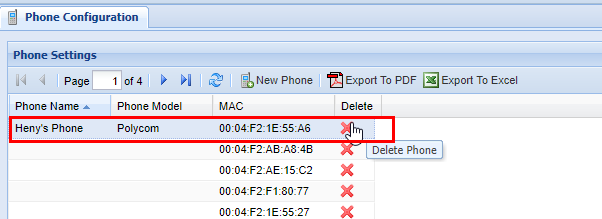
# Devices

<div class="panel conf-macro output-block" data-hasbody="true" data-macro-name="panel" id="bkmrk-the-devices-screen-c" style="border-width: 1px;"><div class="panelContent"><div class="IntellaTitle conf-macro output-block" data-hasbody="true" data-macro-name="div" id="bkmrk--15"></div>The **Devices** screen consists of two panels: "Device Settings" and "Additional Device Settings".</div></div>### Device Settings

<table border="1" class="wrapped confluenceTable stickyTableHeaders tablesorter tablesorter-default" id="bkmrk-name-description-%28wh" role="grid" style="padding: 0px; border-collapse: collapse; border-style: solid; width: 100%;"><colgroup><col style="width: 17.5525%;"></col><col style="width: 36.8347%;"></col><col style="width: 45.6128%;"></col></colgroup><thead><tr><td>**Name**  
</td><td>**Description (What it does)**  
</td><td>**Properties (How you interact with it)**  
</td></tr></thead><tbody><tr role="row"><td class="confluenceTd">MAC</td><td class="confluenceTd">The MAC address of a physical phone.</td><td class="confluenceTd">Every device must have a unique, properly formatted MAC address.</td></tr><tr role="row"><td class="confluenceTd">Main Extension</td><td class="confluenceTd">The device's assigned phone line. A device must have an extension to make or receive calls.</td><td class="confluenceTd">Extensions can be created on the [**Extensions**](#bkmrk-extensions) screen. Two devices cannot have the same extension.</td></tr><tr role="row"><td class="confluenceTd">Main CallerID</td><td class="confluenceTd">Internal CallerID. This is seen only by phones on the same network.</td><td class="confluenceTd">Auto-filled based on assigned extension. Can be configured on the **Extensions** screen.</td></tr><tr role="row"><td class="confluenceTd">Main PhoneGroup Name</td><td class="confluenceTd">The PhoneGroup of the selected extension. Extensions in the same PhoneGroup will have some shared properties.</td><td class="confluenceTd">Auto-filled based on extension. PhoneGroup can created on the **[Phone Groups](#bkmrk-phone-groups)** screen and assigned on the **Extensions** screen.</td></tr><tr role="row"><td class="confluenceTd">Phone Name</td><td class="confluenceTd">A name assigned to the phone.</td><td class="confluenceTd">An optional field used only for bookkeeping.</td></tr><tr role="row"><td class="confluenceTd">Phone Type</td><td class="confluenceTd">The manufacturer of the phone.</td><td class="confluenceTd">Must be POLYCOM or YEALINK.</td></tr></tbody></table>

### Additional Device Settings

<div class="panel conf-macro output-block" data-hasbody="true" data-macro-name="panel" id="bkmrk-name-description-pro" style="border-width: 1px;"><div class="panelContent"><div class="sectionColumnWrapper conf-macro output-block" data-hasbody="true" data-macro-name="section"><div class="sectionMacroWithBorder"><div class="sectionMacroRow"><div class="columnMacro conf-macro output-block" data-hasbody="true" data-macro-name="column"><div class="scroll conf-macro output-block" data-hasbody="true" data-macro-name="div"><div class="table-wrap"><table border="1" class="wrapped confluenceTable stickyTableHeaders tablesorter tablesorter-default" role="grid" style="padding: 0px; border-collapse: collapse; border-style: solid; width: 100%;"><colgroup><col style="width: 15.3295%;"></col><col style="width: 42.5196%;"></col><col style="width: 42.1508%;"></col></colgroup><thead><tr><td>**Name**  
</td><td>**Description**  
</td><td>**Properties**

</td></tr></thead><tbody><tr><td class="confluenceTd">Phone Model</td><td class="confluenceTd">The model number of the phone.</td><td class="confluenceTd">An optional field used only for bookkeeping.</td></tr><tr role="row"><td class="confluenceTd">NTP Server</td><td class="confluenceTd">The address of the time server used to update this device's clock.</td><td class="confluenceTd">Optional. If blank, a default NTP server will be used. Typically only necessary for off-site phones.</td></tr><tr role="row"><td class="confluenceTd">Secure Provision</td><td class="confluenceTd">Determines whether this phone encrypts its provisioning information. Turning this on requires additional setup.</td><td class="confluenceTd">Off by default. Typically only necessary for phones using off-site or publicly accessible networks.</td></tr></tbody></table>

</div></div></div></div></div></div></div></div>

# DayNight Groups

## Overview

**DayNight Groups** are often associated with collections of phones to set a pre-defined schedule for them. They can also be used to schedule many other things, such as Hunt Groups. Ultimately there are two modes, **Day Mode** and **Night Mode.**

<div class="columnLayout single" data-layout="single" id="bkmrk-1overview-2adding-a-"><div class="cell normal" data-type="normal"><div class="innerCell"><div class="panel conf-macro output-block" data-hasbody="true" data-macro-name="panel" style="border-width: 1px;"><div class="panelContent"><div class="toc-macro client-side-toc-macro conf-macro output-block" data-csslistindent="15px" data-hasbody="false" data-headerelements="H1,H2" data-macro-name="toc" data-numberedoutline="true">- <span class="toc-item-body" data-outline="2">[Adding a New DayNight Group](#bkmrk-adding-a-new-daynigh)</span>
- <span class="toc-item-body" data-outline="3">[Removing a DayNight Group](#bkmrk-removing-a-daynight-)</span>

</div></div></div></div></div></div>## Adding a New DayNight Group

1\) Start by navigating to the **DayNight** **Groups** screen via **the Navigation Panel.**

2\) Once you are within the **DayNight Group** screen click on the **New DayNight Group** button.

[![image.png](https://public.intellasoft.net/uploads/images/gallery/2024-07/scaled-1680-/fDXimage.png)](https://public.intellasoft.net/uploads/images/gallery/2024-07/fDXimage.png)

3\) Fill out the DayNight Group name and the DayNight Mode option. The options for each DayNight Mode are explained below.

<p class="callout info">DayNight Group names cannot include spaces. If you wish to include a space in the name to so do with an underscore in between each name.</p>

<div class="wiki-content" id="bkmrk-daynight-mode-functi"><div class="contentLayout2"><div class="columnLayout single" data-layout="single"><div class="cell normal" data-type="normal"><div class="innerCell"><div class="panel conf-macro output-block" data-hasbody="true" data-macro-name="panel" style="border-width: 1px;"><div class="panelContent"><div class="sectionColumnWrapper conf-macro output-block" data-hasbody="true" data-macro-name="section"><div class="sectionMacro"><div class="sectionMacroRow"><div class="columnMacro conf-macro output-block" data-hasbody="true" data-macro-name="column"><div class="table-wrap"><table border="1" class="wrapped confluenceTable tablesorter tablesorter-default" role="grid" style="border-collapse: collapse; border-style: solid;"><thead><tr><td>**DayNight Mode**  
</td><td>**Function**  
</td></tr></thead><tbody><tr role="row"><td class="confluenceTd">AUTOMATIC</td><td class="confluenceTd">The setting follows the schedule as defined in the **DayNight Schedule** screen.</td></tr><tr role="row"><td class="confluenceTd">FORCE\_DAY</td><td class="confluenceTd">This setting forces the **DayNight Group** to always be in <u>Day Mode</u> until it is modified otherwise.</td></tr><tr role="row"><td class="confluenceTd">FORCE\_NIGHT</td><td class="confluenceTd">This setting forces the **DayNight Group** to always be in <u>Night Mode</u> until it is modified otherwise.</td></tr></tbody></table>

</div></div></div></div></div></div></div></div></div></div></div></div>[![image.png](https://public.intellasoft.net/uploads/images/gallery/2024-07/scaled-1680-/dvQimage.png)](https://public.intellasoft.net/uploads/images/gallery/2024-07/dvQimage.png)

<p class="callout info">You won't be able to make any changes to the schedule through the **DayNight Groups** screen, To make changes to the schedule visit the **[DayNight Schedule Screen](https://public.intellasoft.net/books/web-portal-dL9/page/daynight-schedule).**</p>

4\) After you are satisfied with your selection, click the **Save New DayNight** button, afterwards, you should see a message at the top of the screen in green stating **Changes Saved.**

[![image.png](https://public.intellasoft.net/uploads/images/gallery/2024-07/scaled-1680-/IZcimage.png)](https://public.intellasoft.net/uploads/images/gallery/2024-07/IZcimage.png)
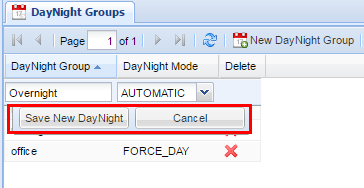
# Removing a DayNight Group

1\) Start by navigating to the **DayNight Group** screen by clicking on it within the **Navigation Panel.**

2\) Find the **DayNight Group** you wish to delete and click on the red X in the **Delete** column,

3\) A confirmation pop-up will appear to confirm your selection. If you wish to delete, click **OK.** You will see a message stating **Changes Saved.** If this is not the entry to wish to delete, click **Cancel.**

<p class="callout warning">When you remove a **DayNight Group,** you are also **deleting** the **DayNight Schedule** along with it. Ensure that this does not affect your organization's call flow in a way that was unintentional. If you have doubts regarding this action contact your system administrator before proceeding with deleting the **DayNight Group.**</p>

[![image.png](https://public.intellasoft.net/uploads/images/gallery/2024-07/scaled-1680-/ttPimage.png)](https://public.intellasoft.net/uploads/images/gallery/2024-07/ttPimage.png)

<span class="confluence-embedded-file-wrapper confluence-embedded-manual-size">  
</span>

# DayNight Schedule

## Overview

The **DayNight Schedule** screen is where you set the schedule for the **[DayNight Groups](https://public.intellasoft.net/books/web-portal-dL9/page/daynight-groups)**. You can set a permanent schedule as well as override periods where the schedule may need to be modified based on the current needs of your organization.

<div class="wiki-content" id="bkmrk-overview-group-selec"><div class="contentLayout2"><div class="columnLayout single" data-layout="single"><div class="cell normal" data-type="normal"><div class="innerCell"><div class="panel conf-macro output-block" data-hasbody="true" data-macro-name="panel" style="border-width: 1px;"><div class="panelContent"><div class="toc-macro client-side-toc-macro conf-macro output-block" data-csslistindent="15px" data-hasbody="false" data-headerelements="H1,H2" data-macro-name="toc" data-numberedoutline="true">- <span class="toc-item-body" data-outline="2">[Group Selection](#bkmrk-group-selection)</span>
- <span class="toc-item-body" data-outline="3">[Adding a Day Schedule](#bkmrk-adding-a-day-schedul)</span>
- <span class="toc-item-body" data-outline="4">[Removing a Day Schedule](#bkmrk-removing-a-day-sched)</span>
- <span class="toc-item-body" data-outline="5">[Adding Additional NightHours](#bkmrk-adding-additional-ni)</span>
- <span class="toc-item-body" data-outline="6">[Adding Additional Day Hours](#bkmrk-adding-additional-da)</span>
- <span class="toc-item-body" data-outline="7">[Removing Additional Day or Night Hours ](#bkmrk-removing-additional-)</span>

</div></div></div></div></div></div></div></div>## Group Selection

Before modifying any **DayNight Schedule**, you must select a **DayNight group** from the top left of the screen.

[![image.png](https://public.intellasoft.net/uploads/images/gallery/2024-07/scaled-1680-/L3fimage.png)](https://public.intellasoft.net/uploads/images/gallery/2024-07/L3fimage.png)

## Adding a Day Schedule

1\) Navigate to the **DayNight Schedule** screen from the **Navigation Panel**.

2\) Choose a **DayNight Group** to modify (see [**Group Selection**](#bkmrk-group-selection))

3\) To add a **Day Schedule** start by clicking **New Schedule** within the **Day Schedule** tab. You can also click on a pre-existing day if you are modifying the permanent **Day Schedule**.

[![daynight-schedule-add1.png](https://public.intellasoft.net/uploads/images/gallery/2024-08/scaled-1680-/daynight-schedule-add1.png)](https://public.intellasoft.net/uploads/images/gallery/2024-08/daynight-schedule-add1.png)

4\) A row editor will appear in the grid with several options.

[![daynight-schedule-add2.png](https://public.intellasoft.net/uploads/images/gallery/2024-08/scaled-1680-/daynight-schedule-add2.png)](https://public.intellasoft.net/uploads/images/gallery/2024-08/daynight-schedule-add2.png)

5\) Select the appropriate day (each day must be set individually), start time, and end time.

6\) After you are finished editing, click **Save New Schedule**. If the changes have been saved successfully you will see a green message saying **Changes Saved**. Repeat the previous steps to add additional days.

## Removing a Day Schedule

1\) Navigate to the **DayNight Schedule** screen from the **Navigation Panel** and choose a **DayNight Group** to modify (as shown in [**Group Selection**](#bkmrk-group-selection)).

2\) Find the correct date to remove, and click on the red **X** under the **Delete** column.

3\) A confirmation pop-up will appear. If you wish to delete, click **OK.** You will see a message stating **Changes Saved.** If this is not the entry to wish to delete click **Cancel**.

[![image.png](https://public.intellasoft.net/uploads/images/gallery/2024-07/scaled-1680-/s4mimage.png)](https://public.intellasoft.net/uploads/images/gallery/2024-07/s4mimage.png)

## Adding Additional Day Hours

1\) Navigate to the **DayNight Schedule** screen from the **Navigation Panel** and choose a **DayNight Group** to modify (as shown in [**Group Selection**](#bkmrk-group-selection)).

2\) Find the **Additional Day Hours** panel located in the middle of the screen.

3\) Click "Add Day Hours" and fill out the start date and time, and the end date and time.

<p class="callout info">If you need to have multiple days of additional hours at specific times (versus all day) you will need to make multiple entries, one for each day.</p>

4\) Click "Save" to add the entry.

[![image.png](https://public.intellasoft.net/uploads/images/gallery/2024-07/scaled-1680-/hx9image.png)](https://public.intellasoft.net/uploads/images/gallery/2024-07/hx9image.png)

## Adding Additional Night Hours

Adding **Additional Night Hours** is performed the same way as adding **Additional Day Hours** except that you use the Additional Night Hours panel.

[![image.png](https://public.intellasoft.net/uploads/images/gallery/2024-07/scaled-1680-/72limage.png)](https://public.intellasoft.net/uploads/images/gallery/2024-07/72limage.png)

1\) Navigate to the **DayNight Schedule** screen from the **Navigation Panel** and choose a **DayNight Group** to modify (as shown in [**Group Selection**](#bkmrk-group-selection)).

2\) Find the **Additional Night Hours** panel located on the right of the screen.

3\) Click "Add Night Hours" and fill out the start date and time, and the end date and time.

<p class="callout info">If you need to have multiple days of additional hours at specific times (versus all day) you will need to make multiple entries, one for each day.</p>

4\) Click "Save" to add the entry.

## <span class="confluence-embedded-file-wrapper confluence-embedded-manual-size">Example![](https://public.intellasoft.net/download/attachments/8029588/image2017-7-14_9-26-46.png?version=1&modificationDate=1500038806479&api=v2)</span>

Let's say we have a permanent day schedule of Monday through Friday 7:00 AM to 5:00 PM. An event is coming up requiring the selected **DayNight Group** to stay extra on Wednesday and Thursday for 2 hours, from 5:00 PM to 7:00PM. To accomplish this you will have to make two entries, one for each date. The reason for this is if you set a start time for additional hours of Wednesday at 5:00 PM through Thursday at 7:00 PM the entire range of defined hours will indicate that the **DayNight Group** is in **Day Mode**. If the phones are configured to receive calls in **Day Mode** they can potentially receive calls during hours that were not intended to be received (e.g. between 7:00 PM through 7:00 AM the next morning)

After you have ensured that have selected the correct range of hours, click Save. If the changes are successful a message will appear at the top stating **Changes Saved**.

[![image.png](https://public.intellasoft.net/uploads/images/gallery/2024-07/scaled-1680-/9Awimage.png)](https://public.intellasoft.net/uploads/images/gallery/2024-07/9Awimage.png)
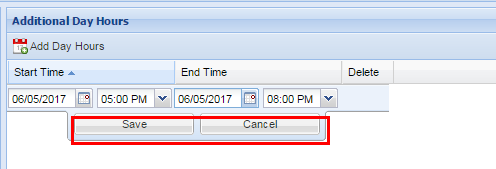
## Removing Additional Day or Night Hours 

1\) Navigate to the **DayNight Schedule** screen from the **Navigation Panel** and choose a **DayNight Group** to modify (as shown in [**Group Selection**](#bkmrk-group-selection)).

2\) Find the **Additional Day Hours** entry or **Additional Night Hours** entry that you wish to remove.

[![image.png](https://public.intellasoft.net/uploads/images/gallery/2024-07/scaled-1680-/3eXimage.png)](https://public.intellasoft.net/uploads/images/gallery/2024-07/3eXimage.png)<span class="confluence-embedded-file-wrapper confluence-embedded-manual-size">![](https://public.intellasoft.net/download/attachments/8029588/image2017-7-14_9-27-11.png?version=1&modificationDate=1500038831415&api=v2)</span>

3\) From the **Additional Day Hours** or **Additional Night Hours** panel click the **red X** in the **Delete** column.

4\) A confirmation pop-up will appear confirming your selection. If you wish to delete, click **OK.** You will see a message stating **Changes Saved.** If this is not the entry to wish to delete, click **Cancel.**

[![image.png](https://public.intellasoft.net/uploads/images/gallery/2024-07/scaled-1680-/FPiimage.png)](https://public.intellasoft.net/uploads/images/gallery/2024-07/FPiimage.png)
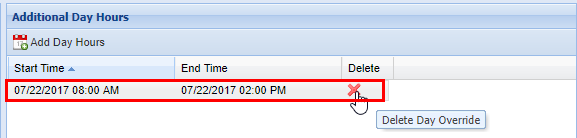
# Hunt Groups

## Overview

**Hunt Groups** contain [**Hunt Group Members**](https://public.intellasoft.net/books/web-portal-dL9/page/hunt-group-members), which are a collection of phones to be dialed until a party is reached. They can be set up to ring a collection of phones all at once, or one at a time in a set order.

<div class="columnLayout single" data-layout="single" id="bkmrk-overview-adding-a-hu"><div class="cell normal" data-type="normal"><div class="innerCell"><div class="panel conf-macro output-block" data-hasbody="true" data-macro-name="panel" style="border-width: 1px;"><div class="panelContent"><div class="columnMacro conf-macro output-block" data-hasbody="true" data-macro-name="column"><div class="toc-macro client-side-toc-macro conf-macro output-block" data-csslistindent="15px" data-hasbody="false" data-headerelements="H1,H2" data-macro-name="toc" data-numberedoutline="true">- <span class="toc-item-body" data-outline="2">[Adding a Hunt Group](#bkmrk-adding-a-hunt-group)</span>
- <span class="toc-item-body" data-outline="3">[Hunt Group Types](#bkmrk-hunt-group-types)</span>
- <span class="toc-item-body" data-outline="5">[Removing a Hunt Group ](#bkmrk-removing-a-hunt-grou)</span>

</div></div></div></div></div></div></div>## Adding a Hunt Group

1\) Start by navigating to the **Hunt Groups** screen from the **Navigation Panel.**

2\) Next click the **New Hunt Group** button.

3\) Enter a name for the **Hunt Group.** The name cannot contain spaces, if you wish to use a space use an underscore instead.

[![image.png](https://public.intellasoft.net/uploads/images/gallery/2024-07/scaled-1680-/kJoimage.png)](https://public.intellasoft.net/uploads/images/gallery/2024-07/kJoimage.png)

4\) Enter a **Description** for the **Hunt Group.** The description should be brief but can contain spaces.

5\) Choose a Class of Service for the **Hunt Group.** ([What is a Class of Service?](https://public.intellasoft.net/books/web-portal-dL9/page/class-of-service))

[![image.png](https://public.intellasoft.net/uploads/images/gallery/2024-07/scaled-1680-/1k2image.png)](https://public.intellasoft.net/uploads/images/gallery/2024-07/1k2image.png)

6\) Select a **Hunt Group Type** for the **Hunt Group.** (See [below](#bkmrk-hunt-group-types) for an explanation of group types)

7\) After you are finished, click the **Save** button in the middle.

[![image.png](https://public.intellasoft.net/uploads/images/gallery/2024-07/scaled-1680-/jQDimage.png)](https://public.intellasoft.net/uploads/images/gallery/2024-07/jQDimage.png)

8\) Lastly, you will need to add numbers (**members**) to the hunt group. Visit the [Hunt Group Members](https://public.intellasoft.net/books/web-portal-dL9/page/hunt-group-members#bkmrk-adding-a-new-hunt-gr) page for more information.

<p class="callout info">Tip: To quickly edit the members of a hunt group, click on the green button on the far right under controls.[![image.png](https://public.intellasoft.net/uploads/images/gallery/2024-07/scaled-1680-/LNDimage.png)](https://public.intellasoft.net/uploads/images/gallery/2024-07/LNDimage.png)</p>
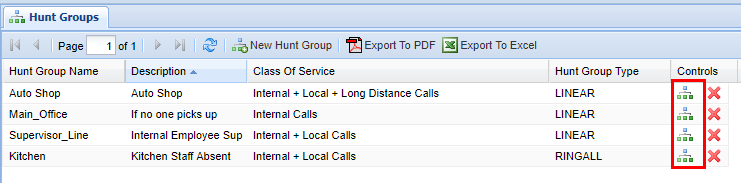
## Hunt Group Types

<div class="wiki-content" id="bkmrk-hunt-group-type-defi"><div class="contentLayout2"><div class="columnLayout single" data-layout="single"><div class="cell normal" data-type="normal"><div class="innerCell"><div><div class="sectionColumnWrapper conf-macro output-block" data-hasbody="true" data-macro-name="section"><div class="sectionMacro"><div class="sectionMacroRow"><div class="panel conf-macro output-block" data-hasbody="true" data-macro-name="panel" style="border-width: 1px;"><div class="panelContent"><div class="table-wrap"><table border="1" class="relative-table wrapped confluenceTable tablesorter tablesorter-default" role="grid" style="width: 99.8765%; border-collapse: collapse; border-style: solid;"><thead><tr><td style="width: 19.4364%;">**Hunt Group Type** </td><td style="width: 80.5636%;">**Definition** </td></tr></thead><tbody><tr role="row"><td class="confluenceTd" style="width: 19.4364%;">**RINGALL**</td><td class="confluenceTd" style="width: 80.5636%;">**ALL** members of the **Hunt Group** will ring simultaneously until the call is picked up. If the call is not picked up it will go to the unavailable destination that is programmed to that **Hunt Group** on the back end of the web portal</td></tr><tr role="row"><td class="confluenceTd" style="width: 19.4364%;">**LINEAR**</td><td class="confluenceTd" style="width: 80.5636%;">The members of the associated **Hunt Group** will ring in the **chronological sequence** defined in the **Hunt Group Members** screen. If a call is never picked up, the call will go to the unavailable destination which is programmed on the back end of the web portal.</td></tr></tbody></table>

</div></div></div></div></div></div></div></div></div></div></div></div>## Removing a Hunt Group 

1\) Navigate to the **Hunt Groups** screen via the **Navigation Panel.**

2\) Find the desired **Hunt Group** you wish to delete

3\) Click the red **X** in the **Controls** column.

<p class="callout warning">When you remove a **Hunt Group,** you are also **deleting** the **Hunt Group Members** associated with it. Make sure that this will not interrupt your organization's call flow. If you have any doubts about this contact your system administrator.  
</p>

4\) A confirmation pop-up will appear confirming your selection. If you wish to delete, click **OK.** You will see a message stating **Changes Saved.** If this is not the entry to wish to delete, click **Cancel**.

[![image.png](https://public.intellasoft.net/uploads/images/gallery/2024-07/scaled-1680-/JNcimage.png)](https://public.intellasoft.net/uploads/images/gallery/2024-07/JNcimage.png)
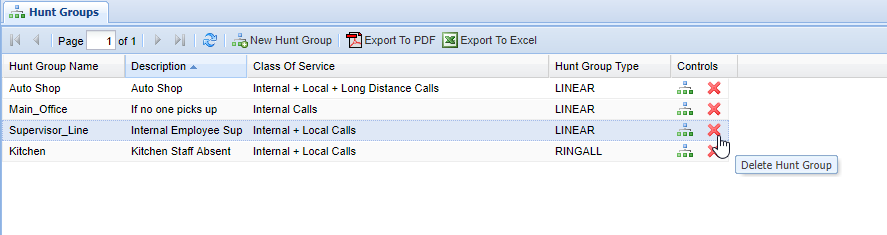
# Hunt Group Members

## Overview

A **Hunt Group** is a way to ring a group of phones, either in sequence or in parallel.

<div class="wiki-content" id="bkmrk-1overview-2hunt-grou"><div class="contentLayout2"><div class="columnLayout single" data-layout="single"><div class="cell normal" data-type="normal"><div class="innerCell"><div class="panel conf-macro output-block" data-hasbody="true" data-macro-name="panel" style="border-width: 1px;"><div class="panelContent"><div class="toc-macro client-side-toc-macro conf-macro output-block" data-csslistindent="15px" data-hasbody="false" data-headerelements="H1,H2" data-macro-name="toc" data-numberedoutline="true">- <span class="toc-item-body" data-outline="2">[Hunt Group Selection](#bkmrk-hunt-group-selection)</span>
- <span class="toc-item-body" data-outline="3">[Adding a New Hunt Group](#bkmrk-adding-a-new-hunt-gr)</span>
- <span class="toc-item-body" data-outline="4">[Enabling/Disabling Hunt Group Members](#bkmrk-enabling%2Fdisabling-h)</span>
- <span class="toc-item-body" data-outline="5">[Removing Hunt Group Members](#bkmrk-removing-hunt-group-)</span>

</div></div></div></div></div></div></div></div>## Hunt Group Selection

Before adding Hunt Group Members, you must first choose the hunt group to modify from the dropdown in the top left of the screen.

<p class="callout info">Tip: If the Hunt Groups were updated and are not visible in the list, reload the list by picking any group and pressing refresh or by navigating to a different screen and back again.</p>

[![image.png](https://public.intellasoft.net/uploads/images/gallery/2024-07/scaled-1680-/MFnimage.png)](https://public.intellasoft.net/uploads/images/gallery/2024-07/MFnimage.png)

## Adding a New Hunt Group

1\) After choosing a Hunt Group, click the **New Hunt Group Member** button and fill out the row.

<p class="callout info">Tip: Unlimited members are supported.</p>

[![image.png](https://public.intellasoft.net/uploads/images/gallery/2024-07/scaled-1680-/kqCimage.png)](https://public.intellasoft.net/uploads/images/gallery/2024-07/kqCimage.png)

<div class="wiki-content" id="bkmrk-name-%28required%29-the-"><div class="contentLayout2"><div class="columnLayout single" data-layout="single"><div class="cell normal" data-type="normal"><div class="innerCell"><div class="panel conf-macro output-block" data-hasbody="true" data-macro-name="panel" style="border-width: 1px;"><div class="panelContent"><div class="sectionColumnWrapper conf-macro output-block" data-hasbody="true" data-macro-name="section"><div class="sectionMacro"><div class="sectionMacroRow"><div class="columnMacro conf-macro output-block" data-hasbody="true" data-macro-name="column" style="width: 606px; min-width: 606px; max-width: 606px;"><div class="confluence-information-macro confluence-information-macro-information conf-macro output-block" data-hasbody="true" data-macro-name="info"><div class="confluence-information-macro-body">  
</div></div></div></div></div></div><div class="sectionColumnWrapper conf-macro output-block" data-hasbody="true" data-macro-name="section"><div class="sectionMacro"><div class="sectionMacroRow"><div class="columnMacro conf-macro output-block" data-hasbody="true" data-macro-name="column"><div class="table-wrap"><table border="1" class="confluenceTable" style="width: 100%; border-collapse: collapse; border-style: solid; height: 296.4px;"><colgroup><col style="width: 18.0491%;"></col><col style="width: 81.9509%;"></col></colgroup><thead><tr style="height: 35.4px;"><td style="height: 35.4px;">**Property**

</td><td style="height: 35.4px;">Description  
</td></tr></thead><tbody><tr style="height: 35.4px;"><td class="confluenceTd" style="height: 35.4px;">**Name** (Required)

</td><td class="confluenceTd" style="height: 35.4px;">The descriptive name of the number to ring.</td></tr><tr style="height: 35.4px;"><td class="confluenceTd" style="height: 35.4px;">**Number** (Required)

</td><td class="confluenceTd" style="height: 35.4px;">The number to ring, which can be any valid extension or 10 digit number.</td></tr><tr style="height: 29.8px;"><td class="confluenceTd" style="height: 29.8px;">**Enabled**</td><td class="confluenceTd" style="height: 29.8px;">Whether or not the number will be active within the Hunt Group.</td></tr><tr style="height: 80.2px;"><td class="confluenceTd" style="height: 80.2px;">**Position**</td><td class="confluenceTd" style="height: 80.2px;">Only valid for [LINEAR](https://public.intellasoft.net/books/web-portal-dL9/page/hunt-groups#bkmrk-hunt-group-types) type. Each number will ring for **Ring Interval** seconds. If not picked up, the call will proceed with ringing the next number from smallest to largest in the position sequence until there are no more numbers to call. At that point, the call will be sent to the [Unavailable Destination](https://public.intellasoft.net/books/web-portal-dL9/page/hunt-groups#bkmrk-hunt-group-types)

</td></tr><tr style="height: 80.2px;"><td class="confluenceTd" style="height: 80.2px;">**Ring Interval**

(Required)

</td><td class="confluenceTd" style="height: 80.2px;">For a [LINEAR](https://public.intellasoft.net/books/web-portal-dL9/page/hunt-groups#bkmrk-hunt-group-types) type, the number of seconds the call will ring.

For a [RINGALL](https://public.intellasoft.net/books/web-portal-dL9/page/hunt-groups#bkmrk-hunt-group-types) type, all enabled numbers will ring simultaneously for the set number of seconds. If not picked up, the call will be sent to the [Unavailable Destination](https://public.intellasoft.net/books/web-portal-dL9/page/hunt-groups#bkmrk-hunt-group-types)

</td></tr><tr><td>**Ring Interval Retry**

</td><td>If (And only if) this is non-zero, 'Ring Interval' becomes the sub-interval, and we'll ring up till 'Ring Retry Interval' seconds total..  
Example: Ring Interval: 10 / Ring Retry Interval: 60 -- Ring 10 seconds each, for 60 seconds max

</td></tr></tbody></table>

</div></div></div></div></div></div></div></div></div></div></div></div>## Enabling/Disabling Hunt Group Members

To disable/enable a hunt group member, double-click on the member's row and disable/enable the checkbox under "Enabled".

Disabling a Hunt Group Member is useful when one or more members may become unavailable or just not necessary to ring them for a certain period. When the member becomes available again, edit the record to set it back to Enabled.

[![image.png](https://public.intellasoft.net/uploads/images/gallery/2024-07/scaled-1680-/qe1image.png)](https://public.intellasoft.net/uploads/images/gallery/2024-07/qe1image.png)

## Removing Hunt Group Members

1\) Click on the red **X,** next to the member's name

2\) In the dialog, click **OK** to delete.

[![image.png](https://public.intellasoft.net/uploads/images/gallery/2024-07/scaled-1680-/taAimage.png)](https://public.intellasoft.net/uploads/images/gallery/2024-07/taAimage.png)

**<span class="confluence-embedded-file-wrapper confluence-embedded-manual-size">![](https://public.intellasoft.net/download/attachments/8029626/image2017-7-14_13-25-53.png?version=1&modificationDate=1500053153252&api=v2)</span>**

# Inbound CallerID Remap

# Overview

**Inbound CallerID Remap** allows you to set the **Caller ID** of external calls on a number-by-number basis. This is useful for phone numbers that don't have caller ID associated with them, that may frequently call into your organization.

<p class="callout info">It is not possible to use this feature to differentiate between people who call from hidden, private, or unavailable numbers. (However, if you wish to block calls from such numbers it is possible to do so. Contact your System Administrator for assistance.)</p>

<div class="wiki-content" id="bkmrk-1overview-2adding-a-"><div class="contentLayout2"><div class="columnLayout single" data-layout="single"><div class="cell normal" data-type="normal"><div class="innerCell"><div class="panel conf-macro output-block" data-hasbody="true" data-macro-name="panel" style="border-width: 1px;"><div class="panelContent"><div class="toc-macro client-side-toc-macro conf-macro output-block" data-csslistindent="15px" data-hasbody="false" data-headerelements="H1,H2" data-macro-name="toc" data-numberedoutline="true">- <span class="toc-item-body" data-outline="2">[Adding a New Remap](#bkmrk-adding-a-new-remap)</span>
- [<span class="toc-item-body" data-outline="3">Removing a Remap</span>](#bkmrk-removing-a%C2%A0inbound-c)

</div></div></div></div></div></div></div></div>## Adding a New Remap

1\) Navigate to the **Inbound CallerID Remap** screen.

2\) Click the button labeled **New Remap.**

3\) Enter the **Match Number** you wish to remap. This is the inbound number that will be remapped to a new name and/or phone number.

[![image.png](https://public.intellasoft.net/uploads/images/gallery/2024-07/scaled-1680-/BI3image.png)](https://public.intellasoft.net/uploads/images/gallery/2024-07/BI3image.png)

4\) Next enter the **Replace CallerId Name** associated with the **Match Number**. This is the name that will show up in your organization's **Caller ID** when it matches an inbound number that is calling.

5\) Additionally, you may also replace the inbound number to show something different in the **Replace CallerId Num.**

<p class="callout info">You can use a custom name (**Replace CallerID** **Name**), custom number (**Replace CallerID Num)**, or both.</p>

6\) After you are satisfied with what you have entered, click **Save** to save the **New Remap**. After you **Save** you will see a message stating **Changes Saved.**

[![image.png](https://public.intellasoft.net/uploads/images/gallery/2024-07/scaled-1680-/l7vimage.png)](https://public.intellasoft.net/uploads/images/gallery/2024-07/l7vimage.png)
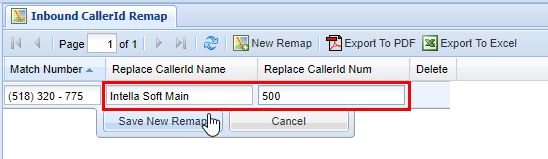
## Removing a Remap

1\) Navigate to the **Inbound CallerID Remap** screen via the **Navigation Panel.**

2\) Select the **Remap** you wish to delete

3\) Then click on the **Red X** in the **Delete** column.

4\) A confirmation pop-up will appear confirming your selection. If you wish to delete, click **OK.** You will see a message stating **Changes Saved.** If this is not the entry to wish to delete, click **Cancel**.

[![image.png](https://public.intellasoft.net/uploads/images/gallery/2024-07/scaled-1680-/TwFimage.png)](https://public.intellasoft.net/uploads/images/gallery/2024-07/TwFimage.png)
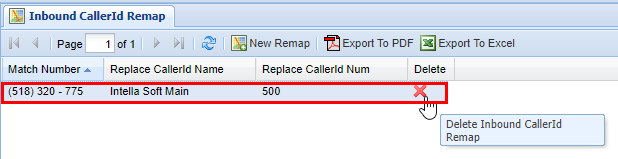
# Phone SysDial Directory

# Overview

The **Phone SysDial Directory** is a mapping of "Short Codes" to full phone numbers. Shortcodes are useful for quickly dialing commonly used external phone numbers.

<p class="callout info">A shortcode is a shorter number that can be dialed to reach a full number. Think of them as abbreviations for phone numbers.</p>

<div class="wiki-content" id="bkmrk-overview-adding-a-ph"><div class="contentLayout2"><div class="columnLayout single" data-layout="single"><div class="cell normal" data-type="normal"><div class="innerCell"><div class="panel conf-macro output-block" data-hasbody="true" data-macro-name="panel" style="border-width: 1px;"><div class="panelContent"><div class="toc-macro client-side-toc-macro conf-macro output-block" data-csslistindent="15px" data-hasbody="false" data-headerelements="H1,H2" data-macro-name="toc" data-numberedoutline="true">- <span class="toc-item-body" data-outline="2">[Adding a Phone SysDial "Short Code"](#bkmrk-adding-a-phone-sysdi)</span>
- <span class="toc-item-body" data-outline="3">[Removing a "Short Code"](#bkmrk-removing-a-%22short-co)</span>

</div></div></div></div></div></div></div></div>## Adding a Phone SysDial "Short Code"

1\) Navigate to the **Phone SysDial Directory** via the **Navigation Panel.**

2\) Click the **New Sysdial Number** button.

[![image.png](https://public.intellasoft.net/uploads/images/gallery/2024-07/scaled-1680-/t4Qimage.png)](https://public.intellasoft.net/uploads/images/gallery/2024-07/t4Qimage.png)

 2) Enter the **Name** of the short code. This should be relevant to whom the number is associated with.

3\) Next enter the **Number** that the shortcode should dial. This can be an internal **Extension**, or it can be an outside phone number.

4\) Lastly enter a number for the shortcode in the box **Sysdial Code.** This is the number the user will dial when attempting to call the full **Number** associated with the shortcode.

[![image.png](https://public.intellasoft.net/uploads/images/gallery/2024-07/scaled-1680-/4GBimage.png)](https://public.intellasoft.net/uploads/images/gallery/2024-07/4GBimage.png)

5\) When you are satisfied with your selection, click **Save New SysDial Code.** If you saved you will see a message stating **Changes saved.** The final results will look similar to the one below.

<p class="callout info">If you enter a 10-digit external phone number, it will automatically format the phone number to include the area code in parentheses followed by the local number.</p>

[![phone-sysdial1.png](https://public.intellasoft.net/uploads/images/gallery/2024-08/phone-sysdial1.png)](https://public.intellasoft.net/uploads/images/gallery/2024-07/12nimage.png)

## Removing a "Short Code"

1\) Navigate to the **Phone SysDial Directory** via the **Navigation Panel.**

2\) Find the **SysDial Number** (short code) you wish to delete

3\) Click the red **X** under the **Delete** column.

4\) A confirmation pop-up will appear confirming your selection. If you wish to delete click **OK.** You will see a message stating **Changes Saved.** If this is not the entry to wish to delete click **Cancel.**

[![image.png](https://public.intellasoft.net/uploads/images/gallery/2024-07/scaled-1680-/0zzimage.png)](https://public.intellasoft.net/uploads/images/gallery/2024-07/0zzimage.png)
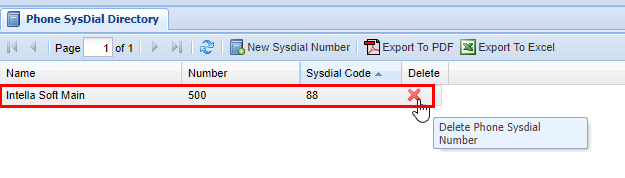
# PhoneMap Groups

# Overview

<span style="color: rgb(0,0,0);">A </span>**PhoneMap Group** <span style="color: rgb(0,0,0);">is a one to one mapping from one destination to another. There can be multiple </span>**[PhoneMap Group Members](https://public.intellasoft.net/books/web-portal-dL9/page/phone-map-members)**<span style="color: rgb(0,0,0);">, but only one should be active at all times. </span>

<div class="wiki-content" id="bkmrk-overview-adding-a-ne"><div class="contentLayout2"><div class="columnLayout single" data-layout="single"><div class="cell normal" data-type="normal"><div class="innerCell"><div class="panel conf-macro output-block" data-hasbody="true" data-macro-name="panel" style="border-width: 1px;"><div class="panelContent"><div class="toc-macro client-side-toc-macro conf-macro output-block" data-csslistindent="15px" data-hasbody="false" data-headerelements="H1,H2" data-macro-name="toc" data-numberedoutline="true">- <span class="toc-item-body" data-outline="2">[Adding a New PhoneMap Group](#bkmrk-adding-a-new-phonema)</span>
- <span class="toc-item-body" data-outline="3">[Deleting a PhoneMap Group](#bkmrk-deleting-a-phonemap-)</span>

</div></div></div></div></div></div></div></div># Adding a New PhoneMap Group

Start by navigating to the **Phone Map Groups** screen via the **Navigation Panel**. Click the **New PhoneMap Group** button, a row editor will appear with several options.

[![image.png](https://public.intellasoft.net/uploads/images/gallery/2024-07/scaled-1680-/QuUimage.png)](https://public.intellasoft.net/uploads/images/gallery/2024-07/QuUimage.png)

<span class="confluence-embedded-file-wrapper confluence-embedded-manual-size">![](https://public.intellasoft.net/download/attachments/8029667/2%20-%20start%20by%20clikcin%20gon%20the%20new%20phone%20map%20group%20button%20yo.png?version=1&modificationDate=1499971307214&api=v2)</span>

Enter a **PhoneMap Group Name,** and **PhoneMap Group ID**, these are up to preference but should be based on your organization's need. The **ID** must be a **\[Token\]**. Lastly select an appropriate **Class of Service** for the **PhoneMap Group**. When you are finished click **Save New PhoneMap Group** to save the **PhoneMap Group**, otherwise click Cancel. After you have saved you will see a message stating **Changes Saved.**

[![image.png](https://public.intellasoft.net/uploads/images/gallery/2024-07/scaled-1680-/2bTimage.png)](https://public.intellasoft.net/uploads/images/gallery/2024-07/2bTimage.png)

<span class="confluence-embedded-file-wrapper confluence-embedded-manual-size">![](https://public.intellasoft.net/download/attachments/8029667/3%20-%20enter%20da%20info%20yo.png?version=1&modificationDate=1499971307211&api=v2)</span>

# Deleting a PhoneMap Group

Start by navigating to the **Phone Map Groups** screen via the **Navigation Panel**. Find the **Phone Map Group** you wish to delete, then click on the **red X** in the **Controls** column. A confirmation pop up will appear confirming your selection. If you wish to delete click **OK**, you will see a message stating **Changes Saved**, if this is not the entry to wish to delete click **Cancel,** to return to the screen.

It is important to remember that when you delete a **PhoneMap Group** that any of the mappings that fall under the **PhoneMap Groups** will also be removed. Always double check the mappings to ensure that no phones that are critical to active phone system will be removed. If in doubt, contact your system administrator. For more information on **PhoneMap Group Mappings and Members** [click here](https://public.intellasoft.net/books/web-portal-dL9/page/phone-map-members).

[![image.png](https://public.intellasoft.net/uploads/images/gallery/2024-07/scaled-1680-/htrimage.png)](https://public.intellasoft.net/uploads/images/gallery/2024-07/htrimage.png)

<span class="confluence-embedded-file-wrapper confluence-embedded-manual-size">![](https://public.intellasoft.net/download/attachments/8029667/1%20-%20clickt%20eh%20red%20x.png?version=1&modificationDate=1499971307208&api=v2)</span>

# Phone Map Members

# Overview

The **Phone Map Members** screen is similar to the **Hunt Group Members** screen in which all it is is a screen dedicated to adding the actual **Phone Map Members** to.

<div class="wiki-content" id="bkmrk-overview-group-selec"><div class="contentLayout2"><div class="columnLayout single" data-layout="single"><div class="cell normal" data-type="normal"><div class="innerCell"><div class="panel conf-macro output-block" data-hasbody="true" data-macro-name="panel" style="border-width: 1px;"><div class="panelContent"><div class="toc-macro client-side-toc-macro conf-macro output-block" data-csslistindent="15px" data-hasbody="false" data-headerelements="H1,H2" data-macro-name="toc" data-numberedoutline="true">- <span class="toc-item-body" data-outline="2">[Group Selection](#bkmrk-group-selection)</span>
- <span class="toc-item-body" data-outline="3">[Adding New Phone Maps](#bkmrk-adding-new-phone-map)</span>
- <span class="toc-item-body" data-outline="4">[Removing a Phone Map Group Member](#bkmrk-removing-a-phone-map)</span>

</div></div></div></div></div></div></div></div># Group Selection

When you are modifying **Phone Map Members** <span style="font-size: 14.0px;">you do so by selecting an appropriate </span>**Phone Map Group**<span style="font-size: 14.0px;">. Before editing a</span> **Phone Map Group** <span style="font-size: 14.0px;">and it's </span>**Phone Map Members <span style="font-size: 14.0px;">ensure you have a proper group selected by selecting one from the drop down menu labeled </span>**Select Phone Map Group**<span style="font-size: 14.0px;">, which is at the top left hand corner of the </span>**Phone Map Members** <span style="font-size: 14.0px;">screen. The </span>**Phone Map Group** <span style="font-size: 14.0px;">in the drop-down is referenced by it's </span>**Phone Map Group Name**<span style="font-size: 14.0px;"> as well as </span>**ID**<span style="font-size: 14.0px;">, which was setup in the </span>**Phone Map Group** <span style="font-size: 14.0px;">screen.</span>

<span class="confluence-embedded-file-wrapper">![](https://public.intellasoft.net/download/attachments/8029676/image2017-7-14_14-17-10.png?version=1&modificationDate=1500056230405&api=v2)</span>

[![image.png](https://public.intellasoft.net/uploads/images/gallery/2024-07/scaled-1680-/8uLimage.png)](https://public.intellasoft.net/uploads/images/gallery/2024-07/8uLimage.png)

# Adding New Phone Maps

Start by navigating to the **Phone Map Members** screen via the **Navigation Panel.** Select a **Phone Map Group** from the drop down menu following the instructions according **[Group Selection](#bkmrk-group-selection).** Next click the **New Phone Map** button, choose a name and an appropriate number **(external, internal, local,** depending on th**e Phone Map Group's Class of Service).**

[![image.png](https://public.intellasoft.net/uploads/images/gallery/2024-07/scaled-1680-/EBeimage.png)](https://public.intellasoft.net/uploads/images/gallery/2024-07/EBeimage.png)

**<span class="confluence-embedded-file-wrapper confluence-embedded-manual-size">![](https://public.intellasoft.net/download/attachments/8029676/image2017-7-14_14-29-52.png?version=1&modificationDate=1500056992806&api=v2)</span>**

When you are satisfied click **Save New Phone Map** otherwise click cancel. You will see a message stating **Changes Saved** if the number has saved successfully.

<span class="confluence-embedded-file-wrapper">![](https://public.intellasoft.net/download/attachments/8029676/image2017-7-14_14-30-28.png?version=1&modificationDate=1500057028592&api=v2)</span>

[![image.png](https://public.intellasoft.net/uploads/images/gallery/2024-07/scaled-1680-/Fx6image.png)](https://public.intellasoft.net/uploads/images/gallery/2024-07/Fx6image.png)

Repeat the previous steps until you are satisfied. You are able to have an unlimited amount of phone maps added to a **Phone Map Group** however the phone maps are designed for a 1 to 1 configuration, meaning only one number can be active at a time. If you wish to use multiple numbers in a phone map group, you should use a **[Hunt Group](https://public.intellasoft.net/books/web-portal-dL9/page/hunt-groups)** instead.

[![image.png](https://public.intellasoft.net/uploads/images/gallery/2024-07/scaled-1680-/jq6image.png)](https://public.intellasoft.net/uploads/images/gallery/2024-07/jq6image.png)

<span class="confluence-embedded-file-wrapper confluence-embedded-manual-size">![](https://public.intellasoft.net/download/attachments/8029676/image2017-7-14_14-32-25.png?version=1&modificationDate=1500057145370&api=v2)</span>

To enable/disable a number, click on the row you wish to modify. Afterwards, check the box to enable or disable the phone map group member. When you're finished click **Save**, you should see a message stating **Changes Saved** after.

[![image.png](https://public.intellasoft.net/uploads/images/gallery/2024-07/scaled-1680-/sFzimage.png)](https://public.intellasoft.net/uploads/images/gallery/2024-07/sFzimage.png)

<span class="confluence-embedded-file-wrapper">![](https://public.intellasoft.net/download/attachments/8029676/image2017-7-14_14-33-16.png?version=1&modificationDate=1500057195993&api=v2)</span>

Repeat the previous steps as necessary to ensure that only one phone map member is **enabled**, while the others are disabled. This is indicate by a Yes (for enable) or No (not enabled) in the **Enabled** column.

<span class="confluence-embedded-file-wrapper">![](https://public.intellasoft.net/download/attachments/8029676/image2017-7-14_14-33-59.png?version=1&modificationDate=1500057239172&api=v2)</span>

[![image.png](https://public.intellasoft.net/uploads/images/gallery/2024-07/scaled-1680-/Gnfimage.png)](https://public.intellasoft.net/uploads/images/gallery/2024-07/Gnfimage.png)

# Removing a Phone Map Group Member

Start by navigating to the **Phone Map Members** screen via the **Navigation Panel.** Select a **Phone Map Group** from the drop down menu following the instructions according **[Group Selection](#bkmrk-group-selection).** Find the **Member** you wish to delete, then simply click on the red X in the **delete** column.

A confirmation pop up will appear confirming your selection. If you wish to delete click **OK**, you will see a message stating **Changes Saved**, if this is not the entry to wish to delete click **Cancel**, to return to the screen. Afterwards, ensure that an appropriate **Member** in the PhoneMap Group is enabled, this will be up to your organizations needs. If you do not enable a member after deleting a member that has been previously enabled (such as the example here), then this **Phone Map Group** will not have an active member available to receive calls. If however, you simply deleted a member that is disabled while another remains enabled, no further action is necessary.

[![image.png](https://public.intellasoft.net/uploads/images/gallery/2024-07/scaled-1680-/hjTimage.png)](https://public.intellasoft.net/uploads/images/gallery/2024-07/hjTimage.png)

<span class="confluence-embedded-file-wrapper confluence-embedded-manual-size">  
</span>

# Voicemail

# Overview

The **Voicemail** screen is for looking at organization-wide voicemail boxes as well as your own. The voicemail boxes you have access to will be dependent on your **User** **permission settings** as defined in the **[Users](https://public.intellasoft.net/books/web-portal-dL9/page/users)** screen.

<div class="columnLayout single" data-layout="single" id="bkmrk-1overview-2general-v"><div class="cell normal" data-type="normal"><div class="innerCell"><div class="panel conf-macro output-block" data-hasbody="true" data-macro-name="panel" style="border-width: 1px;"><div class="panelContent"><div class="toc-macro client-side-toc-macro conf-macro output-block" data-csslistindent="15px" data-hasbody="false" data-headerelements="H1,H2" data-macro-name="toc" data-numberedoutline="true">- <span class="toc-item-body" data-outline="2">[General Voicemail Overview ](#bkmrk-general-voicemail-ov)</span>

</div></div></div></div></div></div>## General Voicemail Overview 

Select the **Voicemail Box** you wish from the drop-down menu labeled **Selected Voicemail Box**. This can be found at the very top of the screen under the **Voicemail** tab. From here a list of all the **Voicemails** you have access to will appear. The **Voicemail Boxes** will depend on your **[User Permissions](https://public.intellasoft.net/books/web-portal-dL9/page/voicemail).**

[![image.png](https://public.intellasoft.net/uploads/images/gallery/2024-07/scaled-1680-/Cm1image.png)](https://public.intellasoft.net/uploads/images/gallery/2024-07/Cm1image.png)

**<span class="confluence-embedded-file-wrapper confluence-embedded-manual-size">![](https://public.intellasoft.net/download/attachments/8029686/image2017-7-11_12-41-1.png?version=1&modificationDate=1499971307634&api=v2)</span>**

Next, on the left side of the screen, depending on the **User's** voicemail box setup they will have multiple folders available. These will depend on the user's/organization's needs or preferences. For this example, we select the voicemail box of **INBOX.**

[![image.png](https://public.intellasoft.net/uploads/images/gallery/2024-07/scaled-1680-/ytcimage.png)](https://public.intellasoft.net/uploads/images/gallery/2024-07/ytcimage.png)

Afterwards a list of all the available voicemails to be listened to will populate. Several columns will display information about the specifics of the voicemail. See the table below as a reference to each of the column's functions.

[![image.png](https://public.intellasoft.net/uploads/images/gallery/2024-07/scaled-1680-/oRBimage.png)](https://public.intellasoft.net/uploads/images/gallery/2024-07/oRBimage.png)

<table border="1" id="bkmrk-column-description-t" style="border-collapse: collapse; width: 100%; height: 208.6px;"><colgroup><col style="width: 21.1428%;"></col><col style="width: 78.8552%;"></col></colgroup><thead><tr style="height: 29.8px;"><td style="height: 29.8px;">Column  
</td><td style="height: 29.8px;">Description  
</td></tr></thead><tbody><tr style="height: 29.8px;"><td style="height: 29.8px;">Time</td><td style="height: 29.8px;">The time the message was received.</td></tr><tr style="height: 29.8px;"><td style="height: 29.8px;">Message Number</td><td style="height: 29.8px;">Message number in accordance with it's order received in the Voicemail Box</td></tr><tr style="height: 29.8px;"><td style="height: 29.8px;">From CallerID</td><td style="height: 29.8px;">Name or Number from which the caller originated</td></tr><tr style="height: 29.8px;"><td style="height: 29.8px;">Locale</td><td style="height: 29.8px;">Location (usually will be a City, State) where the call originated.</td></tr><tr style="height: 29.8px;"><td style="height: 29.8px;">Department</td><td style="height: 29.8px;">Customer-specific, you may not have this view.</td></tr><tr style="height: 29.8px;"><td style="height: 29.8px;">Case Number</td><td style="height: 29.8px;">Customer-specific, you may not have this view

</td></tr><tr><td>Duration</td><td>Length of the recorded voicemail

</td></tr></tbody></table>

On the far right, you will see a list of actions you can take on the voicemail.

<table border="1" id="bkmrk-action-description-p" style="border-collapse: collapse; width: 100%; height: 149px;"><colgroup><col style="width: 50%;"></col><col style="width: 50%;"></col></colgroup><thead><tr style="height: 29.8px;"><td style="height: 29.8px;">Action  
</td><td style="height: 29.8px;">Description  
</td></tr></thead><tbody><tr style="height: 29.8px;"><td style="height: 29.8px;">Play</td><td style="height: 29.8px;">Play the recording for the row selected.</td></tr><tr style="height: 29.8px;"><td style="height: 29.8px;">Save</td><td style="height: 29.8px;">Saves the recording to local storage as a .WAV</td></tr><tr style="height: 29.8px;"><td style="height: 29.8px;">Archive</td><td style="height: 29.8px;">Places the call in a separate folder for later viewing.</td></tr><tr style="height: 29.8px;"><td style="height: 29.8px;">Delete</td><td style="height: 29.8px;">Permanently deletes the call from the voicemail box.</td></tr></tbody></table>

<div class="table-wrap" id="bkmrk--6"></div><div class="wiki-content" id="bkmrk-duration-play-save-a"><div class="contentLayout2"><div class="columnLayout single" data-layout="single"><div class="cell normal" data-type="normal"><div class="innerCell"><div class="panel conf-macro output-block" data-hasbody="true" data-macro-name="panel" style="border-width: 1px;"><div class="panelContent"><div class="sectionColumnWrapper conf-macro output-block" data-hasbody="true" data-macro-name="section"><div class="sectionMacro"><div class="sectionMacroRow"><div class="columnMacro conf-macro output-block" data-hasbody="true" data-macro-name="column" style="width: 50%; min-width: 50%; max-width: 50%;"></div></div></div></div></div></div></div></div></div></div></div>To play the **voicemail** click the **Play** button.

[![image.png](https://public.intellasoft.net/uploads/images/gallery/2024-07/scaled-1680-/G4Rimage.png)](https://public.intellasoft.net/uploads/images/gallery/2024-07/G4Rimage.png)

When you play a voicemail, its duration will appear in a status bar in the toolbar, it is possible to click throughout the status bar to skip to different portions of the voicemail, as well as alter the volume as needed.

[![image.png](https://public.intellasoft.net/uploads/images/gallery/2024-07/scaled-1680-/k0Cimage.png)](https://public.intellasoft.net/uploads/images/gallery/2024-07/k0Cimage.png)

When you are finished, you can leave the voicemail alone, or you have the option to **Save, Archive, or Delete** the voicemail. See the table above.

[![image.png](https://public.intellasoft.net/uploads/images/gallery/2024-07/scaled-1680-/HqPimage.png)](https://public.intellasoft.net/uploads/images/gallery/2024-07/HqPimage.png)

When deleting a voicemail you will always be prompted with a pop-up confirming your selection, as always if you wish to delete the item click **OK**, otherwise click cancel. In this particular circumstance, this is an archived voicemail that has been moved to a separate folder, it renames the voicemail with the date and voicemail number.

[![image.png](https://public.intellasoft.net/uploads/images/gallery/2024-07/scaled-1680-/wKiimage.png)](https://public.intellasoft.net/uploads/images/gallery/2024-07/wKiimage.png)
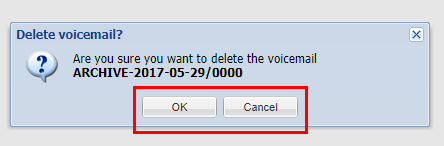
# Call Logs

## Overview

The **Call Logs** screen contains powerful features for accurate call logging. Say you have an exact date or range of dates that you wish to check calls from, you can do this with the call date filter function. At the top right hand of the screen, you will see **Start Date** and **End Date** with dates to the right of them, with a calendar icon in the box. You can manually enter a date for both of these with a Day/Month/Year format.<span class="confluence-embedded-file-wrapper">![](https://public.intellasoft.net/download/attachments/8029698/image2017-8-31_9-56-14.png?version=1&modificationDate=1504187774346&api=v2)</span>

[![image.png](https://public.intellasoft.net/uploads/images/gallery/2024-07/scaled-1680-/e86image.png)](https://public.intellasoft.net/uploads/images/gallery/2024-07/e86image.png)

Alternatively, if you click on the calendar icons themselves, a pop calendar will appear allowing you to graphically choose a date to filter for.

[![image.png](https://public.intellasoft.net/uploads/images/gallery/2024-07/scaled-1680-/aS3image.png)](https://public.intellasoft.net/uploads/images/gallery/2024-07/aS3image.png)
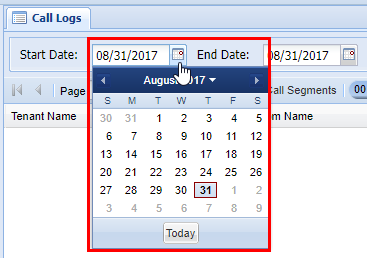
To quickly select a specific year and date, you can click on the Month/Year above the dated calendar. From here you can choose a specific year to center the calendar too. After you do this simply click OK, and it'll bring you back to the dates, in which you can click on the date in question. After you click a specific date, the calendar will disappear showing that the date has been inserted into the respective box for **Start Date** or **End Date.** Whenever you select a set of dates to filter by the screen will refresh automatically displaying any matching calls in the grid below.<span class="confluence-embedded-file-wrapper">![](https://public.intellasoft.net/download/attachments/8029698/image2017-8-31_9-58-42.png?version=1&modificationDate=1504187922102&api=v2)</span>

[![image.png](https://public.intellasoft.net/uploads/images/gallery/2024-07/scaled-1680-/8Cgimage.png)](https://public.intellasoft.net/uploads/images/gallery/2024-07/8Cgimage.png)

You also can filter by incoming or outgoing numbers. To the right of the **Start Date** and **End Date** function, you will see the option to **Search from/to phone number:** with a box to the right. In the box, you can enter a complete 9-digit number or even a partial number to filter the call log. Enter a number that you wish to filter by, and then click the button labeled **Display** to the right.

[![image.png](https://public.intellasoft.net/uploads/images/gallery/2024-07/scaled-1680-/EBnimage.png)](https://public.intellasoft.net/uploads/images/gallery/2024-07/EBnimage.png)
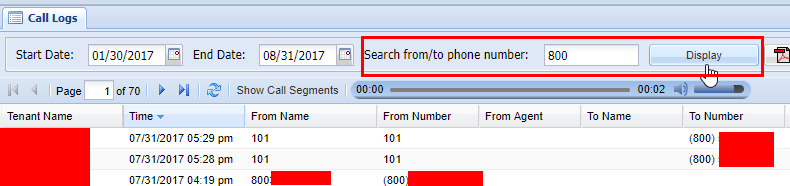
The **Call Logs** grid shows a lot of information about the calls it tracks. By now you should be familiar with how to navigate multiple pages in the web portal as well as the core functionality of the web portal as well, if you aren't then reading the **[Web Portal Introduction](https://public.intellasoft.net/books/web-portal-dL9/page/overview-v71)** will help with understanding some of the specific functions/buttons not covered here. Please note that this is an abbreviated overview of the Call Logs screen from a live system and as such sensitive information has been censored.

[![image.png](https://public.intellasoft.net/uploads/images/gallery/2024-07/scaled-1680-/4x7image.png)](https://public.intellasoft.net/uploads/images/gallery/2024-07/4x7image.png)<span class="confluence-embedded-file-wrapper confluence-embedded-manual-size">![](https://public.intellasoft.net/download/attachments/8029698/image2017-8-31_10-4-37.png?version=1&modificationDate=1504188278123&api=v2)</span>

Below is a table, explaining the various columns in the **Call Logs** screen going left to right.

[![image.png](https://public.intellasoft.net/uploads/images/gallery/2024-07/scaled-1680-/SyUimage.png)](https://public.intellasoft.net/uploads/images/gallery/2024-07/SyUimage.png)

<table border="1" id="bkmrk-column-description-t" style="border-collapse: collapse; width: 100%;"><colgroup><col style="width: 15.8253%;"></col><col style="width: 84.1727%;"></col></colgroup><thead><tr><td style="width: 35.8491%; height: 29.8px;">**Column** </td><td style="width: 64.1509%; height: 29.8px;">**Description**  
</td></tr></thead><tbody><tr><td>Time</td><td class="confluenceTd" style="width: 64.1509%; height: 29.8px;">Time call was received/placed</td></tr><tr><td>From Name</td><td class="confluenceTd" style="width: 64.1509%; height: 29.8px;">Who the call was from</td></tr><tr><td>From Number</td><td class="confluenceTd" style="width: 64.1509%; height: 46.6px;">Phone Number the Call Originated from (extension, full number, etc.)</td></tr><tr><td>From Agent</td><td class="confluenceTd" style="width: 64.1509%; height: 46.6px;">If the call was from an agent which agent it was from</td></tr><tr><td>To Name</td><td class="confluenceTd" style="width: 64.1509%; height: 29.8px;">Who the call was to</td></tr><tr><td>To Number</td><td class="confluenceTd" style="width: 64.1509%; height: 29.8px;">The number the call was placed to</td></tr><tr><td>To Agent</td><td class="confluenceTd" style="width: 64.1509%; height: 46.6px;">If call was placed to an agent, the agent the call was placed to</td></tr><tr><td>To Queue</td><td class="confluenceTd" style="width: 64.1509%; height: 46.6px;">Queue the call was placed to (if applicable)</td></tr><tr><td>Duration</td><td class="confluenceTd" style="width: 64.1509%; height: 63.4px;">Duration of the entire the caller was connected (including in queue, live person talk time, etc.)</td></tr><tr><td>Queue Talk</td><td class="confluenceTd" style="width: 64.1509%; height: 29.8px;">Total time talking to a live person</td></tr><tr><td>Direction</td><td class="confluenceTd" style="width: 64.1509%; height: 46.6px;">The direction of the call will be noted here. Either IN, OUT, or INTERNAL</td></tr><tr><td>Handler</td><td class="confluenceTd" style="width: 64.1509%; height: 97px;">This is the application that handed processing the call, Example: CallRouter for direct dialing, or CallQueue if this was a inbound CallCenter call</td></tr><tr><td>Play</td><td class="confluenceTd" style="width: 64.1509%; height: 63.4px;">Plays a recording if one is available, if it not available there will be a status as to why</td></tr><tr><td>Save</td><td class="confluenceTd" style="width: 64.1509%; height: 46.6px;">Save the recording as a .WAV file (if available)</td></tr></tbody></table>

<div class="columnMacro conf-macro output-block" data-hasbody="true" data-macro-name="column" id="bkmrk--6" style="width: 50%; min-width: 50%; max-width: 50%;"><div class="table-wrap"></div></div>As you can see by the table above you can play and save call recordings if they are available. It is important to keep in mind that the grid will show all applicable calls as shown in accordance with what filters have been set. These filters include the date filters and number filters as shown above, but additional filters can be applied per the columns filtering utility, for more information on grid filtering, check out [this section of the Introduction](https://public.intellasoft.net/books/web-portal-dL9/page/grid-components#bkmrk-filter-function). Please note that this is an abbreviated overview of the Call Logs screen from a live system and as such sensitive information has been censored.

<span class="confluence-embedded-file-wrapper confluence-embedded-manual-size">![](https://public.intellasoft.net/download/attachments/8029698/image2017-8-31_10-26-13.png?version=1&modificationDate=1504189573665&api=v2)</span>

# Support and Troubleshooting

# Asking the right question

<div class="toc-macro client-side-toc-macro conf-macro output-block hidden-outline" data-hasbody="false" data-headerelements="H1,H2,H3,H4,H5,H6,H7" data-macro-name="toc" id="bkmrk-first%2C-lets-ask-the-">- <span class="toc-item-body" data-outline="1">[First, let's ask the 'wrong question'](#bkmrk-first%2C-lets-ask-the--1)</span>
- <span class="toc-item-body" data-outline="2">[Next, let's ask the 'right question'](#bkmrk-next%2C-lets-ask-the-%27)</span>
- <span class="toc-item-body" data-outline="3">[Moral of the story](#bkmrk-moral-of-the-story)</span>
- <span class="toc-item-body" data-outline="4">[Examples](#bkmrk-examples)</span>

</div>## First, let's ask the 'wrong question'

Here are some quick tips on how to get the right answer you need, by asking the 'right question'.

Imagine this situation:

- You are a novice car mechanic.
- You have noticed a problem with your car shifting into drive
- You have some skills to trace and troubleshoot the issue and have reasonable suspicion that the problem is with the transmission.
- You do some research and find it might be pressure-related

You then ask the master mechanic at your shop:

- How do I double-check I have the right pressure for my transmission fluid?

The local master mechanic then proceeds to spend 30 minutes training you on this topic. Then you check the pressure it is correct. Now what?

## Next, let's ask the 'right question'

There is never an exact way to find precisely the 'right question', but we can start by 'backing out of the weeds'. Or zooming out on the problem.

<p class="callout info">Don't focus on a specific detail of the problem. Instead, focus on a high-level view with as much detail as possible</p>

What is our ultimate goal? We want to fix shifting

What do we know so far? Not much... shifting doesn't work.

But wait... we **DO** know more information... if we change our perspective and how we think about this problem

You now tell the master mechanic

- I have a problem shifting in this vehicle
- The issue happens when I'm going from neutral to drive
- The shifter lever does not move

The master mechanic thinks about this for 30 seconds and responds with

- Check the connecting rod from the shifter to the transmission
- You check the rod and it's broken.
- You replace the rod and shifting works perfectly now

In this scenario, while you thought the issue was transmission-fluid related from doing the research ... the answer clearly lies in a different direction entirely. The focus was too much on a 'specific thing' rather than the overall picture.

## Moral of the story

When we asked the 'right question' we got the answer almost immediately. Of course not every situation is as cut and dry and as straightforward as this is... but if you ask your mentor, project lead, or other resource the 'wrong question' you're going to still be miles away from solving your problem because it's too detailed... to deep in the rabbit hole to be useful for solving your problem.

While never a bad idea to get extra training... extra training can always be done (and should be done) during 'downtime' when customers aren't waiting for jobs to be completed. The ultimate goal is to fix the problem for the customer. Detailed learning and understanding are great, but it's important to focus on those aspects *after* the problem is solved when you have a relaxing time to absorb and learn.

## Examples

**Wrong question:** How do I make the swap file smaller?

**Right Question:** I need to clean up disk space, what large files should I delete first?

**Analysis:** While you might think shrinking the huge swap file is a great way to save disk space... perhaps the real problem is the 500 gigabytes of files in 'Downloads'

**Wrong question:** How do I make this phone register more often?

**Right Question:** I'm having a problem with a phone registration dropping out... the user can't make calls after 5 minutes. How can we troubleshoot the network?

**Analysis:** Registering more often won't fix the problem if it's a broken or misconfigured network. This is why backing out to the 'high level' question is better

**Wrong question:** How do I turn off the blinking light on the phone?

**Right Question:** I have a phone, where every time the user gets a voicemail, the light goes on... they would rather get an email for new voicemail messages.

**Analysis:** The 'Blinking light' could be related to many possible reasons. Lights blink during startup, during configuration reload, for warnings, or for voicemail.

# Collecting Call Examples

## Overview - Help Us, Help You

When encountering a call behavior issue, routing issue, dialing issue, and just about any other communications-related issue, it's very important to note some key points of information. This will help the technical support team to diagnose the problem.

<div class="columnLayout single" data-layout="single" id="bkmrk-overview----help-us%2C-1"><div class="cell normal" data-type="normal"><div class="innerCell"><div class="panel conf-macro output-block" data-hasbody="true" data-macro-name="panel" style="border-width: 1px;"><div class="panelContent"><div class="toc-macro client-side-toc-macro conf-macro output-block" data-csslistindent="15px" data-hasbody="false" data-headerelements="H1,H2" data-macro-name="toc" data-numberedoutline="true">- <span class="toc-item-body" data-outline="1">[Overview - Help Us, Help You](#bkmrk-overview----help-us%2C)</span>
- <span class="toc-item-body" data-outline="2">[What to do if a call has failed to connect, or other call-related issues occur.](#bkmrk-what-to-do-if-a-call)</span>

</div></div></div></div></div></div>## What to do if a call has failed to connect, or other call-related issues occur.

The following points of information represent what is referred to as a "Call Example". Call Examples are a key component in troubleshooting just about \*any\* type of issue, disruption, or problem that might occur on your communications system.

Please collect these three <u>**Critical Details**</u> about your call so that the technical support team can look into your issue

1\) **Date and Time of occurrence**

<div class="columnLayout single" data-layout="single" id="bkmrk-if-you-can%2C-please-t"><div class="cell normal" data-type="normal"><div class="innerCell"><div class="panel conf-macro output-block" data-hasbody="true" data-macro-name="panel" style="border-width: 1px;"><div class="panelContent"><div class="sectionColumnWrapper conf-macro output-block" data-hasbody="true" data-macro-name="section"><div class="sectionMacro"><div class="sectionMacroRow"><div class="columnMacro conf-macro output-block" data-hasbody="true" data-macro-name="column" style="width: 50%; min-width: 50%; max-width: 50%;">- If you can, please try and notate the time to the closest minute that the issue occurred

</div></div></div></div></div></div></div></div></div>2\) **What phone number or extension was being called**

<div class="columnLayout single" data-layout="single" id="bkmrk-if-you-are-calling-a"><div class="cell normal" data-type="normal"><div class="innerCell"><div class="panel conf-macro output-block" data-hasbody="true" data-macro-name="panel" style="border-width: 1px;"><div class="panelContent"><div class="sectionColumnWrapper conf-macro output-block" data-hasbody="true" data-macro-name="section"><div class="sectionMacro"><div class="sectionMacroRow"><div class="columnMacro conf-macro output-block" data-hasbody="true" data-macro-name="column" style="width: 50%; min-width: 50%; max-width: 50%;">- If you are calling an internal extension, please note the extension being called
- If you calling an outside number, please note the full phone number
- If you are calling another branch or office location, please note the name of the location you intend to reach as well as the number dialed

</div></div></div></div></div></div></div></div></div>3\) **The extension or number that the call was placed from**

<div class="columnLayout single" data-layout="single" id="bkmrk-if-this-call-was-pla"><div class="cell normal" data-type="normal"><div class="innerCell"><div class="panel conf-macro output-block" data-hasbody="true" data-macro-name="panel" style="border-width: 1px;"><div class="panelContent"><div class="sectionColumnWrapper conf-macro output-block" data-hasbody="true" data-macro-name="section"><div class="sectionMacro"><div class="sectionMacroRow"><div class="columnMacro conf-macro output-block" data-hasbody="true" data-macro-name="column" style="width: 50%; min-width: 50%; max-width: 50%;">- If this call was placed from inside the office or otherwise is part of the office system, note the extension used
- If this call was placed from outside the office, please provide the full phone number (CallerID) of the received call

</div></div></div></div></div></div></div></div></div>Also, please try to be as detailed as possible and provide the following <u>**Additional Information**</u> if possible.

<div class="columnLayout single" data-layout="single" id="bkmrk-action%3A-what-is-the-"><div class="cell normal" data-type="normal"><div class="innerCell"><div class="panel conf-macro output-block" data-hasbody="true" data-macro-name="panel" style="border-width: 1px;"><div class="panelContent"><div class="sectionColumnWrapper conf-macro output-block" data-hasbody="true" data-macro-name="section"><div class="sectionMacro"><div class="sectionMacroRow"><div class="columnMacro conf-macro output-block" data-hasbody="true" data-macro-name="column" style="width: 50%; min-width: 50%; max-width: 50%;">- **Action:** What is the task or action that was attempted? **Example**: "We tried to access voicemail at the Main Street Office from the Maple Street Office"
- **Expected:** What was the expected behavior? **Example:** "We expected to be able to access the voicemail box of extension 155"
- **Result:** What was the actual behavior? **Example:** "We experienced an odd tone, it was three beeps and then the call hung up, then the announcement told us that Error 55 has occurred"

</div></div></div></div></div></div></div></div></div>Here are some example reports

### Example One - The Great Example

<div class="table-wrap" id="bkmrk-reporter-notes-analy"><table border="1" class="wrapped confluenceTable tablesorter tablesorter-default" role="grid" style="border-collapse: collapse; border-style: solid;"><thead><tr><td>**Reporter Notes**  
</td><td>**Analysis**  
</td></tr></thead><tbody><tr role="row"><td class="confluenceTd">Issue occurred at 12:25pm Eastern Time on June 5th when calling \*123 from extension 1000</td><td class="confluenceTd">This is a **perfect** start of a Call Example report. It concisely describes all three critical details of a Call Example.</td></tr><tr role="row"><td class="confluenceTd">Tried calling into voicemail in order to change a greeting. Twice we got a busy signal, and two more times we got a weird buzzing. The fifth time we got in and changed the greeting.</td><td class="confluenceTd">This is a **great** level of detail without a lot of writing! The reporter concisely described what they were trying to do (the **Action**), what they **Expected** (access to voicemail for the greeting change). The reporter stated how many times they tried to do the action (this can be incredibly helpful to the support staff). The reporter also stated what occurred when each attempt was taken (the **Result**).

It's important to describe <u>how</u> the call failed. The technicians working on your issue will be keyed into the problem area by error codes and sounds. Buzzing may very well indicate a wire has been physically damaged. Beep codes from the system or your service provider will give clues to the source of the problem.

</td></tr></tbody></table>

</div>### Example Two - The "OK" Example 

<p class="callout info">This type of report may result in *<u>delays</u>* in resolving the issue while the support team shuffles through troubleshooting data to locate specifics.</p>

Suppose a reporter was having the same problem as described in Example One, but reported the problem in this way:

<div class="table-wrap" id="bkmrk-reporter-notes-analy-1"><table border="1" class="wrapped confluenceTable tablesorter tablesorter-default" role="grid" style="border-collapse: collapse; border-style: solid;"><thead><tr><td>**Reporter Notes**  
</td><td>**Analysis**

</td></tr></thead><tbody><tr role="row"><td class="confluenceTd">Issue occurred at around 12:00pm in June 5th when calling \*123 from extension 1000</td><td class="confluenceTd">This is an "**OK**" start of a Call Example report. The time is vague, but with the date, the technical support staff can locate the problematic call with some searching and poking around to find the specific calls that started at 12:25.

Also, the time zone has not been specified in this example. Depending on where the reporter is located and where the staff is located, there may be some guessing involved in locating the correct Time Zone to apply when searching the system data.

</td></tr><tr role="row"><td class="confluenceTd">Voicemail had a problem, we were disconnected a few times, but we did get through once.</td><td class="confluenceTd">This note provides some detail. The reporter has noted the **Action** (voicemail), and the **Result**, but didn't relay the **Expected --** Why is the **Expected** item important you might ask? If the support team understands what you are trying to accomplish, they can suggest <u>Alternative</u> ways to complete the goal while they work on the issue. The support team immediate response to <u>Example One</u> would be to use the web portal to change the greeting in the meantime, while we troubleshoot the issue dialing into voicemail.

Also, the reporter in this example did not give any detail on <u>*which*</u> attempts were failures and which attempts were successful. When the support team is working on the reported issue from <u>Example One</u>, they may be able to locate the issue within **minutes**, given the specifics, since the team knows exactly what to look for. When the support team is working on the issue reported from <u>Example Two</u>, it could take an hour or more to sift through data, and system reports to locate the problem.

</td></tr></tbody></table>

</div>### Example Three - The Poor Example

<p class="callout warning">This type of report will most certainly result in a *<u>serious delay</u>* in resolving the issue that has been reported. The support team may take hours or days to locate the calls in question</p>

<div class="table-wrap" id="bkmrk-reporter-notes-analy-2"><table border="1" class="wrapped relative-table confluenceTable tablesorter tablesorter-default" role="grid" style="width: 99.93%; border-collapse: collapse; border-style: solid;"><thead><tr><td style="width: 29.8148%;">**Reporter Notes**  
</td><td style="width: 70.1336%;">**Analysis**

</td></tr></thead><tbody><tr role="row"><td class="confluenceTd" style="width: 29.8148%;">One of the phones called voicemail, the problem was during the first week of June.</td><td class="confluenceTd" style="width: 70.1336%;">This is a **poor** start of a Call Example report. There is a vague starting point of investigation (first week of June). There is no time listed, and no extension listed. The support team <u>might not be able to locate</u> the problematic call if this phone is part of a large system. Depending on the size of your installed system, sifting through hundreds, thousands, or tens of thousands of calls over a period of a week is not going to be an effective way to solve this problem. Also, the reporter has not defined what the problem is. The support staff will not know what to look for!

It is possible that the support team may be **<u>unable</u>** to investigate or resolve this issue.

</td></tr><tr role="row"><td class="confluenceTd" style="width: 29.8148%;">(No **Additional Information** supplied)</td><td class="confluenceTd" style="width: 70.1336%;">This reported example provides very little detail. The reporter has noted the **Action** (voicemail) and a very vague **Result** (a problem). Depending on the size of your installed system -- Every minute, hundreds or thousands of data points are recorded on the communications system. Given this level of detail that is recorded, there may be no realistic way to locate the problem. Without ample information, the support team may decline to work on this issue until more information is available.

</td></tr></tbody></table>

</div>

# Cook Book - Recipes

# Creating a Call Forward using a DayNight Schedule

<div class="page-metadata" id="bkmrk-"></div><span class="confluence-embedded-file-wrapper confluence-embedded-manual-size">![](https://public.intellasoft.net/download/attachments/27918363/DayNight%20Groups%20Arrow.png?version=4&modificationDate=1560293154685&api=v2)</span>

[![image.png](https://public.intellasoft.net/uploads/images/gallery/2024-07/scaled-1680-/eqoimage.png)](https://public.intellasoft.net/uploads/images/gallery/2024-07/eqoimage.png)

# Overview

Welcome to the web portal documentation.

<div class="sectionColumnWrapper conf-macro output-block" data-hasbody="true" data-macro-name="section" id="bkmrk-the-best-place-to-st"><div class="sectionMacro"><div class="sectionMacroRow"><div class="panel conf-macro output-block" data-hasbody="true" data-macro-name="panel" style="border-width: 1px;"><div class="panelContent"><div class="columnMacro conf-macro output-block" data-hasbody="true" data-macro-name="column"><div class="sectionMacro conf-macro output-block" data-hasbody="true" data-macro-name="section"><div class="sectionMacroRow">- The best place to start is the **[Web Portal Introduction](https://public.intellasoft.net/display/intellacore/Web+Portal+Introduction)**.
- This covers how to get started, including:   
    
    - **[Logging In](https://public.intellasoft.net/display/intellacore/Top+Level+Interface+Components#TopLevelInterfaceComponents-LoggingIn)**
    - [**Navigation**](https://public.intellasoft.net/display/intellacore/Top+Level+Interface+Components#TopLevelInterfaceComponents-NavigationPanel)
    - [Grid-Based Editor](https://public.intellasoft.net/display/intellacore/Grid+Components)

</div></div></div></div></div></div></div></div>Important topics for administrators are:

<div class="sectionColumnWrapper conf-macro output-block" data-hasbody="true" data-macro-name="section" id="bkmrk-users-extensions-voi"><div class="sectionMacro"><div class="sectionMacroRow"><div class="panel conf-macro output-block" data-hasbody="true" data-macro-name="panel" style="border-width: 1px;"><div class="panelContent"><div class="columnMacro conf-macro output-block" data-hasbody="true" data-macro-name="column"><div class="sectionMacro conf-macro output-block" data-hasbody="true" data-macro-name="section"><div class="sectionMacroRow">- **[Users](https://public.intellasoft.net/display/intellacore/Users)**
- **[Extensions](https://public.intellasoft.net/display/intellacore/Extensions)**
- **[Voicemail](https://public.intellasoft.net/display/intellacore/Voicemail)**
- **[Call Logs](https://public.intellasoft.net/display/intellacore/Call+Logs)**

</div></div></div></div></div></div></div></div>For more advanced system customization see:

<div class="sectionColumnWrapper conf-macro output-block" data-hasbody="true" data-macro-name="section" id="bkmrk-daynight-groups-%2F-da"><div class="sectionMacro"><div class="sectionMacroRow"><div class="panel conf-macro output-block" data-hasbody="true" data-macro-name="panel" style="border-width: 1px;"><div class="panelContent"><div class="columnMacro conf-macro output-block" data-hasbody="true" data-macro-name="column"><div class="sectionMacro conf-macro output-block" data-hasbody="true" data-macro-name="section"><div class="sectionMacroRow">- **[DayNight Groups](https://public.intellasoft.net/display/intellacore/DayNight+Groups)** / **[DayNight Schedule](https://public.intellasoft.net/display/intellacore/DayNight+Schedule)**
    - (Example use: Set the day time hours and night time hours for your main phone number)

- **[Hunt Groups](https://public.intellasoft.net/display/intellacore/Hunt+Groups) / [Hunt Group Members](https://public.intellasoft.net/display/intellacore/Hunt+Group+Members)**
    - (Example use: Ring a group of phones)

- **[Phone SysDial Directory](https://public.intellasoft.net/display/intellacore/Phone+SysDial+Directory)**
    - (Example use: Organization-Wide short code dialing)

- **[PhoneMap Groups](https://public.intellasoft.net/display/intellacore/PhoneMap+Groups)** / **[Phone Map Members](https://public.intellasoft.net/display/intellacore/Phone+Map+Members)**
    - (Example use: Rotating on-call routing in your organization)

</div></div></div></div></div></div></div></div>For details on troubleshooting and support, see:

<div class="sectionColumnWrapper conf-macro output-block" data-hasbody="true" data-macro-name="section" id="bkmrk-%C2%A0collecting-call-exa"><div class="sectionMacro"><div class="sectionMacroRow"><div class="panel conf-macro output-block" data-hasbody="true" data-macro-name="panel" style="border-width: 1px;"><div class="panelContent"><div class="columnMacro conf-macro output-block" data-hasbody="true" data-macro-name="column"><div class="sectionMacro conf-macro output-block" data-hasbody="true" data-macro-name="section"><div class="sectionMacroRow">- **[Collecting Call Examples](https://public.intellasoft.net/display/intellacore/Collecting+Call+Examples)**
    - (When something goes wrong, technical support will need some basic information about the issue)

</div></div></div></div></div></div></div></div>

# Generate Reports

<div class="columnLayout single" data-layout="single" id="bkmrk--1"><div class="cell normal" data-type="normal"><div class="innerCell"><div class="table-wrap"><table class="confluenceTable tablesorter tablesorter-default" role="grid"><colgroup><col></col><col></col></colgroup><thead aria-label="Use column header buttons to sort"><tr class="tablesorter-headerRow" role="row"></tr></thead></table>

</div></div></div></div><table class="confluenceTable tablesorter tablesorter-default" id="bkmrk-field-description-ma" role="grid"><tbody><tr><td>**Field**  
</td><td>**Description**  
</td></tr><tr role="row"><td class="confluenceTd">Max Simul Calls</td><td class="confluenceTd">  
</td></tr><tr role="row"><td class="confluenceTd">Avg Simul Calls</td><td class="confluenceTd">  
</td></tr><tr role="row"><td class="confluenceTd">Max Simul Calls In</td><td class="confluenceTd">  
</td></tr><tr role="row"><td class="confluenceTd">Avg Simul Calls In</td><td class="confluenceTd">  
</td></tr><tr role="row"><td class="confluenceTd">Max Simul Calls Out</td><td class="confluenceTd">  
</td></tr><tr role="row"><td class="confluenceTd">Avg Simul Calls Out</td><td class="confluenceTd">  
</td></tr><tr role="row"><td class="confluenceTd">Avg Call Duration</td><td class="confluenceTd">  
</td></tr><tr role="row"><td class="confluenceTd">Max Call Duration</td><td class="confluenceTd">  
</td></tr><tr role="row"><td class="confluenceTd">Tot Call Duration</td><td class="confluenceTd">  
</td></tr><tr role="row"><td class="confluenceTd">Num Calls</td><td class="confluenceTd">  
</td></tr></tbody></table>

# ScreenPop User Onboarding

# Setting the Extension

If the user is taking over an existing **Extension**, locate that **Extension**, double click on the row and then the row will turn into an editable form.

[![image.png](https://public.intellasoft.net/uploads/images/gallery/2024-08/scaled-1680-/rNEimage.png)](https://public.intellasoft.net/uploads/images/gallery/2024-08/rNEimage.png)

Once the editable form is shown, update the details for the **Extension**. If the **Extension** was automatically generated as part of the system setup, the **User** will have already been assigned, but if not make sure the **User** matches the **Extension**.

[![image.png](https://public.intellasoft.net/uploads/images/gallery/2024-08/scaled-1680-/6wkimage.png)](https://public.intellasoft.net/uploads/images/gallery/2024-08/6wkimage.png)

Scroll to the right on the main panel in order to see **Voicemail** related options.

The **Voicemail Email** is required for setting up the softphone for screenpops.

Click the **Save** button below the row once the editing is done.

[![image.png](https://public.intellasoft.net/uploads/images/gallery/2024-08/scaled-1680-/drQimage.png)](https://public.intellasoft.net/uploads/images/gallery/2024-08/drQimage.png)
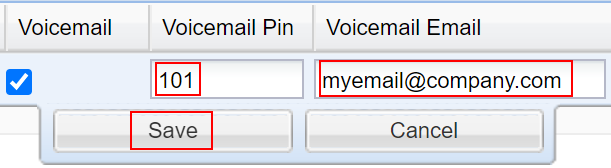
After the above is saved, the last extensions update is to go to the **Additional Extensions Settings** on the right hand side of the page.

Scroll down the settings to find the **Phone Make** and **Phone Model**.

Set the **Phone Make** to IntellaPhone and IntellaPhone PC should automatically get set. Then save.

[![image.png](https://public.intellasoft.net/uploads/images/gallery/2024-08/scaled-1680-/eTRimage.png)](https://public.intellasoft.net/uploads/images/gallery/2024-08/eTRimage.png)
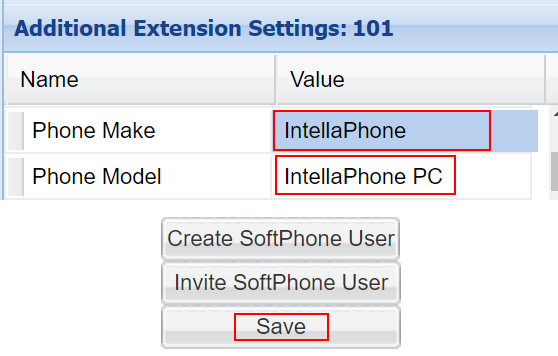
Once saved, click on the **Invite Softphone User** button. The user can then follow the directions to get their softphone setup → [IntellaPhone](https://public.intellasoft.net/IntellaPhone)

[![image.png](https://public.intellasoft.net/uploads/images/gallery/2024-08/scaled-1680-/S07image.png)](https://public.intellasoft.net/uploads/images/gallery/2024-08/S07image.png)
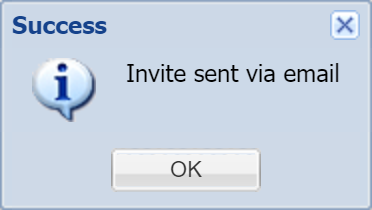
Jump to the below section: **Setting The Agent**.

# Creating a New Softphone Extension If Necessary

If the user already has a deskphone and needs a softphone, start by selecting their existing **Extension** in the grid.

Then click the button **Create SoftPhone User**

[![image.png](https://public.intellasoft.net/uploads/images/gallery/2024-08/scaled-1680-/dFmimage.png)](https://public.intellasoft.net/uploads/images/gallery/2024-08/dFmimage.png)
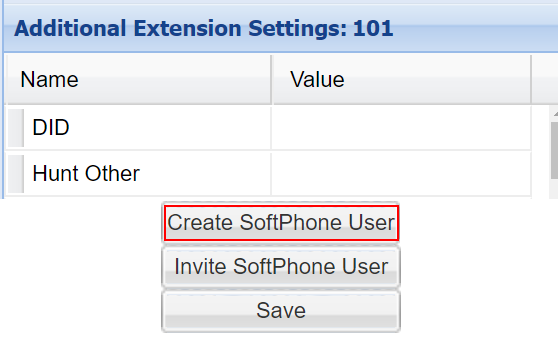
An automatic prefix of 2 is added to the softphone extension.

Everything should auto populate and then click **Save**

[![image.png](https://public.intellasoft.net/uploads/images/gallery/2024-08/scaled-1680-/BJWimage.png)](https://public.intellasoft.net/uploads/images/gallery/2024-08/BJWimage.png)
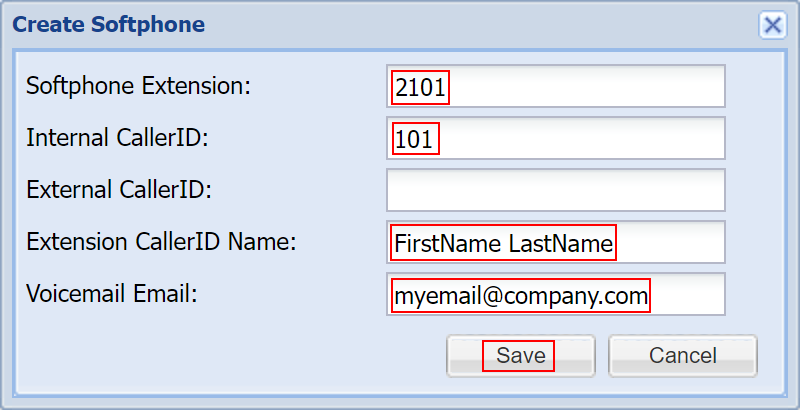
After the system creates the softphone, a success message appears.

[![image.png](https://public.intellasoft.net/uploads/images/gallery/2024-08/scaled-1680-/CWZimage.png)](https://public.intellasoft.net/uploads/images/gallery/2024-08/CWZimage.png)

To refresh the grid, click the double arrow **Refresh** button, then the new softphone will appear in the extensions list

[![image.png](https://public.intellasoft.net/uploads/images/gallery/2024-08/scaled-1680-/zhPimage.png)](https://public.intellasoft.net/uploads/images/gallery/2024-08/zhPimage.png)
Then follow the same instructions as the top as if it's an existing extension.

Make sure the new softphone extension is selected, edit the row if necessary.

Double check the **Additional Extension Settings**, **Phone Make &amp; Model** that they are set to IntellaPhone.

Once everything is updated and saved, proceed with the same **Invite Softphone User**.

The user can then follow the directions to get their softphone setup → [IntellaPhone](https://public.intellasoft.net/IntellaPhone)

# Setting the Agent

Navigate to the **Agent Editor** screen.

[![image.png](https://public.intellasoft.net/uploads/images/gallery/2024-08/scaled-1680-/Zywimage.png)](https://public.intellasoft.net/uploads/images/gallery/2024-08/Zywimage.png)
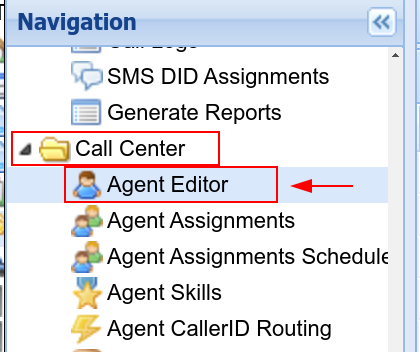
The **Quick Search** can be used to check if the **Agent** has already been added to the system.

[![image.png](https://public.intellasoft.net/uploads/images/gallery/2024-08/scaled-1680-/iNvimage.png)](https://public.intellasoft.net/uploads/images/gallery/2024-08/iNvimage.png)

If not found, click **New Agent** button and a form will be shown. Populate all of the highlighted fields below and then save the new **Agent**. Keep in mind as a best practice to ensure that agents have a unique **Agent Pin** number for their logins.

[![image.png](https://public.intellasoft.net/uploads/images/gallery/2024-08/scaled-1680-/ZBdimage.png)](https://public.intellasoft.net/uploads/images/gallery/2024-08/ZBdimage.png)

Next, using the left navigation sidebar, navigate to **Agent Allocations**

[![image.png](https://public.intellasoft.net/uploads/images/gallery/2024-08/scaled-1680-/fr8image.png)](https://public.intellasoft.net/uploads/images/gallery/2024-08/fr8image.png)

If you have no **Agent Allocations**, click the **New Agent Allocation** button and a form will be shown.

[![image.png](https://public.intellasoft.net/uploads/images/gallery/2024-08/scaled-1680-/9OHimage.png)](https://public.intellasoft.net/uploads/images/gallery/2024-08/9OHimage.png)
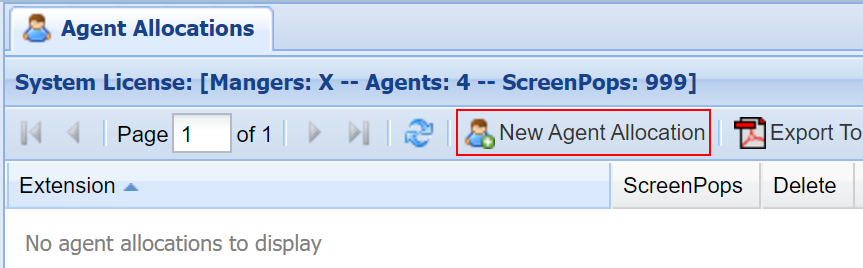
Populate the highlighted fields and then save the new **Agent Allocation**. **ScreenPops** checkbox is required for the agent to receive screen pops.

[![image.png](https://public.intellasoft.net/uploads/images/gallery/2024-08/scaled-1680-/F0yimage.png)](https://public.intellasoft.net/uploads/images/gallery/2024-08/F0yimage.png)
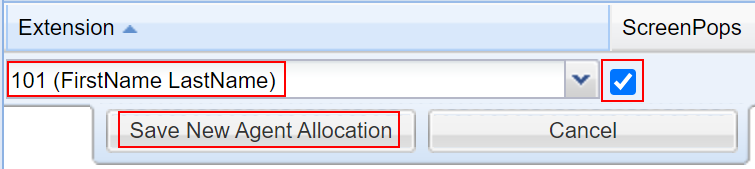
Now that the **Agent** is in the system, using the left navigation sidebar, navigate to **Agent Assignments**

[![image.png](https://public.intellasoft.net/uploads/images/gallery/2024-08/scaled-1680-/4ZVimage.png)](https://public.intellasoft.net/uploads/images/gallery/2024-08/4ZVimage.png)
First, use the **Select Queue** list selector on the top.

The **Quick Search** on the right can be useful to locate the new **Agent**, and then use the green left arrow to add the chosen agent to the **Queue**.

[![image.png](https://public.intellasoft.net/uploads/images/gallery/2024-08/scaled-1680-/DUGimage.png)](https://public.intellasoft.net/uploads/images/gallery/2024-08/DUGimage.png)
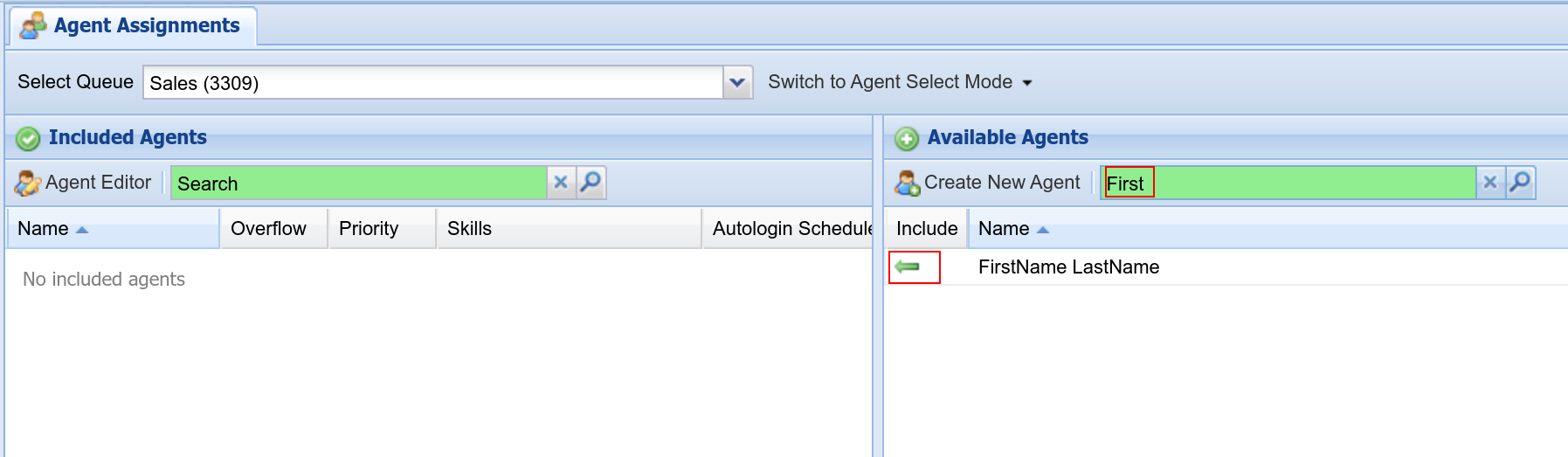
Lastly, test the new login by going to the **Toolbar URL** specifically for your system and then logging in with this **Extension**/**Agent Number**/**Agent Pin**

[![image.png](https://public.intellasoft.net/uploads/images/gallery/2024-08/scaled-1680-/wBNimage.png)](https://public.intellasoft.net/uploads/images/gallery/2024-08/wBNimage.png)
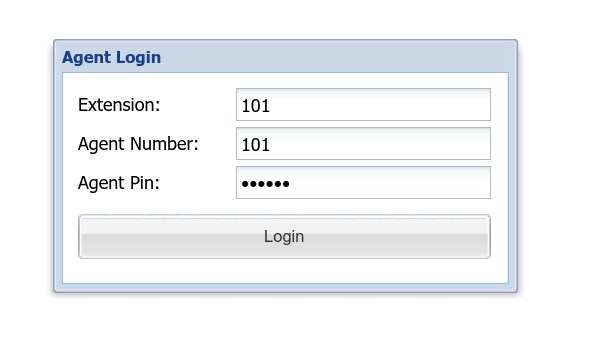
# Setting a Manager

If there is a need for a **User** to be able to look at **Call History** and **Call Recordings**, then they will need to have a **Portal Account** (which is different than the **Agent Login** that's covered above).

Using the left side navigation sidebar, navigate to **Users**

[![image.png](https://public.intellasoft.net/uploads/images/gallery/2024-08/scaled-1680-/MmNimage.png)](https://public.intellasoft.net/uploads/images/gallery/2024-08/MmNimage.png)
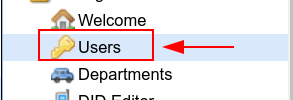
Then on the center panel, use the **New User** button to create a new **User**.

Use the **Quick Search** to determine if there already is a **User** for this person.

[![image.png](https://public.intellasoft.net/uploads/images/gallery/2024-08/scaled-1680-/QfIimage.png)](https://public.intellasoft.net/uploads/images/gallery/2024-08/QfIimage.png)

In order for a **User** to have access to all **Calls**, they will need the following set:

**Department**: admin

**Permission Mode**: Exclude

**Permissions**: **Call Logs**, **Call Recordings**, **Call Recordings Other**

Make sure that **User** and **Password** are both set in the row editor form, as well as **Department**, otherwise the **User** cannot yet be saved

[![image.png](https://public.intellasoft.net/uploads/images/gallery/2024-08/scaled-1680-/HBLimage.png)](https://public.intellasoft.net/uploads/images/gallery/2024-08/HBLimage.png)
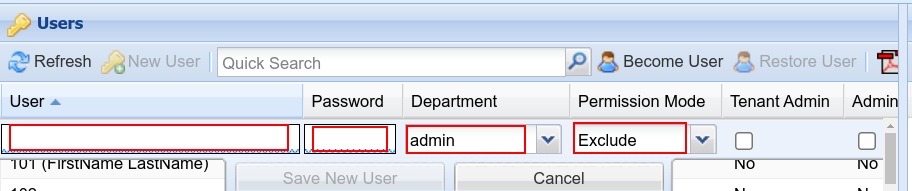
Scrolling over to the right will be required in order to set the necessary permissions.

[![image.png](https://public.intellasoft.net/uploads/images/gallery/2024-08/scaled-1680-/RCGimage.png)](https://public.intellasoft.net/uploads/images/gallery/2024-08/RCGimage.png)

There are many possible combinations of access available, including access that restricts users to certain calls. The above is the simplest way to give a user access to all calls in the system.

# What's New

#### 2026 - June - Update  


- Quick Search is now available on all screens

[![image.png](https://doc.intellasoft.net/uploads/images/gallery/2026-06/scaled-1680-/image.png)](https://doc.intellasoft.net/uploads/images/gallery/2026-06/image.png)
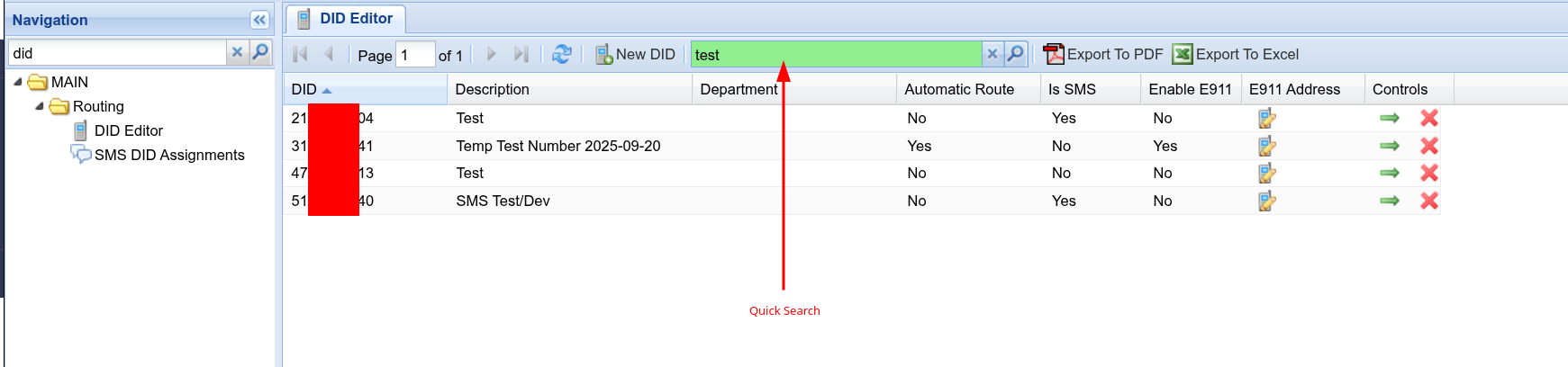
####   
2026 - Mar - Update  


- IVR: DayNight  
    
    - It is no longer required to have 'Query DayNightSchedule' in order to get the DayNight status.
    - You can now just directly use 'If' and 'DayNight' together, without first doing 'Query'
    - This change is backwards-compatible. You can continue to save/edit older style DayNight sequences
        
        [![image.png](https://doc.intellasoft.net/uploads/images/gallery/2026-04/scaled-1680-/equimage.png)](https://doc.intellasoft.net/uploads/images/gallery/2026-04/equimage.png)
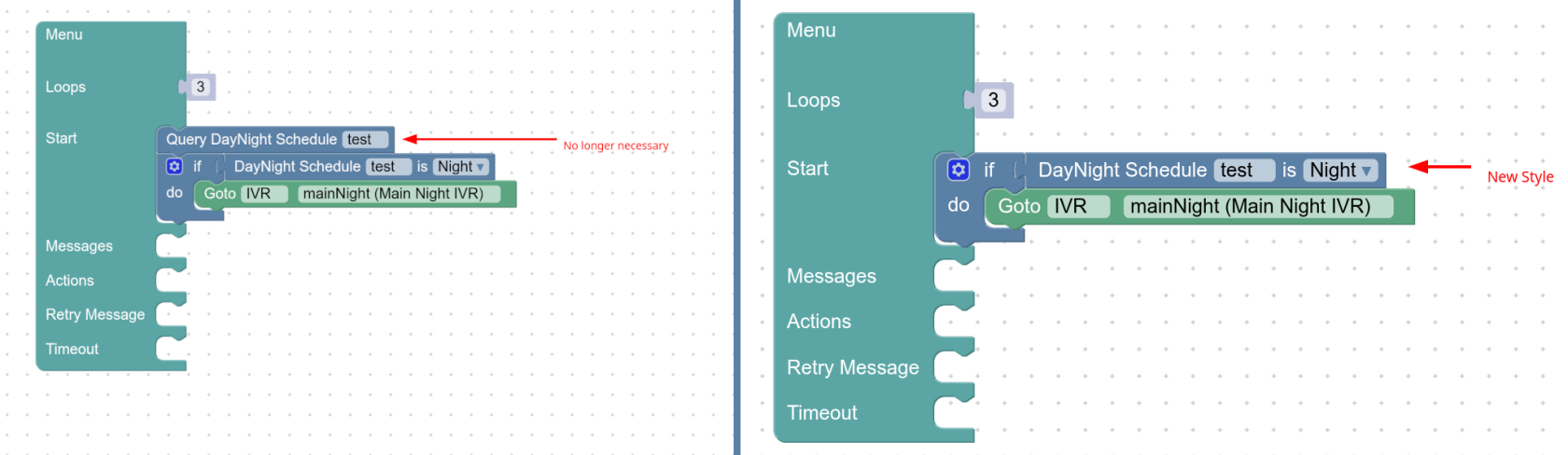
#### 2026 - Feb - Update  


- Phone Buttons - Loading speed efficiency update: up to 840% increase in speed!

#### 2026 - Jan - Update 2  


- New Feature: Edit E911 Address 
    - Now you can update associated E911 location addresses with your DID Phone Numbers  
        [![image.png](https://doc.intellasoft.net/uploads/images/gallery/2026-02/scaled-1680-/image.png)](https://doc.intellasoft.net/uploads/images/gallery/2026-02/image.png)
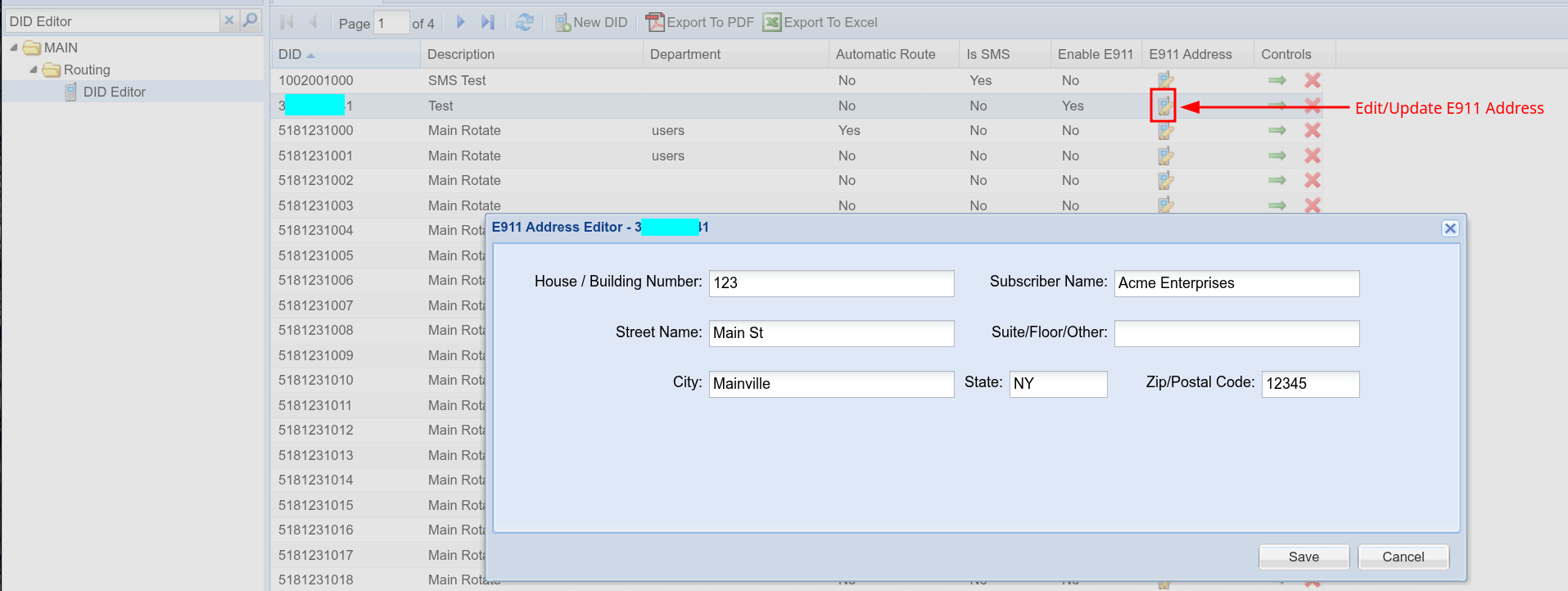
    - Ensure that you dial 933 to test Emergency Services after updating addresses. 
        - Note: (Dialing 911 without an emergency may lead to State Imposed Fines)  
            See this guide on how E911 functions and how to fully do setup and testing: [Here](https://doc.intellasoft.net/books/web-portal-dL9/page/e911-setup-guide)

#### 2026 - January - Update 1

- New Feature: Call Center -&gt; Agent Assignments -&gt; AutoLogin Schedule. 
    - When using Call Center, this allows for automatically logging in an agent based on a DayNight Schedule   
        [![image.png](https://doc.intellasoft.net/uploads/images/gallery/2026-01/scaled-1680-/HPEimage.png)](https://doc.intellasoft.net/uploads/images/gallery/2026-01/HPEimage.png)
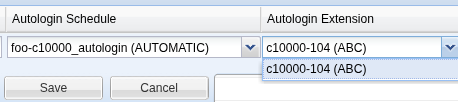

#### 2025 - November - Update 1

- IVR Editor -- Expanded ComboBox for long prompt names
- General -- Errors now pop over all over panels
- General -- Errors with XML output now properly show
- Dialer Campaigns properly shows per-call-type settings based on what type being used (Call vs SMS)
- Dialer Campaigns -- Fixed margins and PropertySheet 'creep' w
- hen clicking
- SMS Message Screen now is refreshed after deleting a message

#### 2025 - October - Update 2

- Multiple Yealink SideCars now supported  
    
    - Sidecars 2 and 3 can now be set up using the portal

[![2025-10-28_11-00.png](https://doc.intellasoft.net/uploads/images/gallery/2025-10/scaled-1680-/2025-10-28-11-00.png)](https://doc.intellasoft.net/uploads/images/gallery/2025-10/2025-10-28-11-00.png)
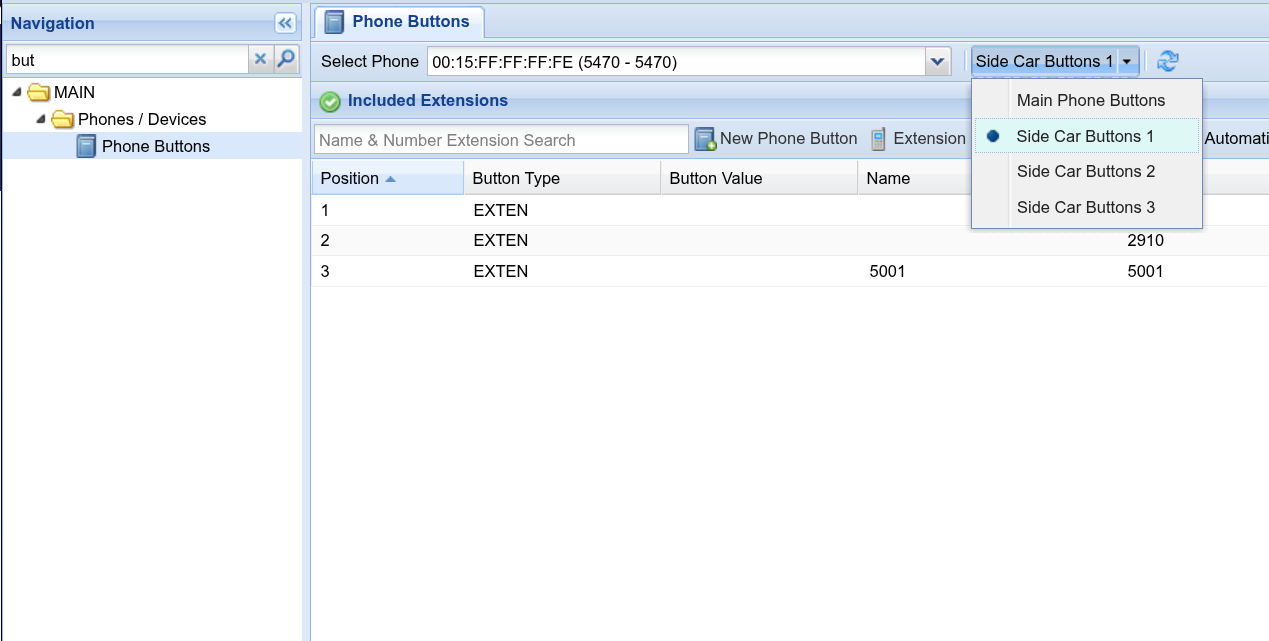
#### 2025 - October - Update 1

- Navigation has been grouped  
    
    - Now, various configuration screens are grouped by category in order to more easily locate what's needed.

[![image.png](https://doc.intellasoft.net/uploads/images/gallery/2025-10/scaled-1680-/image.png)](https://doc.intellasoft.net/uploads/images/gallery/2025-10/image.png)
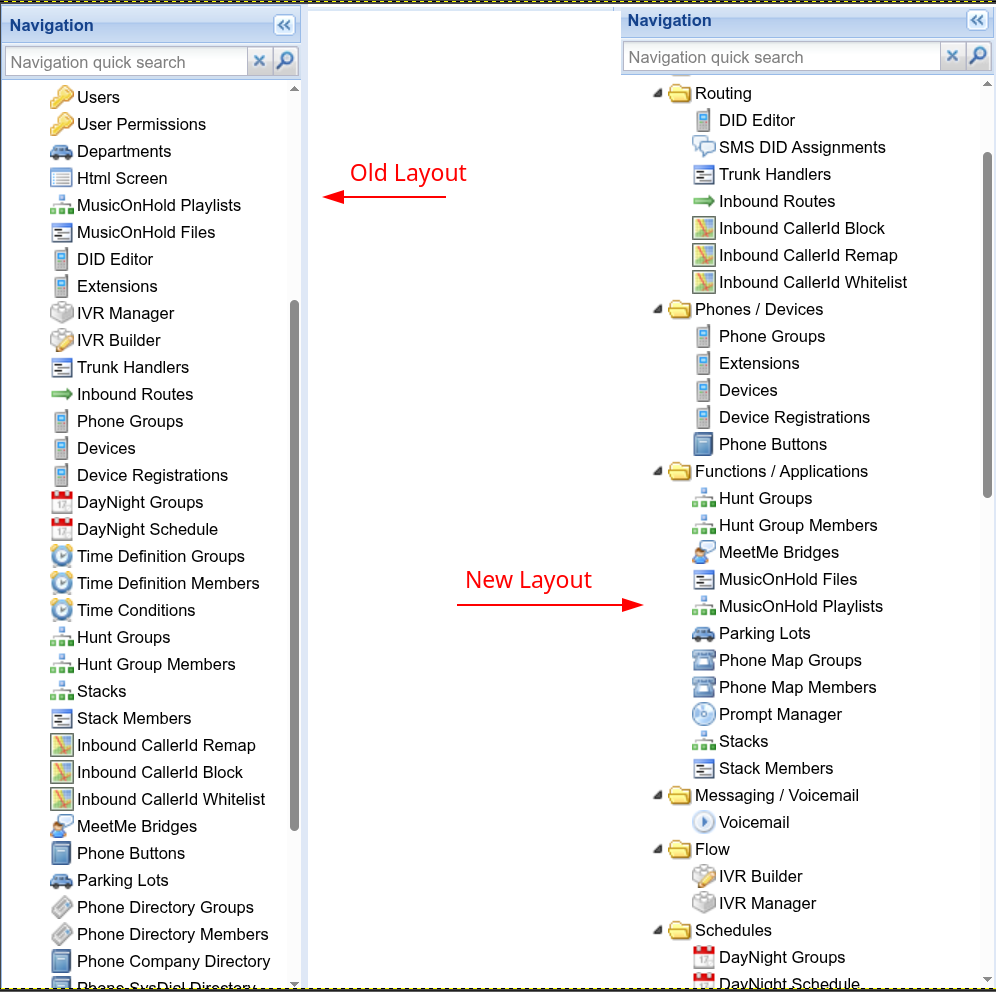

####   
2025 - September - Update 6

- Phone Buttons Automatic Ordering Confirmation  
    
    - Now there is a confirmation popup when switching to automatic (alphabetical) ordering for Phone Buttons

[![image.png](https://doc.intellasoft.net/uploads/images/gallery/2025-09/scaled-1680-/iUBimage.png)](https://doc.intellasoft.net/uploads/images/gallery/2025-09/iUBimage.png)
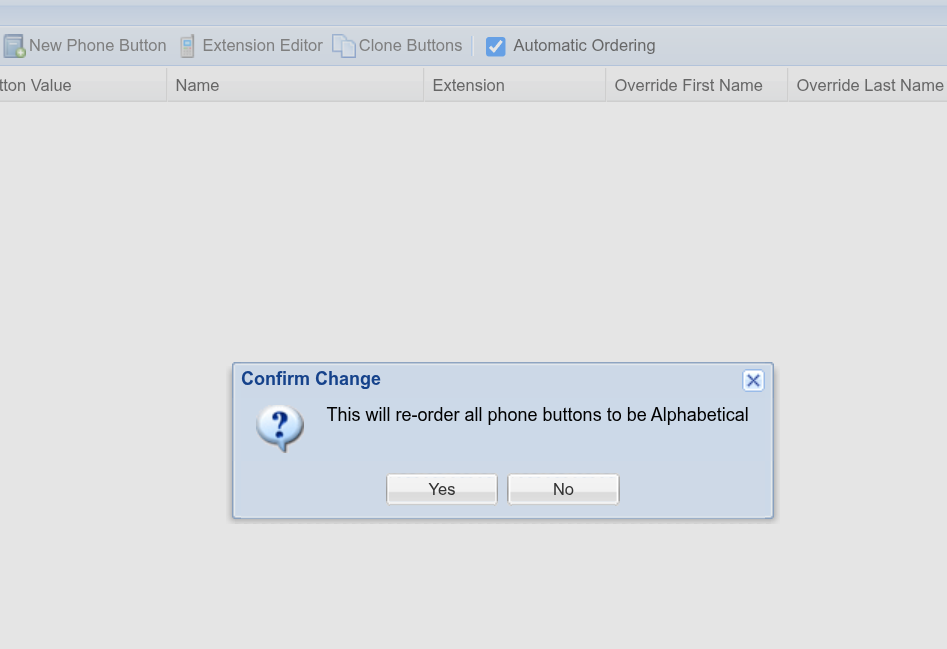
####   
2025 - September - Update 5

- Navigation Redesign  
    
    - Navigation is now logically grouped by general category  
          
        [![image.png](https://doc.intellasoft.net/uploads/images/gallery/2025-09/scaled-1680-/LW6image.png)](https://doc.intellasoft.net/uploads/images/gallery/2025-09/LW6image.png)
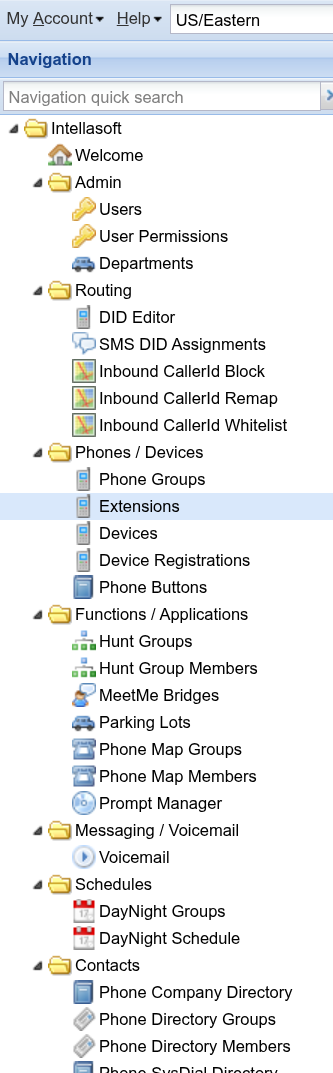
#### 2025 - September - Update 4

- HuntGroups Redesign 
    - The HuntGroups grid has been simplified so it fits well on smaller screens
    - HuntGroups now have an option for '**Missed Call Behavior'**
        - Options: 
            - Normal - This is the **new** default when creating new HuntGroups. 
                - This setting will only leave a missed call if the call has not been answered by the huntgroup
            - Always - Always leave a missed call on all phones in the HuntGroup, even if the call is answered
            - Never - Never leave a missed call on any phone in the HuntGroup, even if the call is missed
        - Note: The previous default was 'Never'. All existing huntgroups that have been created before this update have been set to 'Never' to keep existing behavior.

#### [![2025-09-09_15-52.png](https://doc.intellasoft.net/uploads/images/gallery/2025-09/scaled-1680-/2025-09-09-15-52.png)](https://doc.intellasoft.net/uploads/images/gallery/2025-09/2025-09-09-15-52.png)
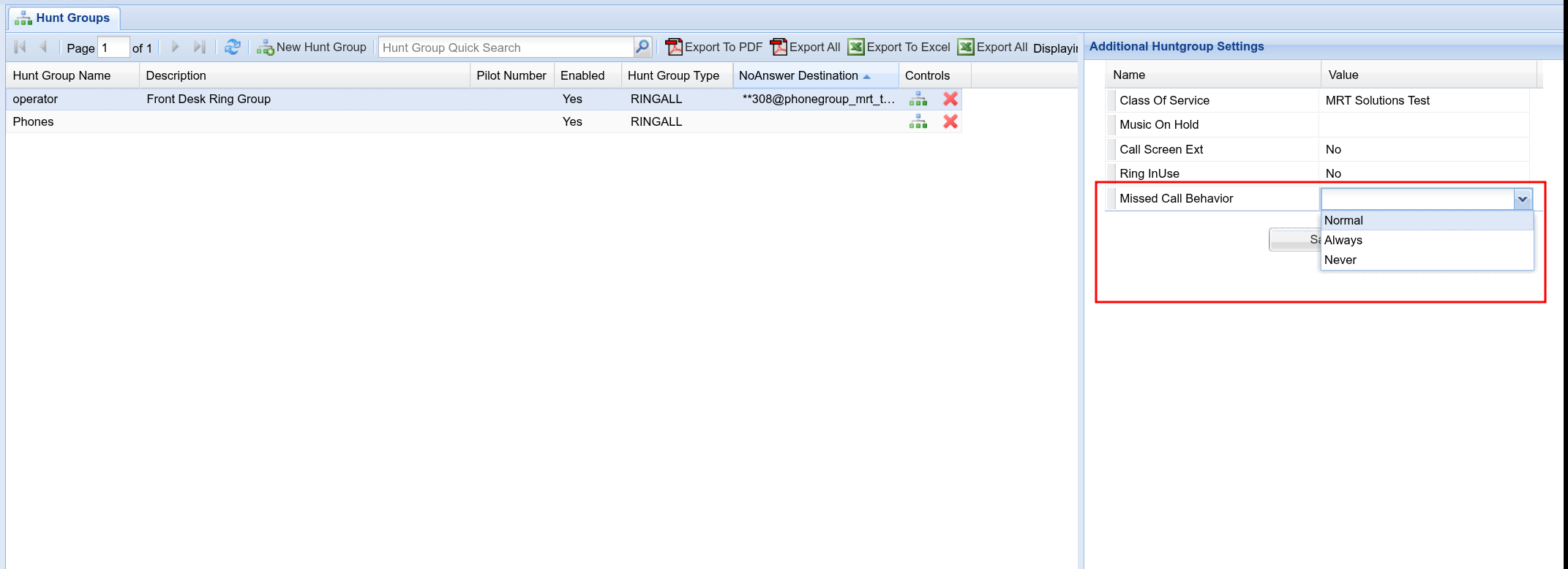
####   
  
2025 - September 8 - Update 3

- **Device Registrations** 'There is now an <span style="text-decoration: underline;">All</span> view for showing device registrations across all phones  
      
    [![image.png](https://doc.intellasoft.net/uploads/images/gallery/2025-09/scaled-1680-/gA7image.png)](https://doc.intellasoft.net/uploads/images/gallery/2025-09/gA7image.png)
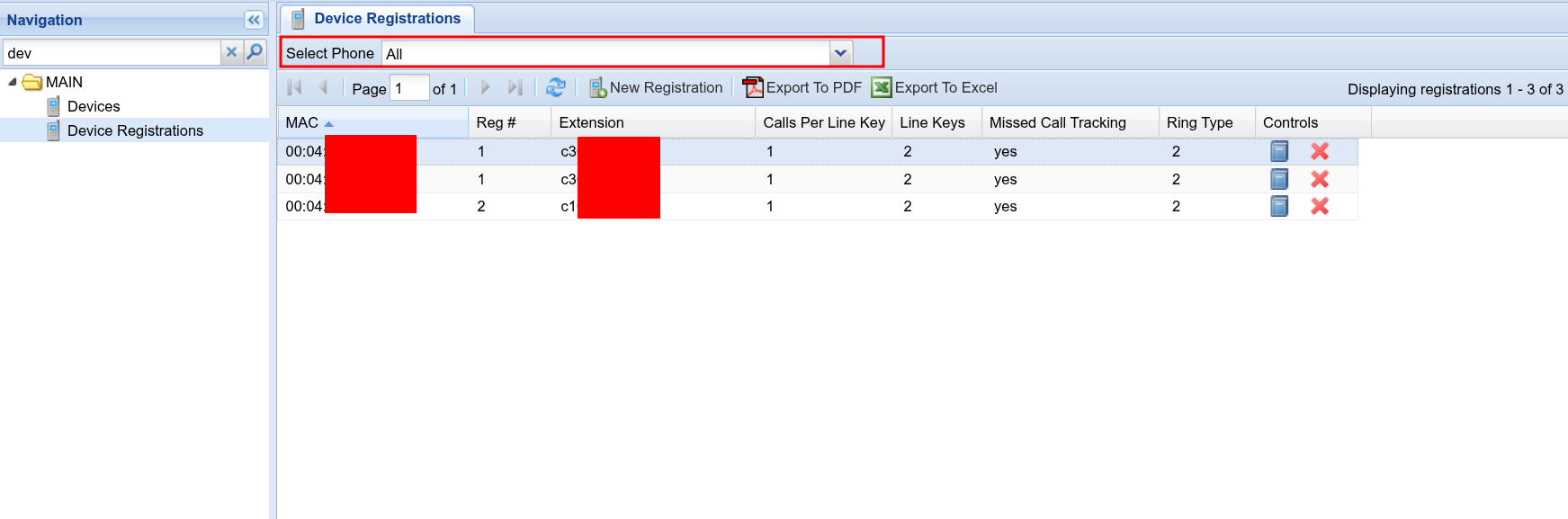
####   
2025- September 8 - Update 2  


- **Extensions** 'Additional Extension Settings' has changed to be easier to manage on smaller screens

#### [![2025-09-08_15-34.png](https://doc.intellasoft.net/uploads/images/gallery/2025-09/scaled-1680-/2025-09-08-15-34.png)](https://doc.intellasoft.net/uploads/images/gallery/2025-09/2025-09-08-15-34.png)  
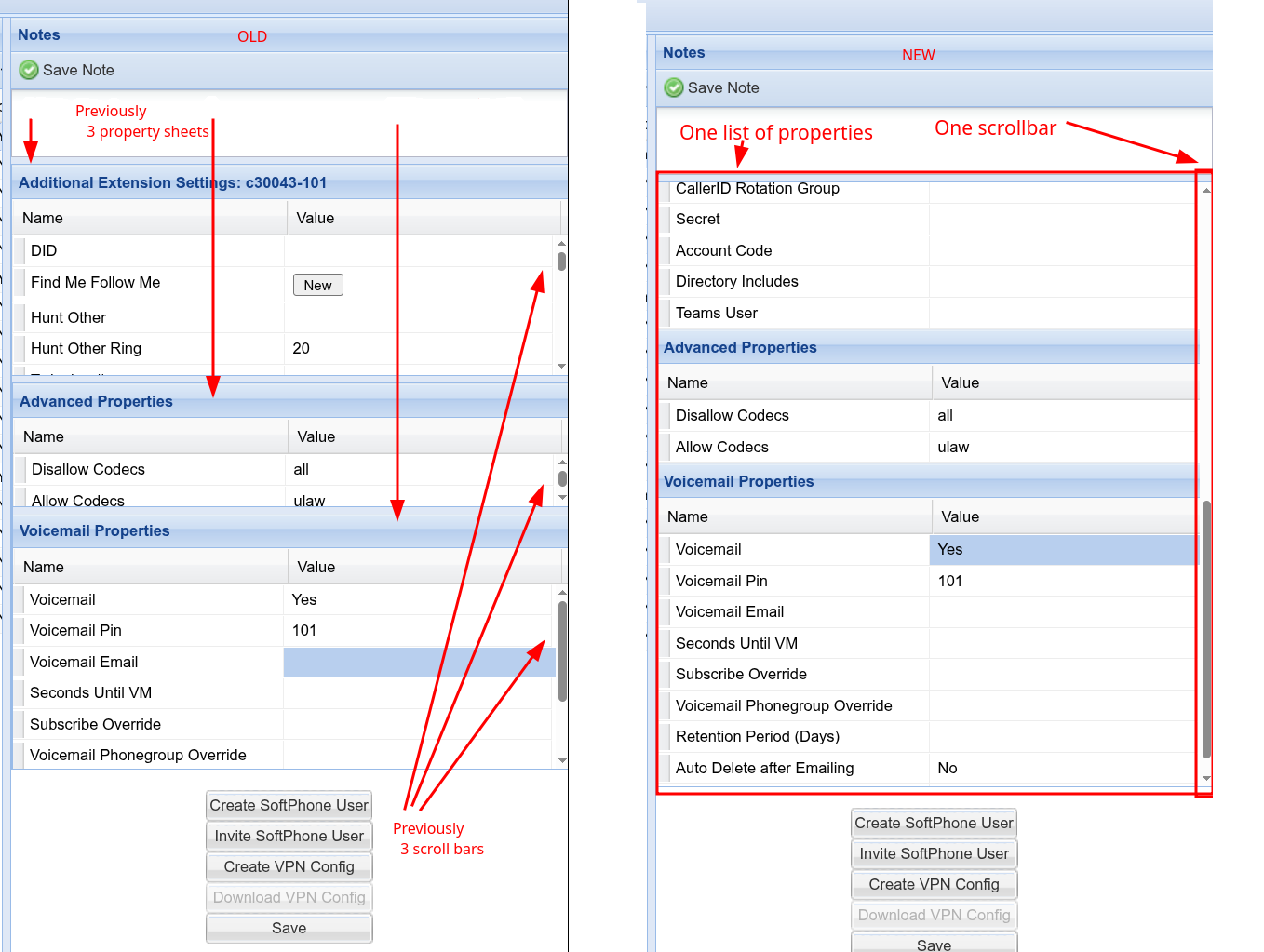
  
  
2025 - September - Update 1

- **IVR/Blockly: New Feature: If Time**
- **IVR/Blockly: New Feature: Set Test Time**
- Example Usages 
    - - You can now do checks like: July 4... and the system does NOT care about a SPECIFIC calendar date. it will check for July 4 for any year
    - - 8:00-9:00 -- This will check if it's ANY DAY between 8 and 9 am. Make sure to use 24h times.
    - - 8:00-14:00 -- This will check if it's between 8am and 2pm for any day
    - You can mix and match: 
        - Example: 8:00-14:00 DayOfWeek: 1 -- This will check for 8a-2pm Mondays
        - You can use numeric days of week or named days of week, like 'mon/tue/wed'.
        - You can use ranges like: tue-wed
        - You can use day ranges, like 10-20 (10th of the month to the 20th of the month)

Below are some examples

[![image.png](https://doc.intellasoft.net/uploads/images/gallery/2025-09/scaled-1680-/image.png)](https://doc.intellasoft.net/uploads/images/gallery/2025-09/image.png)