# System Users

## Overview

The **System Users** screen is specifically meant for creating web portal accounts for **Users** to access and manage IntellaConference functions. Similar to the core Intellasoft **Users** screen, you will have the options for adding individual users and the ability to manage their permissions within the IntellaConference web portal.

## Adding a New System User

1\) Navigate to the **System Users** screen

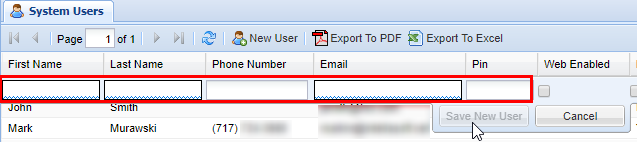
2\) Click the **New User** button. The table below represents the available settings for creating a new **User**. The permission options will be covered in a later step. (\* Indicates a required field)

<table border="1" id="bkmrk-field-type-descripti" style="border-collapse: collapse; width: 100%; height: 212.4px;"><colgroup><col style="width: 17.5518%;"></col><col style="width: 18.2067%;"></col><col style="width: 64.2374%;"></col></colgroup><tbody><tr style="height: 29.8px;"><td style="width: 17.5743%; height: 29.8px;">**Field**  
</td><td style="width: 22.5248%; height: 29.8px;">**Type**  
</td><td style="width: 46.7822%; height: 29.8px;">**Description**  
</td></tr><tr style="height: 29.8px;"><td class="confluenceTd" style="width: 17.5743%; height: 29.8px;">First Name\*</td><td class="confluenceTd" style="width: 22.5248%; height: 29.8px;">Field</td><td class="confluenceTd" style="width: 46.7822%; height: 29.8px;">First name of User</td></tr><tr style="height: 29.8px;"><td class="confluenceTd" style="width: 17.5743%; height: 29.8px;">Last Name\*</td><td class="confluenceTd" style="width: 22.5248%; height: 29.8px;">Field</td><td class="confluenceTd" style="width: 46.7822%; height: 29.8px;">Last name of User</td></tr><tr style="height: 29.8px;"><td class="confluenceTd" style="width: 17.5743%; height: 29.8px;">Email\*</td><td class="confluenceTd" style="width: 22.5248%; height: 29.8px;">Field</td><td class="confluenceTd" style="width: 46.7822%; height: 29.8px;">Email address of the user (for logging in)</td></tr><tr style="height: 46.6px;"><td class="confluenceTd" style="width: 17.5743%; height: 46.6px;">Phone Number</td><td class="confluenceTd" style="width: 22.5248%; height: 46.6px;">Phone Number #</td><td class="confluenceTd" style="width: 46.7822%; height: 46.6px;">User's phone number (direct line, cell phone, etc.)</td></tr><tr style="height: 46.6px;"><td class="confluenceTd" style="width: 17.5743%; height: 46.6px;">Pin</td><td class="confluenceTd" style="width: 22.5248%; height: 46.6px;">Numerical</td><td class="confluenceTd" style="width: 46.7822%; height: 46.6px;">Always recommended; pin number to login into web portal</td></tr></tbody></table>

3\) Once you have entered the required options, click the **Save New User** button. You will see a message stating **Changes Saved.**

<div class="sectionColumnWrapper conf-macro output-block" data-hasbody="true" data-macro-name="section" id="bkmrk-"><div class="sectionMacro"><div class="sectionMacroRow"><div class="columnMacro conf-macro output-block" data-hasbody="true" data-macro-name="column" style="width: 606px; min-width: 606px; max-width: 606px;"></div></div></div></div><p class="callout info">Note: The screenshot below is from a demo system so the full phone number and email have been blurred out for privacy reasons.</p>

[![image.png](https://public.intellasoft.net/uploads/images/gallery/2024-08/scaled-1680-/ZXJimage.png)](https://public.intellasoft.net/uploads/images/gallery/2024-08/ZXJimage.png)

4\) Next, set the permissions for the **User** in question. The individual permissions are defined in the table below.

5\) Once you have set the desired permission for a user click the button labeled **Save New User,** you will see a message stating **Changes Saved**, indicating the user has been successfully saved. If you need to edit a **User's** setting click on the entry from the editor to make changes accordingly.

<table border="1" id="bkmrk-permission-descripti" style="border-collapse: collapse; width: 100%;"><colgroup><col style="width: 16.9754%;"></col><col style="width: 83.1482%;"></col></colgroup><thead><tr><td>Permission  
</td><td>Description  
</td></tr></thead><tbody><tr><td class="confluenceTd">Web Enabled</td><td class="confluenceTd">Check for the user to have access to the web portal (this in the majority of cases should be checked).</td></tr><tr><td class="confluenceTd">Manager</td><td class="confluenceTd">Can only edit pre-existing conferences.</td></tr><tr><td class="confluenceTd">Admin</td><td class="confluenceTd">Access to all elements of the IntellaConference web portal such as creating contacts, creating and modifying conferences.</td></tr><tr><td class="confluenceTd">Access Users</td><td class="confluenceTd">Has access to the users screen and is able to make changes.</td></tr><tr><td class="confluenceTd">Create Recur</td><td class="confluenceTd">User has ability to create recurring conference bridges.</td></tr></tbody></table>

<div class="wiki-content" id="bkmrk-web-enabled-check-fo"><div class="contentLayout2"><div class="columnLayout single" data-layout="single"><div class="cell normal" data-type="normal"><div class="innerCell"><div class="panel conf-macro output-block" data-hasbody="true" data-macro-name="panel" style="border-width: 1px;"><div class="panelContent"><div class="sectionColumnWrapper conf-macro output-block" data-hasbody="true" data-macro-name="section"><div class="sectionMacro"><div class="sectionMacroRow"></div></div></div></div></div></div></div></div></div></div>[![image.png](https://public.intellasoft.net/uploads/images/gallery/2024-08/scaled-1680-/VqAimage.png)](https://public.intellasoft.net/uploads/images/gallery/2024-08/VqAimage.png)

<p class="callout info">Note: You must have the required settings entered to be able to save, additionally it should also be noted that each user must have their own unique PIN.</p>

## Removing a System User

To remove a web portal **User** click on the red **X** under the delete column corresponding to the **User** you wish to delete. A confirmation pop-up will appear confirming that this is the **User** you wish to delete, click **OK**. You will see a message stating **Changes Saved.** <span class="confluence-embedded-file-wrapper confluence-embedded-manual-size">![](https://public.intellasoft.net/download/attachments/8031566/image2017-9-7_12-49-0.png?version=1&modificationDate=1504802938614&api=v2)</span>

[![image.png](https://public.intellasoft.net/uploads/images/gallery/2024-08/scaled-1680-/5xVimage.png)](https://public.intellasoft.net/uploads/images/gallery/2024-08/5xVimage.png)