# Linphone Mobile - Users Guide

## Overview

This guide will assume you already have Linphone 4.0 installed and can launch it successfully.

## Making a Call

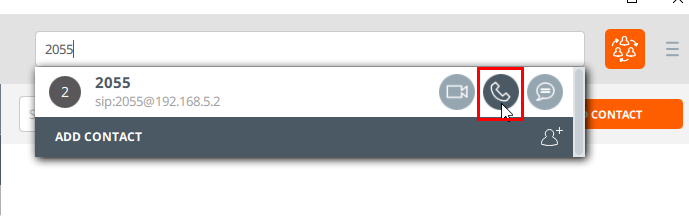
1\) Start by tapping the box at the top of the application. We call this the 'Dial' box.

[![image.png](https://public.intellasoft.net/uploads/images/gallery/2024-08/scaled-1680-/ZIBimage.png)](https://public.intellasoft.net/uploads/images/gallery/2024-08/ZIBimage.png)
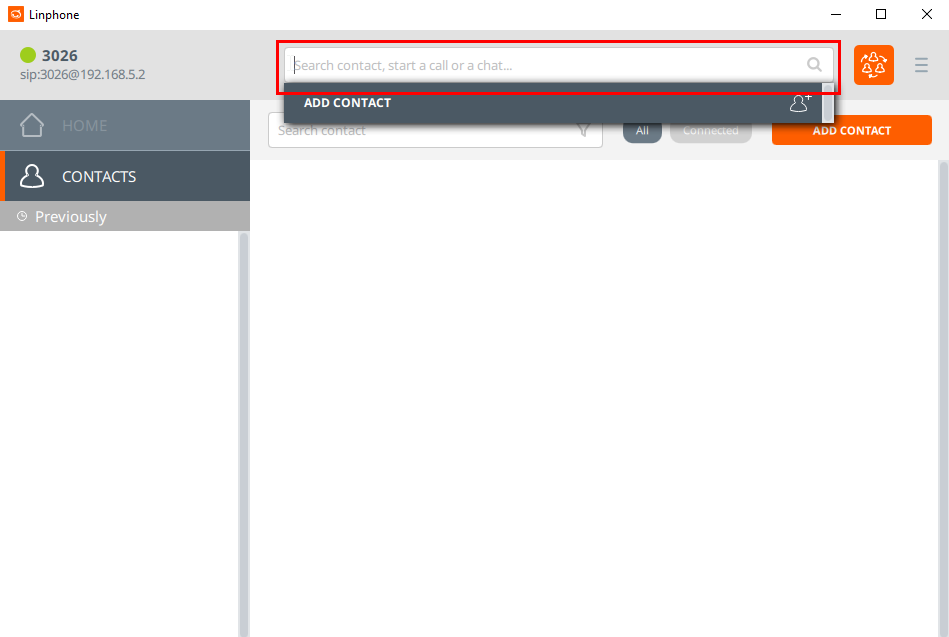
\- Type the contact number you are calling.

\- **Or** if you already have a contact in your list, tap the contact's name.

**Finally**: tap the call button located in the middle of the three button to start dialing.

<span class="confluence-embedded-file-wrapper confluence-embedded-manual-size">![](https://public.intellasoft.net/download/attachments/38928654/2%20-%20click%20call%20button.png?version=1&modificationDate=1584984065675&api=v2)</span>

[![image.png](https://public.intellasoft.net/uploads/images/gallery/2024-08/scaled-1680-/eUGimage.png)](https://public.intellasoft.net/uploads/images/gallery/2024-08/eUGimage.png)

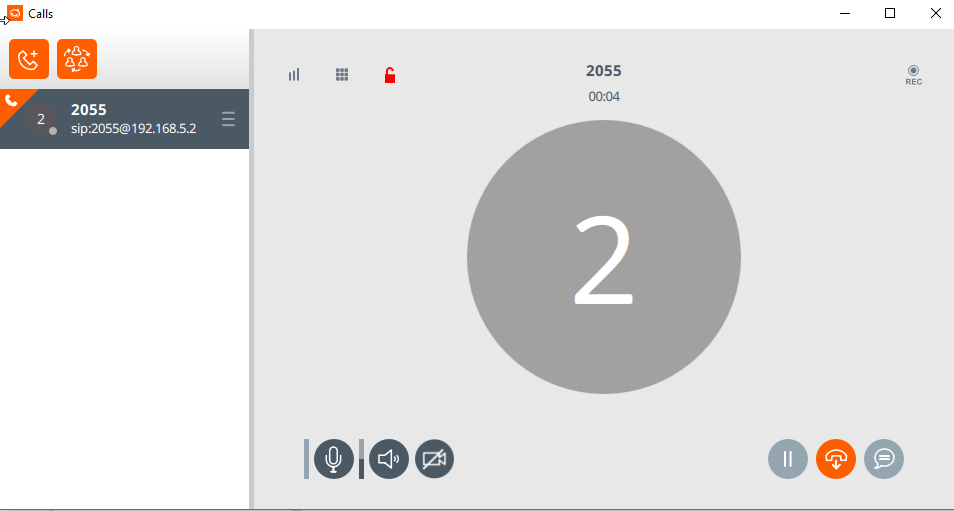
Here is what a connected call looks like.

<span class="confluence-embedded-file-wrapper confluence-embedded-manual-size">![](https://public.intellasoft.net/download/attachments/38928654/3%20-%20what%20it%20looks%20like.png?version=1&modificationDate=1584984065671&api=v2)</span>

[![image.png](https://public.intellasoft.net/uploads/images/gallery/2024-08/scaled-1680-/v0rimage.png)](https://public.intellasoft.net/uploads/images/gallery/2024-08/v0rimage.png)

To end your call: Press the middle 'hangup' button at the bottom right corner.

<span class="confluence-embedded-file-wrapper confluence-embedded-manual-size">![](https://public.intellasoft.net/download/attachments/38928654/4%20-%20end%20call.png?version=1&modificationDate=1584984065667&api=v2)</span>

[![image.png](https://public.intellasoft.net/uploads/images/gallery/2024-08/scaled-1680-/Mxfimage.png)](https://public.intellasoft.net/uploads/images/gallery/2024-08/Mxfimage.png)

## Number-Pad

[![image.png](https://public.intellasoft.net/uploads/images/gallery/2024-08/scaled-1680-/cAOimage.png)](https://public.intellasoft.net/uploads/images/gallery/2024-08/cAOimage.png)
<span class="confluence-embedded-file-wrapper confluence-embedded-manual-size">![](https://public.intellasoft.net/download/attachments/38928654/5%20-%20open%20dialpad.png?version=1&modificationDate=1584984065662&api=v2)</span>

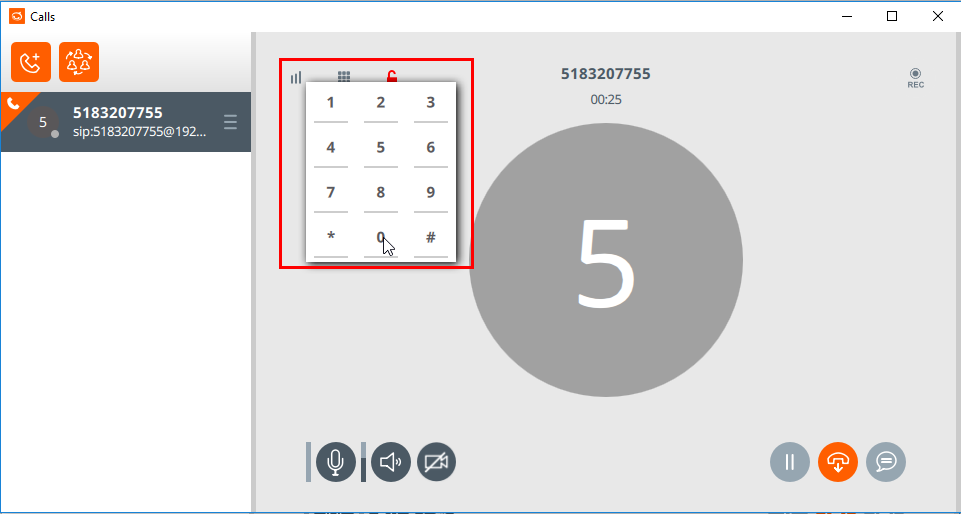
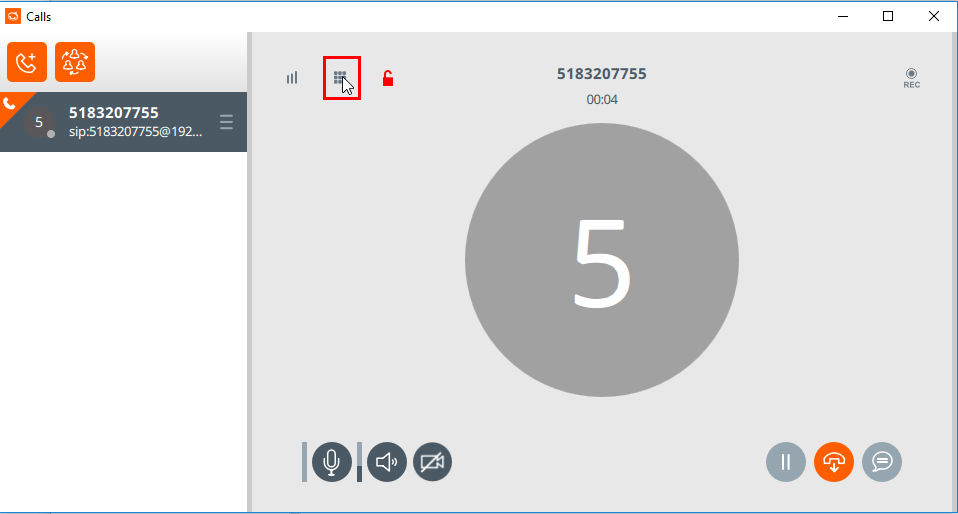
From here you can enter the number to be called.

<span class="confluence-embedded-file-wrapper confluence-embedded-manual-size">![](https://public.intellasoft.net/download/attachments/38928654/6%20-%20dialpad%20selection.png?version=1&modificationDate=1584984065657&api=v2)</span>

[![image.png](https://public.intellasoft.net/uploads/images/gallery/2024-08/scaled-1680-/cmsimage.png)](https://public.intellasoft.net/uploads/images/gallery/2024-08/cmsimage.png)

## Receiving a Call

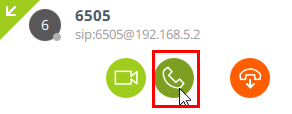
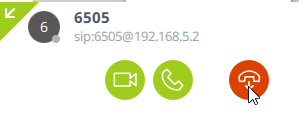
When receiving a call you will see a notification at the bottom right hand side of the screen. Press the middle button to the accept the call.

[![image.png](https://public.intellasoft.net/uploads/images/gallery/2024-08/scaled-1680-/c0Jimage.png)](https://public.intellasoft.net/uploads/images/gallery/2024-08/c0Jimage.png)
<span class="confluence-embedded-file-wrapper confluence-embedded-manual-size">  
</span>

Or click the right-most button to reject the call.

[![image.png](https://public.intellasoft.net/uploads/images/gallery/2024-08/scaled-1680-/LdOimage.png)](https://public.intellasoft.net/uploads/images/gallery/2024-08/LdOimage.png)
<span class="confluence-embedded-file-wrapper confluence-embedded-manual-size">  
</span>

# Conference Calls

Below are a couple examples for initiating a conference call.

## While on a Call

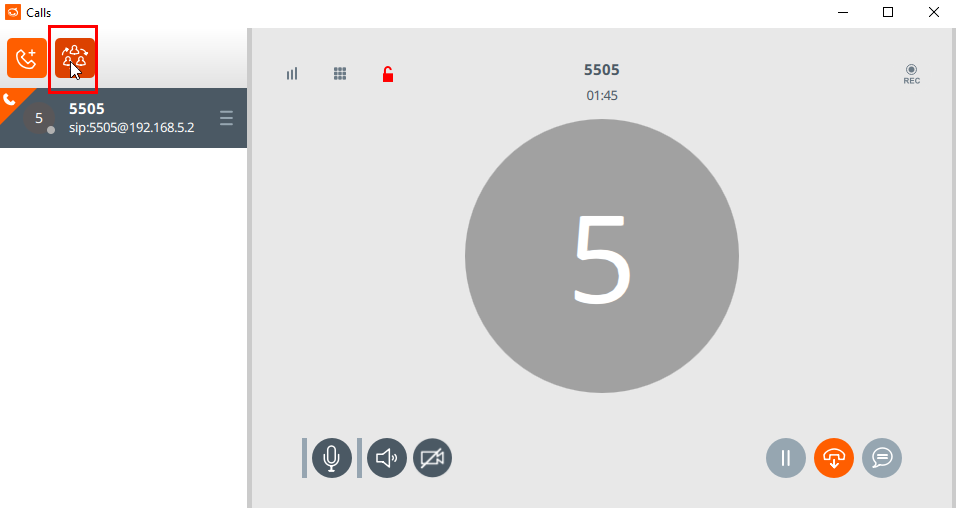
If you are already on a call press the right hand button under the 'Calls' section.

[![image.png](https://public.intellasoft.net/uploads/images/gallery/2024-08/scaled-1680-/Q9dimage.png)](https://public.intellasoft.net/uploads/images/gallery/2024-08/Q9dimage.png)
<span class="confluence-embedded-file-wrapper confluence-embedded-manual-size">![](https://public.intellasoft.net/download/attachments/38928654/1%20-%20click%20button.png?version=1&modificationDate=1584984065646&api=v2)</span>

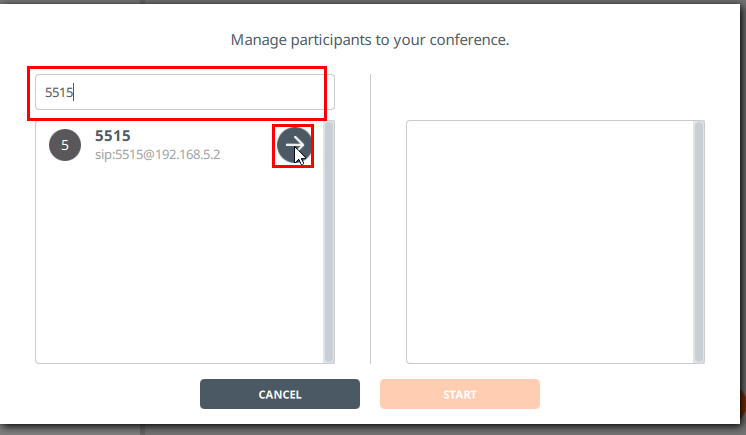
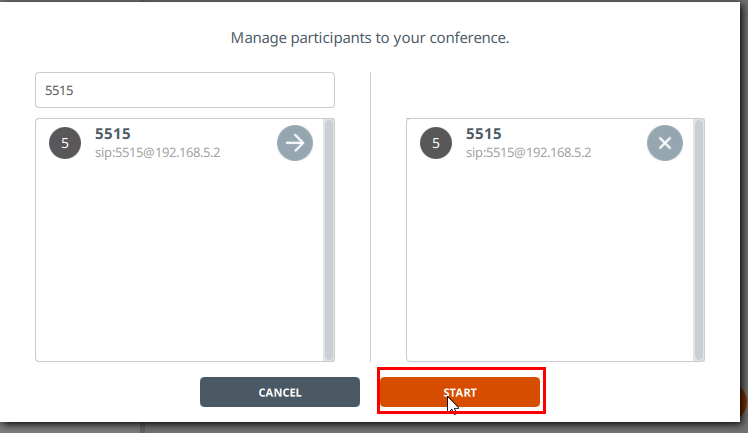
From here you can select or type the contacts/numbers you are wanting to invite to join.

For Example: Co-worker at extension 5515 needs to join this call.

<span class="confluence-embedded-file-wrapper confluence-embedded-manual-size">![](https://public.intellasoft.net/download/attachments/38928654/2%20-%20add%20participants.png?version=1&modificationDate=1584984065643&api=v2)</span>

[![image.png](https://public.intellasoft.net/uploads/images/gallery/2024-08/scaled-1680-/Xe1image.png)](https://public.intellasoft.net/uploads/images/gallery/2024-08/Xe1image.png)

When done entering the number to be called, click 'start',

\- The number dialed will now ring.

\- Once the dialed party picks up, they will be on the call with you AND the original party that was on the line.

[![image.png](https://public.intellasoft.net/uploads/images/gallery/2024-08/scaled-1680-/cwqimage.png)](https://public.intellasoft.net/uploads/images/gallery/2024-08/cwqimage.png)
## Starting a Conference Call

From scratch:

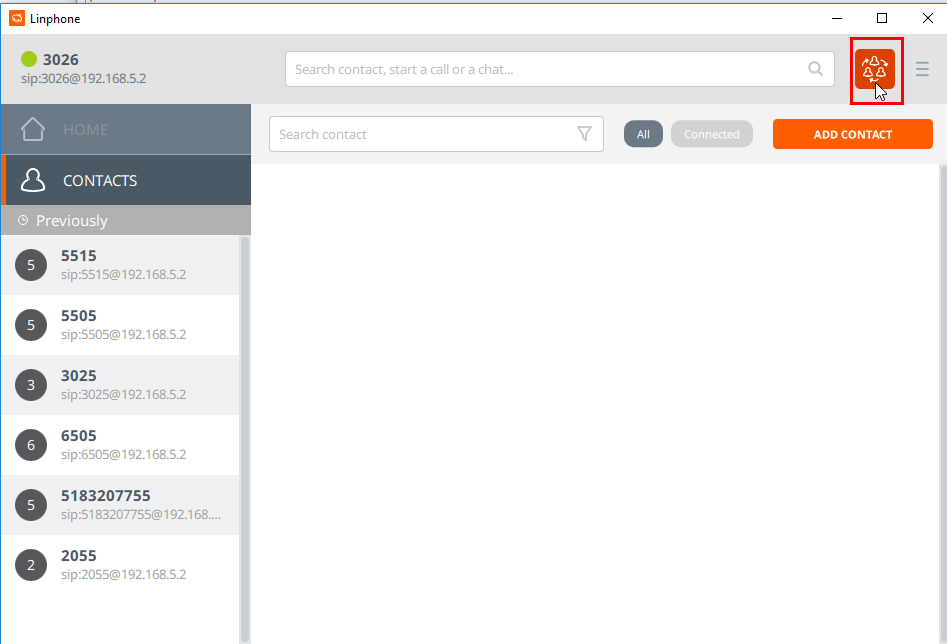
If there are no calls in progress, click the conference icon on the top right as shown here.

<span class="confluence-embedded-file-wrapper confluence-embedded-manual-size">![](https://public.intellasoft.net/download/attachments/38928654/1%20-%20click%20conf%20call%20button.png?version=1&modificationDate=1584984065633&api=v2)</span>

[![image.png](https://public.intellasoft.net/uploads/images/gallery/2024-08/scaled-1680-/c9kimage.png)](https://public.intellasoft.net/uploads/images/gallery/2024-08/c9kimage.png)

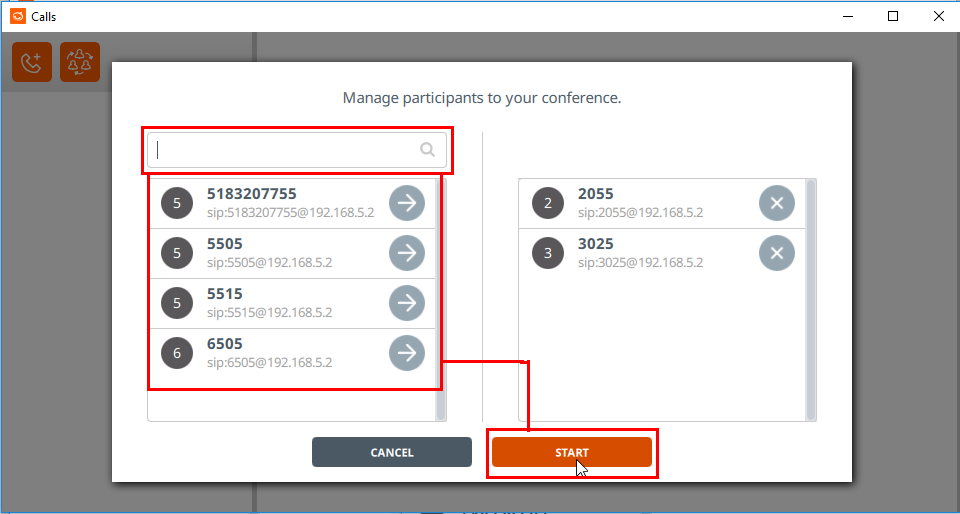
\- Select contacts from the list or type in extensions/phone numbers to call.

\- When done, click 'start',

\- All parties who answer the call will be joined into the conference.

[![image.png](https://public.intellasoft.net/uploads/images/gallery/2024-08/scaled-1680-/PTGimage.png)](https://public.intellasoft.net/uploads/images/gallery/2024-08/PTGimage.png)
<span class="confluence-embedded-file-wrapper confluence-embedded-manual-size">![](https://public.intellasoft.net/download/attachments/38928654/image2017-7-18_13-40-15.png?version=1&modificationDate=1584984065626&api=v2)</span>

# Transferring Calls

Currently the only option is a 'blind transfer'.

\- When a transfer completes, the call will disconnect, and the original party will now be talking to whom it was transferred to

[![image.png](https://public.intellasoft.net/uploads/images/gallery/2024-08/scaled-1680-/QGfimage.png)](https://public.intellasoft.net/uploads/images/gallery/2024-08/QGfimage.png)
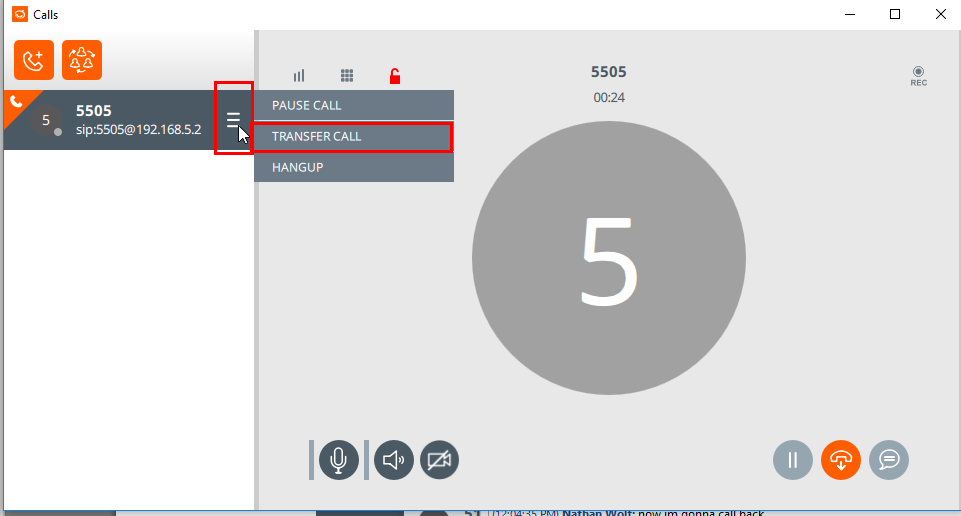
Start by clicking 'Triple Bar' button on the right hand side under 'Calls'.

\- A menu will be appear beside it. Use the **TRANSFER CALL** option.

<span class="confluence-embedded-file-wrapper confluence-embedded-manual-size">![](https://public.intellasoft.net/download/attachments/38928654/1%20-%20click%20trasnfer%20buttons.png?version=1&modificationDate=1584984065547&api=v2)</span>

\- From here you can find the contact you wish them to transfer to.

\- Or, enter the extension or phone number of the intended transfer

\- Upon clicking the 'Transfer Arrow', your call will disconnect and will be sent to the new party.

<span class="confluence-embedded-file-wrapper confluence-embedded-manual-size">![](https://public.intellasoft.net/download/thumbnails/38928654/2%20-%20enter%20trasnf%20%23%20then%20press%20arrow.png?version=1&modificationDate=1584984065517&api=v2)</span>

<div class="pageSection group" id="bkmrk--32"><div class="bottom-comment-panels comment-panels"><div class="quick-comment-container comment add"><div class="quick-comment-body"><div id="bkmrk--33"></div><div id="bkmrk--34"></div><form action="/pages/doaddcomment.action?pageId=38928654" class="quick-comment-form aui" method="post" name="inlinecommentform" style="display: block;">[![image.png](https://public.intellasoft.net/uploads/images/gallery/2024-08/scaled-1680-/AOnimage.png)](https://public.intellasoft.net/uploads/images/gallery/2024-08/AOnimage.png)

</form></div></div></div></div>