# Linphone Mobile - Installation Guide

1\) Navigate to the App Store / Play Store

2\) Locate and install the application: Linphone - By Belledonne communications

[![image.png](https://public.intellasoft.net/uploads/images/gallery/2024-08/scaled-1680-/M6ximage.png)](https://public.intellasoft.net/uploads/images/gallery/2024-08/M6ximage.png)

3\) From the Linphone main screen, click "Use a SIP ACCOUNT"

[![image.png](https://public.intellasoft.net/uploads/images/gallery/2024-08/scaled-1680-/s99image.png)](https://public.intellasoft.net/uploads/images/gallery/2024-08/s99image.png)

4\) Fill out all the fields

<table border="1" id="bkmrk-username-extension-n" style="border-collapse: collapse; width: 100%;"><colgroup><col style="width: 12.4075%;"></col><col style="width: 87.7161%;"></col></colgroup><tbody><tr><td>Username  
</td><td>This is the extension of the phone</td></tr><tr><td>Password</td><td>Secret token for this extension.

<p class="callout info">This is a secure, machine-generated password, it is highly recommended to copy and paste this password, rather than typing it manually to avoid errors.</p>

<p class="callout info">Incorrect passwords will result in the Phone being blocked from the voice communications server for up to 15 minutes</p>

</td></tr><tr><td>Domain  
</td><td>This is the Server Hostname or IP Address of the Communications Platform</td></tr><tr><td>Transport</td><td>Unless otherwise instructed, set to 'UDP'</td></tr></tbody></table>

[![image.png](https://public.intellasoft.net/uploads/images/gallery/2024-08/scaled-1680-/xnOimage.png)](https://public.intellasoft.net/uploads/images/gallery/2024-08/xnOimage.png)

5\) If the Domain, Username and Password combination are correct, you will next see a dialpad with a green circle at the top left. This indicates the application is connected.

[![image.png](https://public.intellasoft.net/uploads/images/gallery/2024-08/scaled-1680-/yVdimage.png)](https://public.intellasoft.net/uploads/images/gallery/2024-08/yVdimage.png)

## Setting up an SBC

<p class="callout info">If you are not using an SBC, skip steps 6-8</p>

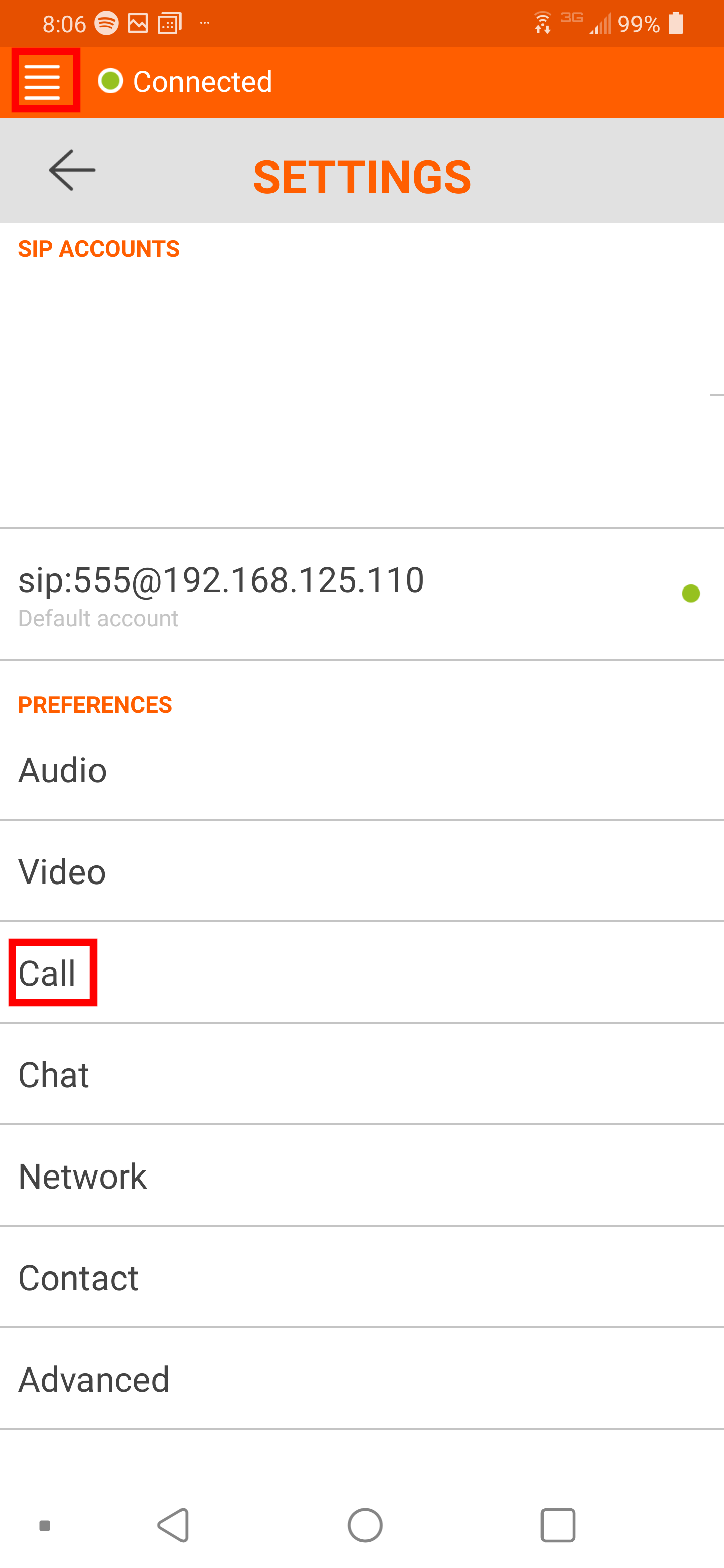
<table border="1" class="wrapped confluenceTable" id="bkmrk-if-the-system-is-usi" style="width: 100%; height: 650.333px; border-collapse: collapse; border-color: rgb(236, 240, 241); border-width: 0px;"><colgroup><col style="width: 33.3333%;"></col><col style="width: 33.3333%;"></col><col style="width: 33.3333%;"></col></colgroup><tbody><tr style="height: 61.8px;"><th class="confluenceTh" colspan="1" style="height: 61.8px; border-color: rgb(236, 240, 241); border-width: 0px;">6\) Click the top left corner 'Triple Bar' icon to open up the settings. Select 'Call'

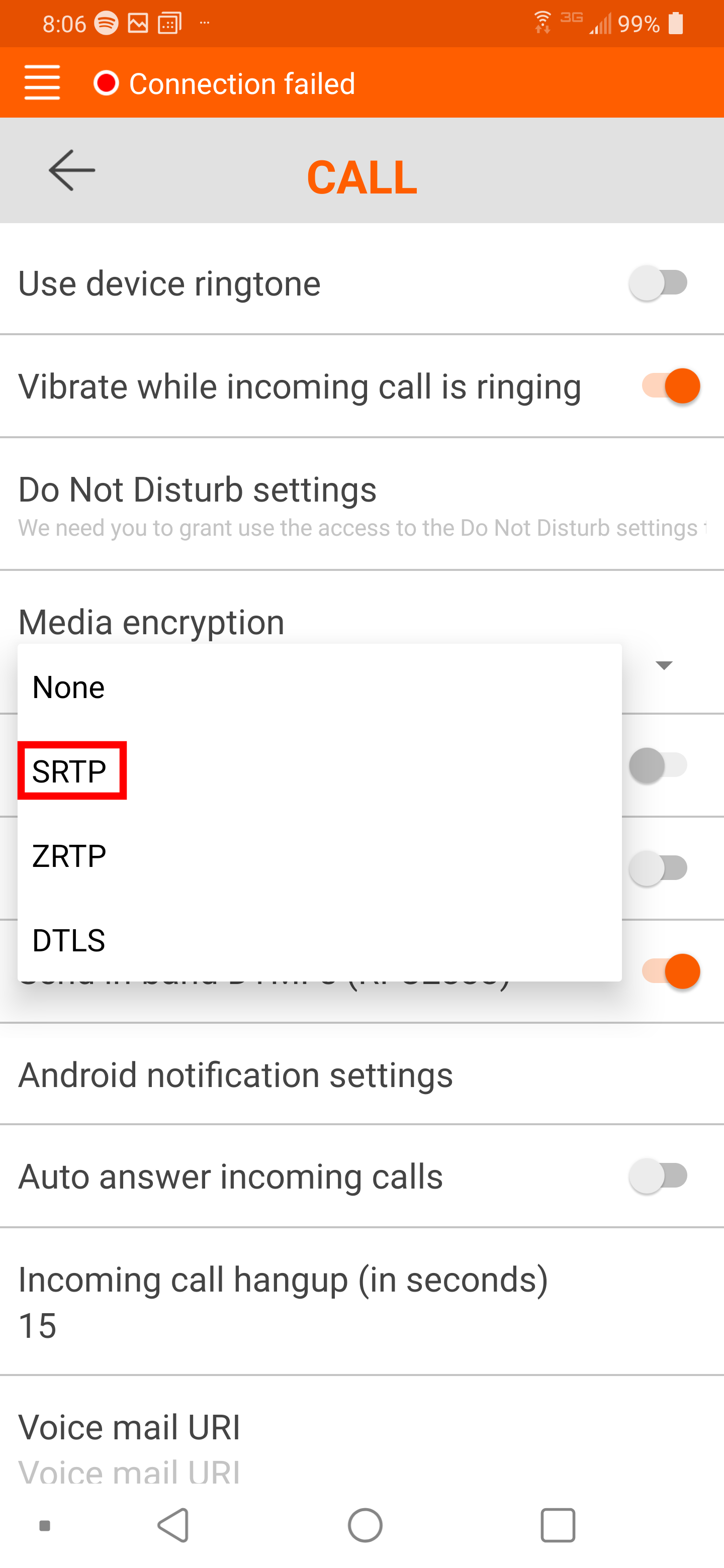
</th><th class="confluenceTh" style="height: 61.8px; border-color: rgb(236, 240, 241); border-width: 0px;">7\) Select 'Media encryption'. Select 'SRTP'

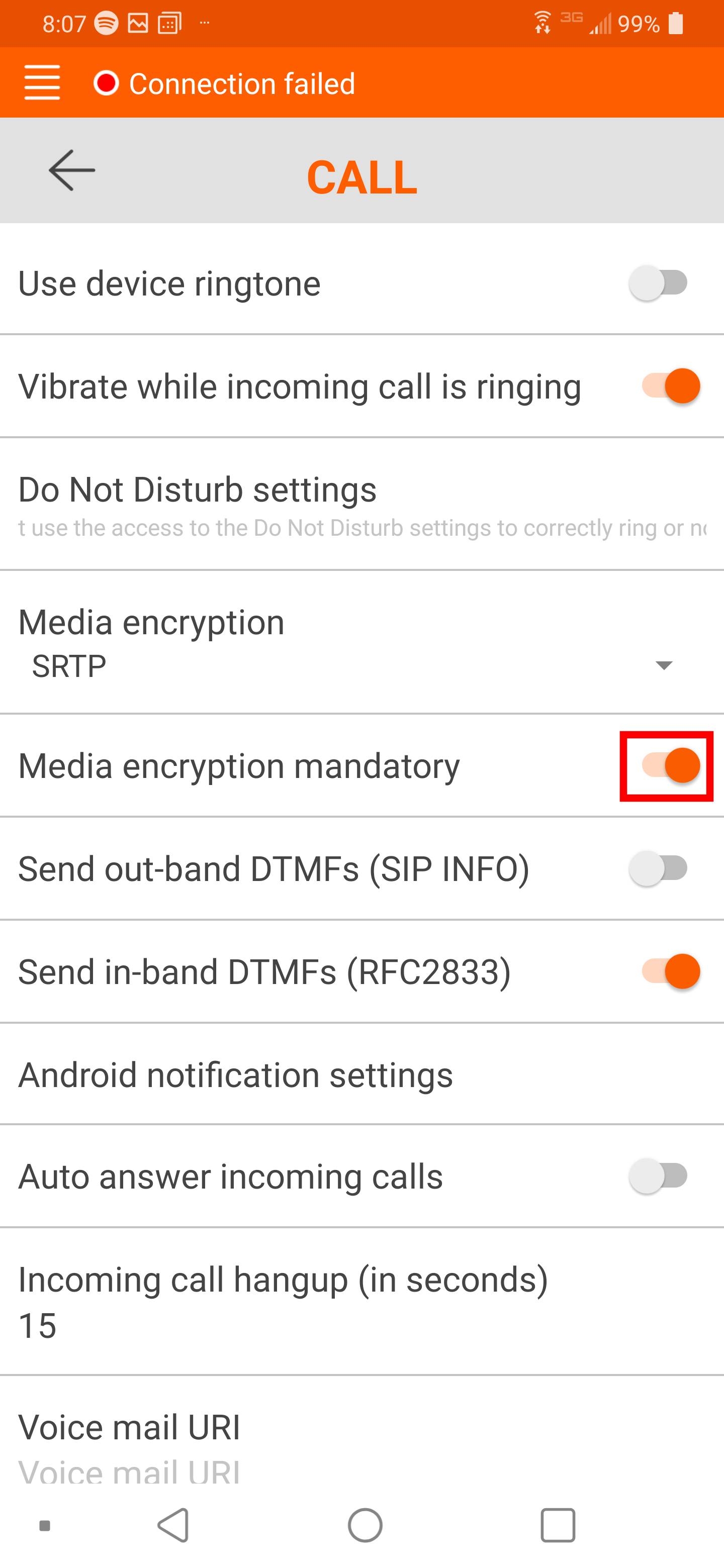
</th><th class="confluenceTh" style="height: 61.8px; border-color: rgb(236, 240, 241); border-width: 0px;">8\) Enable 'Media encryption mandatory'

</th></tr><tr style="height: 588.533px;"><td class="confluenceTd" colspan="1" style="height: 588.533px; border-color: rgb(236, 240, 241); border-width: 0px;">[![image.png](https://public.intellasoft.net/uploads/images/gallery/2024-08/scaled-1680-/N08image.png)](https://public.intellasoft.net/uploads/images/gallery/2024-08/N08image.png)

</td><td class="confluenceTd" style="height: 588.533px; border-color: rgb(236, 240, 241); border-width: 0px;">[![image.png](https://public.intellasoft.net/uploads/images/gallery/2024-08/scaled-1680-/CWBimage.png)](https://public.intellasoft.net/uploads/images/gallery/2024-08/CWBimage.png)

</td><td class="confluenceTd" style="height: 588.533px; border-color: rgb(236, 240, 241); border-width: 0px;">[![image.png](https://public.intellasoft.net/uploads/images/gallery/2024-08/scaled-1680-/V9simage.png)](https://public.intellasoft.net/uploads/images/gallery/2024-08/V9simage.png)

</td></tr></tbody></table>